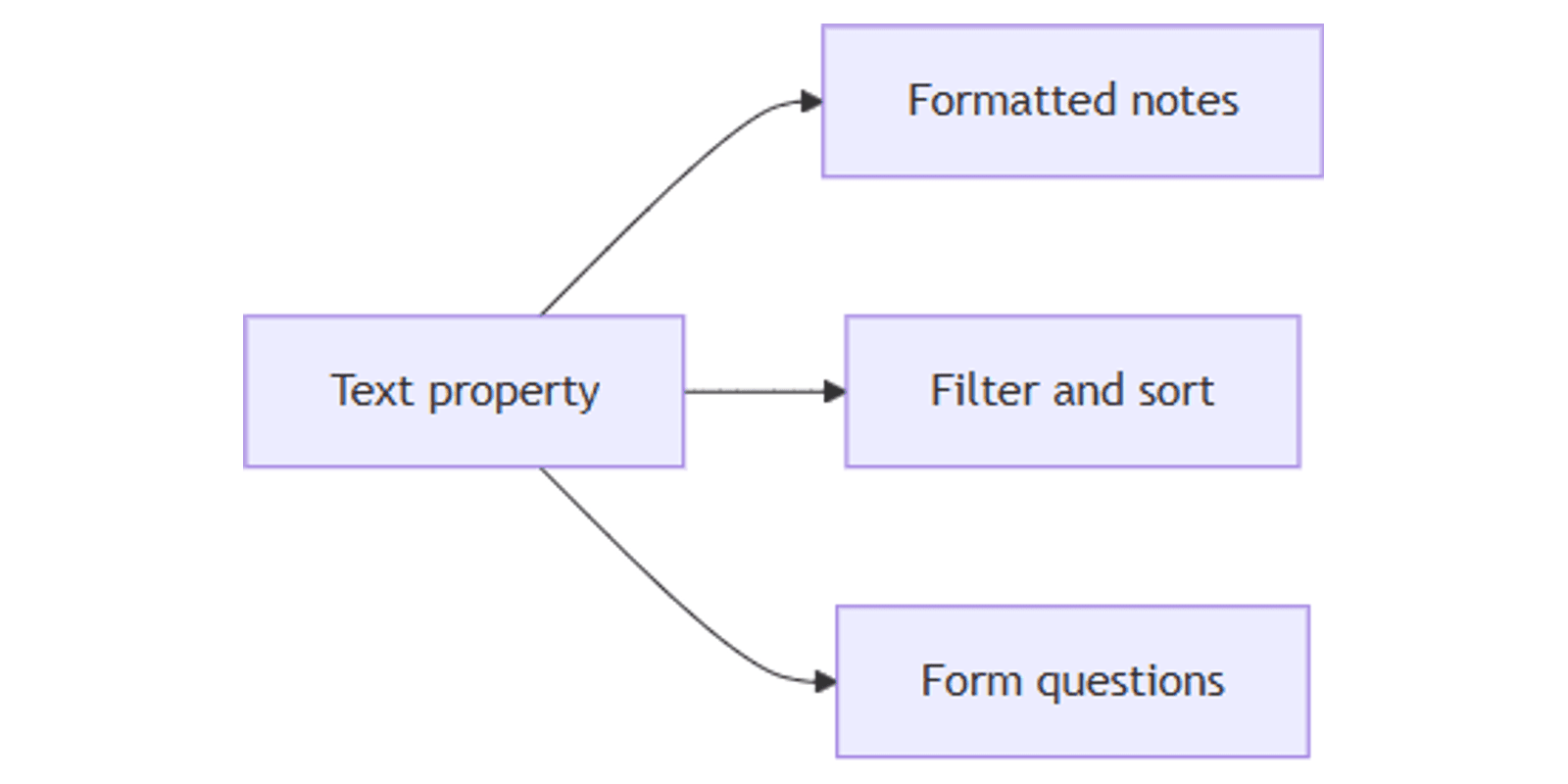
Notion Text Property: Add Formatted Notes to Database Rows
Notion Text properties store formatted notes on a database row - summaries, descriptions, and short context that should stay visible as a field, not only inside the page body. Ideal when you need searchable snippets next to Status or Select.
This guide covers how to add a Text property, when to use Text vs Title vs URL, Wrap content, and filter tips, plus form mapping. See Notion database properties for the official description.
What is a Text property?
Text (rich text) is a database property for free-form, formattable content - bold, italics, links, and short paragraphs. Notion describes it as great for summaries, notes, and descriptions.
| Text | Title | URL | |
|---|---|---|---|
| Role | Extra notes / summary | Primary name of the row | Clickable web link |
| Required | Optional | Always present | Optional |
| Best for | One-line brief, context | What the item is | Destinations to open |
Use Title for the name. Use Text for supporting copy. Use URL / Email / Phone when the value should open a link, mail client, or call.
Do not store structured categories in Text if Select or Multi-select would filter better.
How to add a Text property
- Open a database.
- Click + next to the rightmost column (or Add property).
- Name the field (e.g. Summary, Notes, Description).
- Choose Text.
- Type or paste into a cell - format with the usual Notion text tools.
Wrap content in tables
Long Text can overflow. Open the property settings and enable Wrap content when you want cells to show multiple lines in Table view (property help).
Filter and sort Text
Text works with filters and sorts:
- Summary contains
urgent - Notes is empty - find rows missing a brief
- Sort alphabetically for cleanup passes
For “recently touched” activity, prefer Last edited time over stuffing dates into Text.
Text vs page body
| Need | Where to put it |
|---|---|
| One-line brief visible on cards/lists | Text property |
| Long brief, checklists, embeds | Page body |
| Attachments | Files & media |
| Structured labels | Select / Status / Multi-select |
Keep Text short enough to scan on a List or Board card.
Use with Notion Forms
Forms can collect Text as a free-text question that writes into the Text property (Forms guide). Use Text for open feedback; use Select for controlled choices.
Practical workflow examples
Task briefs
- Title = task name; Text = Acceptance criteria (one short paragraph).
- Status + Assignee (People).
- Board by Status; show Summary on cards.
Content calendar blurbs
- Text = social caption draft.
- Publish date as Date.
- Platforms as Multi-select.
Works with the Social Media Multi-Platform Content Planner.
CRM notes
- Text = last call summary.
- Email / Phone as contact fields (URL, Email, Phone).
- Filter Notes is empty for follow-up.
Works with the CRM Dashboard template.
Tips
- One purpose per Text field - Summary and Internal notes beat one mega Notes column.
- Link out with URL properties - do not paste long tracking URLs into Title.
- Mention people in the page body when you need notifications - see Notion mentions; People properties are better for assignment.
- Wrap content in Table when teammates need to read without opening the page.
FAQ
Can Notion Text properties be formatted?
Yes. Text supports formatting suitable for summaries and descriptions (Notion Help).
Should I put long documents in a Text property?
No. Keep Text short; put long writing in the page body or a related doc page.
Is Text the same as Title?
No. Title names the row and is required. Text is an optional extra field for notes.
Conclusion
Text properties keep short, formattable context on every row - add Summary or Notes, turn on Wrap content in tables, and filter empty fields. Pair with Select for categories and URL / Email / Phone for clickable contacts.
For formulas that build labeled text, see Formulas 2.0. For @ links and notifications, see Notion mentions.
Notion Templates
Start Selling Notion Templates - Start Now!