How to Use Canva Magic Resize: One Design, Every Size
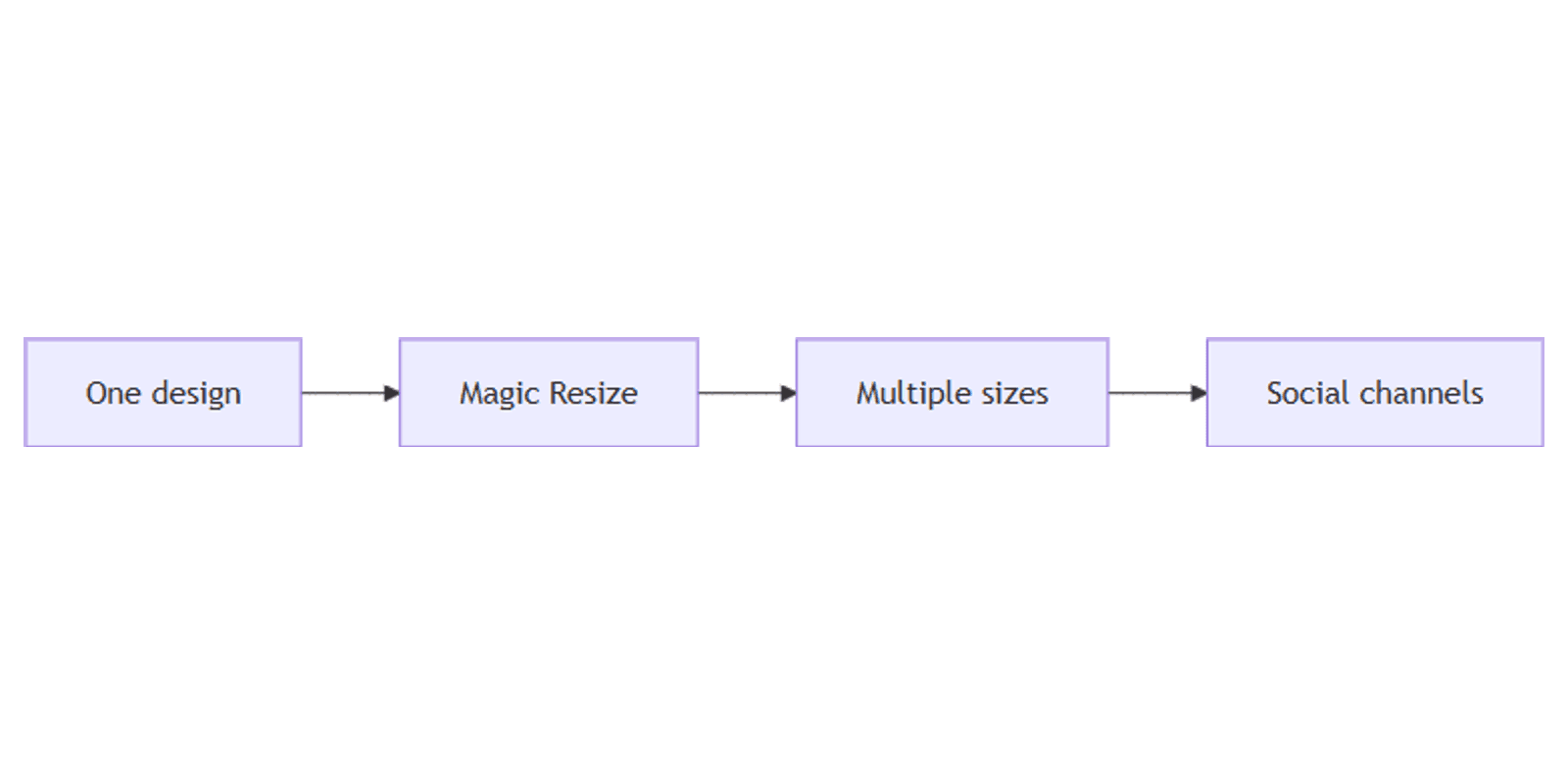
Canva Magic Resize turns one finished design into matching versions for Instagram, LinkedIn, X, Stories, and more - without rebuilding the layout from scratch. Ideal when your Brand Kit is set and you need the same message on every channel.
This guide covers how to use Magic Resize (Resize in the editor), Copy & resize vs resize in place, bundles, limits, and a multi-platform workflow. Details follow Canva's resize documentation.
What is Magic Resize?
Magic Resize resizes a design to other dimensions or platform presets. Canva’s help article covers it under Resize designs and size limits - in the editor the control is labeled Resize.
Who can use it: Pro, Business, Enterprise, Education, Higher education, Nonprofits, and Teams (Canva Help). It is not a Free-plan feature.
Note: each Magic Resize use counts against your monthly AI usage limit on eligible plans.
| Magic Resize | Manual custom size | |
|---|---|---|
| Speed | Multi-size in one pass | One canvas at a time |
| Layout | Auto-adjusts elements | You rebuild positions |
| Best for | Campaign batches | Pixel-perfect one-offs |
After resize, always spot-check text and logos - tall ↔ wide swaps often need a quick nudge.
How to resize a design
Desktop editor
- Open your design in Canva.
- From the editor menu bar, select Resize.
- Pick suggested sizes, Browse by category, or Custom size (lock/unlock aspect ratio as needed).
- You can select multiple sizes.
- Choose which pages to include (or all pages).
- Select Copy & resize or Resize this design.
Copy & resize keeps the original and saves copies in the same folder (multiple sizes go into a new folder - the confirmation message shows the name).
Resize this design changes the current file. On partner sites via the Canva Button, you may only be able to resize the current design (Canva Help).
Social bundles
Under Suggested, Canva may show bundles (e.g. vertical videos or your last selection):
- Open Resize.
- Select a bundle to see included formats.
- Check/uncheck formats you need.
- Copy & resize.
Resize a single page
- Select the page background or thumbnail.
- Floating toolbar → Edit → Resize.
- Pick a size or custom dimensions.
- Apply - only that page changes.
Size limits
From Canva Help:
| Limit | Value |
|---|---|
| Designs at once | Up to 50 |
| New sizes per design | Up to 5 |
| Total outputs per bulk action | Max 250 |
| Minimum custom size | 40 × 40 px |
| Maximum custom size | 8000 × 3125 px |
If custom fields turn red, you are outside the min/max. For oversize targets, Canva documents a scale-down workaround (lock aspect ratio, enter an in-limit side, download at higher scale).
Magic Resize and Canva Docs
If you are on Pro/Teams but cannot find Magic Resize, you may be in a Canva Doc. Magic Resize is not supported in Docs yet - use Magic Switch to turn a Doc into a presentation first, then resize (Canva Help).
Undo a direct resize
If you used Resize this design (not a copy):
- File → Version history.
- Pick an autosaved version.
- Restore or Make a copy.
Practical multi-channel workflow
- Design the master at your hardest size (often Instagram 1080×1350 or a square brand template).
- Apply Brand Kit colors/fonts/logos.
- Copy & resize to:
- LinkedIn 1080×1080 or 1080×1350
- X / Twitter 1200×675
- Pinterest 1000×1500
- Instagram Stories 1080×1920
- TikTok / Reels 1080×1920
- Blog / OG 1200×630
- Fix cropped text on each copy.
- Export PNG/JPG; track publish dates in a content planner.
Tip: prefer Copy & resize for campaigns so the master stays untouched.
Tips
- Start from Brand Kit - resized junk stays junk across five sizes.
- 5 sizes max per pass - run a second batch if you need more formats.
- Check safe zones after portrait ↔ landscape jumps.
- Do not resize Docs - convert first.
- AI quota - heavy batch days can hit monthly Magic Resize usage.
FAQ
Is Canva Magic Resize free?
No. It requires Pro, Business, Enterprise, Education, Higher education, Nonprofits, or Teams (Canva Help).
Should I Copy & resize or Resize this design?
Use Copy & resize when you need the original plus new sizes. Use Resize this design only when replacing the current file.
Why can’t I find Magic Resize on Pro?
You may be editing a Canva Doc, where Magic Resize is not available yet.
Conclusion
Magic Resize is the fastest path from one on-brand graphic to a full social set - open Resize, pick sizes or a bundle, Copy & resize, then tweak text. Pair with Brand Kit and your size guides for Instagram, Instagram Stories, LinkedIn, and X.
For mockup presentations of finished creatives, see Sparxno Canva frame mockups.
Canva Templates
Start Selling Canva Templates - Start Now!