How to Create Instagram Posts in Canva: Size, Layout, and Export
A polished Instagram post stops the scroll in a crowded feed. Canva makes it easy to design 1080×1350 Instagram posts (and square or Story sizes) with bold text, clean layouts, and export-ready files - no design experience required.
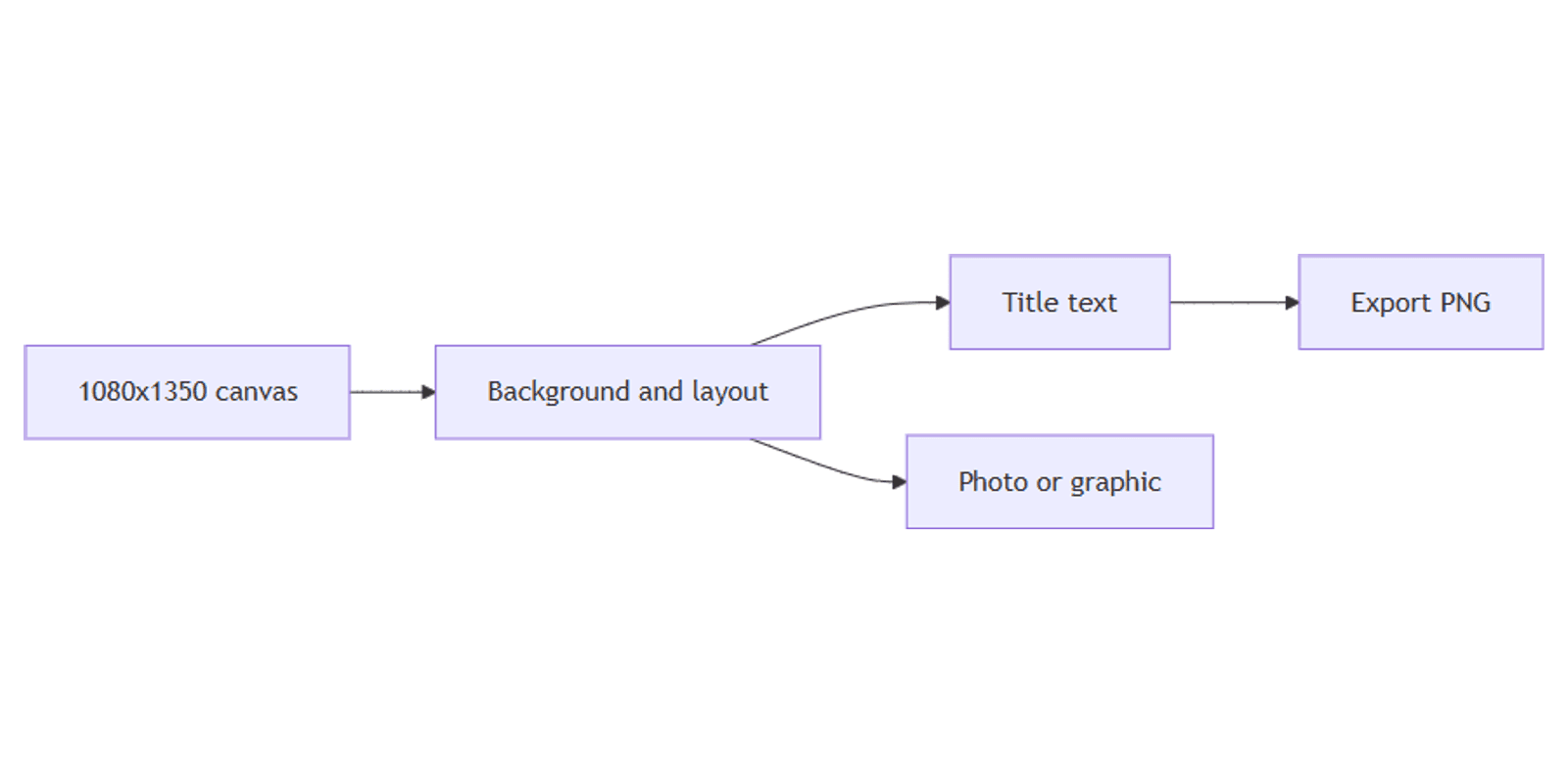
This guide walks through Canva Instagram post canvas setup, layout, carousel tips, typography, and export. The same workflow applies to other social sizes once you know the basics.
Instagram post size in Canva
Instagram feed posts use a 1080 px width. The most common sizes:
| Format | Size | Aspect ratio | Best for |
|---|---|---|---|
| Portrait feed | 1080 × 1350 px | 4:5 | Default - most feed visibility |
| Grid-optimized | 1080 × 1440 px | 3:4 | Matches profile grid preview (2026) |
| Square | 1080 × 1080 px | 1:1 | Quotes, logos, symmetrical layouts |
| Landscape | 1080 × 566 px | 1.91:1 | Wide photos (less feed space) |
| Story / Reel | 1080 × 1920 px | 9:16 | Full-screen vertical |
Instagram's profile grid now previews posts at 3:4 - designs at 1080 × 1440 px avoid cropping on your profile. 1080 × 1350 px (4:5) remains the standard for general feed posts.
Keep important text and logos away from the edges - leave roughly 40–50 px as a safe margin.
To create the canvas:
- Open Canva.
- Click Create a design → search Instagram Post.
- Canva opens a 1080 × 1080 px square artboard by default.
For portrait posts, search Instagram Post (Portrait) for 1080 × 1350 px, or use Custom size → 1080 × 1440 px for the grid-optimized ratio.
For other formats:
| Use | Size |
|---|---|
| Portrait feed post | 1080 × 1350 px |
| Grid-optimized post | 1080 × 1440 px |
| Square feed post | 1080 × 1080 px |
| Carousel slide | 1080 × 1350 px (match first slide) |
| Story / Reel cover | 1080 × 1920 px |
| Pinterest pin | 1000 × 1500 px |
| YouTube thumbnail | 1280 × 720 px |
See our Pinterest pins, YouTube thumbnails, Instagram Stories, and TikTok / Reels covers guides for other platform sizes.
Step-by-step: build a post
1. Set the background
Pick one approach:
- Solid or gradient - click the background → choose a color or gradient from the toolbar.
- Photo - Elements → Photos → search your topic; drag an image to fill the canvas.
- Split layout - use side-by-side columns; see our equal-width sections guide for gap-free columns.
Apply a semi-transparent overlay (rectangle + lower opacity) over busy photos so title text stays readable in the feed.
2. Add a focal image
- Elements → search icons, frames, or cutouts related to your topic.
- Use Effects → Background Remover (Canva Pro) to isolate a product or person.
- Place the main subject in the center - Instagram crops unpredictably in grid view, so keep faces and key details in the middle third.
Preview how your post looks in the FREE Frame Mockups Bundle on a phone before publishing.
3. Add title text
- Click Text → Add a heading.
- Type a short title - 3 to 6 words that hook attention or state the benefit.
- Set a bold, readable font (e.g. League Spartan, Montserrat, or Bebas Neue).
- Size text so it fills roughly one quarter of the canvas height.
Typography tips:
- Lead with value - "5 Morning Habits" beats "Blog post #12".
- High contrast - white text on dark backgrounds, or dark text on light blocks.
- Outline or shadow - select text → Effects → Shadow or Outline for legibility on photos.
- Limit fonts - one font family, two weights maximum.
- Mobile-first - zoom out to 33%; if the title is still readable, the post works in the feed.
4. Add supporting elements (optional)
- A subtitle or CTA ("Link in bio", "Swipe →") in smaller type.
- Slide numbers for carousels - "1/5" in a corner.
- Shapes behind text - rounded rectangle at 80% opacity creates a readable text box.
- Brand colors - open Brand Kit (Canva Pro) to reuse your palette across posts.
5. Align and balance
- Select multiple elements → Position → Tidy up or use alignment guides.
- Keep a safe margin (~40–50 px) from all edges.
- Center critical content - the profile grid may crop top and bottom.
- Zoom out to 33% - if the title is still readable, the post works at feed size.
Post layout patterns
Three layouts that work consistently:
| Pattern | Structure | Best for |
|---|---|---|
| Quote card | Bold text on solid or gradient background | Tips, quotes, announcements |
| Photo + text | Image on top, title bar at bottom | Lifestyle, food, travel |
| Carousel slide | One point per slide, consistent header/footer | Tutorials, listicles, before/after |
For multi-post series, save your first design as a Brand Template (Canva Pro) so every post starts with the same fonts, colors, and margins.
Carousel posts in Canva
Carousels use 2–10 slides at the same dimensions - every slide must match the first.
- Design slide 1 at 1080 × 1350 px (or your chosen size).
- Click + Add page (or Duplicate page) for additional slides.
- Keep the header, footer, and margins consistent across slides.
- Add a slide number ("2/6") so viewers know how many slides remain.
- Export each page, or download all pages at once.
Carousel tips:
- Slide 1 is the hook - make the title impossible to ignore.
- One idea per slide - do not cram paragraphs.
- Use the same background style on every slide for a cohesive swipe experience.
- End with a CTA slide ("Save this", "Follow for more").
Export settings
- Click Share → Download.
- Choose a format:
- PNG - best for text-heavy posts and flat graphics.
- JPG (85–90% quality) - smaller files for photo-heavy designs.
- For carousels, select All pages to download every slide.
File size tips (Instagram):
| Spec | Recommendation |
|---|---|
| Max file size | 30 MB per image |
| Practical target | Under 5 MB for fast uploads |
| Formats | PNG, JPG |
If your PNG exceeds 5 MB, export as JPG or flatten layers before downloading.
Canva can also Publish directly to Instagram from the Share menu if your accounts are connected.
Size reference for other platforms
Reuse the same Canva skills across formats:
| Platform | Size |
|---|---|
| Instagram portrait post | 1080 × 1350 px |
| Instagram grid post | 1080 × 1440 px |
| Instagram Story / Reel | 1080 × 1920 px |
| Pinterest pin | 1000 × 1500 px |
| YouTube thumbnail | 1280 × 720 px |
| Blog banner | 1600 × 900 px |
Use Magic Resize (Canva Pro) to adapt a portrait post to square or Story format after the main design is done.
Design checklist
Before you publish, confirm:
- Canvas is 1080 × 1350 px (or 1080 × 1440 px for grid-optimized)
- Title is readable at small size (zoom to 33%)
- Text and logos sit inside the center safe zone (~40–50 px margin)
- Strong contrast between text and background
- Carousel slides all use the same dimensions
- Exported as PNG or JPG
- File is under 30 MB (aim for under 5 MB)
Common mistakes to avoid
- Starting at 1080×1080 for feed posts - portrait (1350 or 1440 px tall) gets more feed space.
- Inconsistent carousel sizes - every slide must match the first.
- Too much text - one headline and one supporting line per slide is enough.
- Low contrast - pastel text on light backgrounds disappears on mobile.
- Edge-aligned faces - the grid may crop top and bottom; keep faces centered.
FAQ
What is the Instagram post size in Canva?
1080 × 1350 pixels (4:5 portrait) for standard feed posts. Search Instagram Post (Portrait) in Canva, or use Custom size → 1080 × 1440 px for the 3:4 grid-optimized ratio.
What Instagram post dimensions work best in 2026?
1080 × 1350 px (4:5) for general feed posts. 1080 × 1440 px (3:4) if you want posts to display without cropping on your profile grid. 1080 × 1920 px for Stories and Reels.
Can you create Instagram carousels in Canva?
Yes. Design at one size (e.g. 1080 × 1350), add pages for each slide, keep margins consistent, and download All pages as PNG or JPG. Full walkthrough: Instagram carousels in Canva.
Conclusion
Canva is a fast way to create Instagram posts at 1080×1350 - set the canvas, build a high-contrast layout, add a scannable title, and export PNG or JPG. Save your layout as a template and batch posts for consistent branding.
For vertical pins, see Pinterest pins in Canva. For widescreen covers, see YouTube thumbnails. For blog headers, see blog banners in Canva. For Stories and Reels covers at 1080×1920, see TikTok and Reels covers in Canva. For LinkedIn feed and carousel graphics, see LinkedIn posts in Canva. For Facebook feed sizes, see Facebook posts in Canva. For Threads (same 4:5 default), see Threads posts in Canva. To spin one design into every channel size, see Magic Resize. For full-screen Stories with safe zones, see Instagram Stories. For cutouts, see Background Remover. For gap-free column layouts, see equal-width sections.
Canva Templates
Start Selling Canva Templates - Start Now!