How to Create Pinterest Pins in Canva: Size, Layout, and Export
A well-designed Pinterest pin drives saves and clicks from a vertical feed. Canva makes it easy to design 1000×1500 Pinterest pins with bold titles, clean layouts, and export-ready files - no design experience required.
This guide walks through Canva Pinterest pin canvas setup, layout, typography, and export. The same workflow applies to blog graphics and other social sizes once you know the basics.
Pinterest pin size in Canva
Pinterest recommends 1000 × 1500 pixels (2:3 aspect ratio) for standard static pins - the official recommended Pinterest pin size. Minimum width is 600 px. Taller pins up to 1000 × 2100 px work for infographics - keep critical text in the upper two-thirds in case Pinterest crops the bottom in some placements.
Keep important text and logos away from the edges - leave roughly 50 px as a safe margin.
To create the canvas:
- Open Canva.
- Click Create a design → search Pinterest Pin.
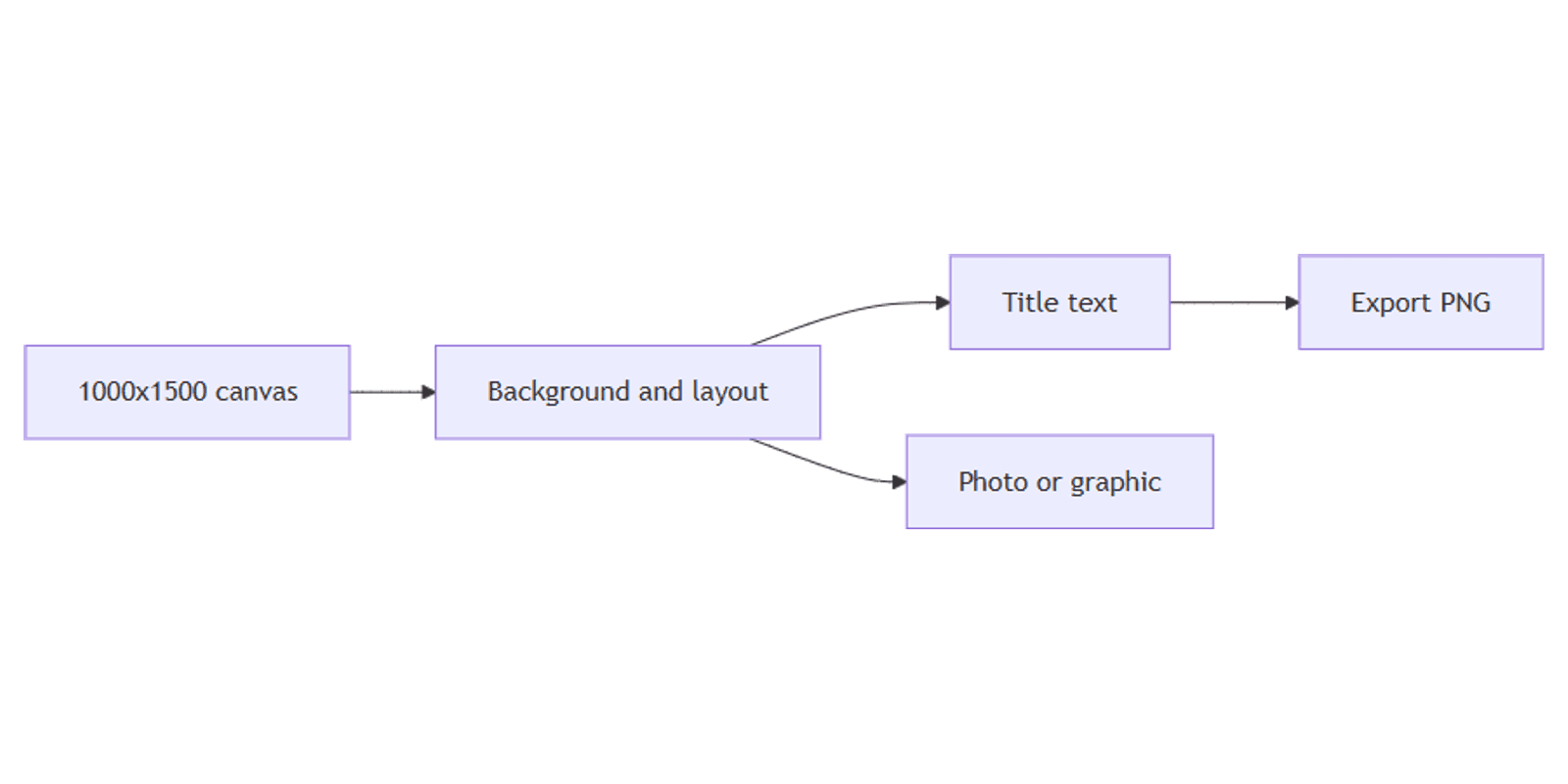
- Canva opens a 1000 × 1500 px artboard automatically.
For other formats, use Custom size:
| Use | Size |
|---|---|
| Standard Pinterest pin | 1000 × 1500 px |
| Long pin / infographic | Up to 1000 × 2100 px |
| Vertical video pin (9:16) | 1080 × 1920 px |
| YouTube thumbnail | 1280 × 720 px |
| Blog / Open Graph banner | 1600 × 900 px |
Pinterest merged image and video formats into a single Pin type in 2023 - there is no separate "Idea Pin" builder anymore. Use 1000 × 1500 for static pins and 1080 × 1920 for vertical video.
See our YouTube thumbnails guide for widescreen video covers.
Step-by-step: build a pin
1. Set the background
Pick one approach:
- Solid or gradient - click the background → choose a color or gradient from the toolbar.
- Photo - Elements → Photos → search your topic; drag an image to fill the canvas.
- Split layout - stack equal sections vertically; see our equal-width sections guide for gap-free columns.
Apply a semi-transparent overlay (rectangle + lower opacity) over busy photos so title text stays readable in the feed.
2. Add a focal image
- Elements → search icons, frames, or cutouts related to your topic.
- Use Effects → Background Remover (Canva Pro) to isolate a product or person.
- Place the main subject in the center or upper half - the title usually sits below or above it.
Preview how your pin looks in the FREE Frame Mockups Bundle to see it on a phone or wall before publishing.
3. Add title text
- Click Text → Add a heading.
- Type a short title - 4 to 8 words that describe the benefit or topic.
- Set a bold, readable font (e.g. League Spartan, Montserrat, or Playfair Display).
- Size text so it fills roughly one quarter to one third of the pin height.
Typography tips:
- One main message - Pinterest users scroll fast; lead with the outcome ("10 Meal Prep Ideas") not a vague label ("Blog post #4").
- High contrast - white text on dark backgrounds, or dark text on light blocks.
- Outline or shadow - select text → Effects → Shadow or Outline for legibility on photos.
- Limit fonts - one font family, two weights maximum.
- Mobile-first - zoom out to 33%; if the title is still readable, the pin works in the feed.
4. Add supporting elements (optional)
- A subtitle or URL hint in smaller type below the main title.
- Numbered lists - "5 tips", "3 steps" perform well on Pinterest.
- Shapes behind text - rounded rectangle at 80% opacity creates a readable text box.
- Brand colors - open Brand Kit (Canva Pro) to reuse your palette across pins.
5. Align and balance
- Select multiple elements → Position → Tidy up or use alignment guides.
- Keep a safe margin (~50 px) from all edges.
- Put the most important text in the top half - long pins may get cropped at the bottom.
- Zoom out to 33% - if the title is still readable, the pin works at feed size.
Pin layout patterns
Three layouts that work consistently:
| Pattern | Structure | Best for |
|---|---|---|
| Title-first | Bold title block on top, photo below | How-to guides, list posts |
| Image-first | Full-bleed photo on top, title bar at bottom | Recipes, travel, lifestyle |
| Centered | Photo in middle, title above and below | Product pins, quotes |
For multi-pin series, save your first design as a Brand Template (Canva Pro) so every pin starts with the same fonts, colors, and margins.
Export settings
- Click Share → Download.
- Choose a format:
- PNG - best for text-heavy pins and flat graphics.
- JPG (85–90% quality) - smaller files for photo-heavy designs.
- Use Standard download for a single pin file.
File size limits (Pinterest):
| Spec | Recommendation |
|---|---|
| Max file size | 20 MB (desktop); 32 MB in-app |
| Practical target | Under 5 MB for fast loading |
| Formats | PNG, JPG, WebP |
If your PNG exceeds 5 MB, export as JPG or flatten layers before downloading.
Canva can also Publish directly to Pinterest from the Share menu if your accounts are connected.
Size reference for other platforms
Reuse the same Canva skills across formats:
| Platform | Size |
|---|---|
| Pinterest pin | 1000 × 1500 px |
| Instagram portrait post | 1080 × 1350 px |
| Instagram Story / Reel cover | 1080 × 1920 px |
| YouTube thumbnail | 1280 × 720 px |
| Blog banner | 1600 × 900 px |
Use Magic Resize (Canva Pro) to adapt a pin layout to square or widescreen formats after the main design is done.
Design checklist
Before you publish, confirm:
- Canvas is 1000 × 1500 px (2:3 ratio)
- Title is readable at small size (zoom to 33%)
- Text and logos sit inside the center safe zone (~50 px margin)
- Strong contrast between text and background
- Critical content is in the upper two-thirds (especially for tall pins)
- Exported as PNG or JPG
- File is under 20 MB (aim for under 5 MB)
Common mistakes to avoid
- Square or horizontal exports - they take less feed space and get fewer saves on Pinterest.
- Too much text - one headline and one supporting line is enough.
- Low contrast - pastel text on light backgrounds disappears on mobile.
- Tiny fonts - if you cannot read the title at 33% zoom, increase the size or shorten the copy.
- Wrong dimensions - always start from the Pinterest Pin template, not a random custom size.
FAQ
What is the Pinterest pin size in Canva?
1000 × 1500 pixels (2:3 aspect ratio). Search Pinterest Pin when creating a design in Canva - the artboard opens at the correct size automatically.
What Pinterest pin dimensions work best?
Vertical 2:3 pins at 1000 × 1500 px take the most feed space on mobile. Square and horizontal pins are accepted but get less visibility. Long infographics can go up to 1000 × 2100 px.
Can you use Canva Pinterest pin templates?
Yes. Canva includes free Pinterest Pin templates at 1000 × 1500 px. Customize fonts and colors, then save as a Brand Template (Canva Pro) to reuse across pins.
Conclusion
Canva is a fast way to create Pinterest pins at 1000×1500 - set the canvas, build a high-contrast vertical layout, add a scannable title, and export PNG or JPG. Save your layout as a template and batch pins for consistent branding across your boards.
For widescreen covers, see YouTube thumbnails in Canva. For blog headers and Open Graph images, see blog banners in Canva. For Instagram feed posts, see Instagram posts in Canva. For gap-free column layouts, see equal-width sections. For official size guidance, see Pinterest Create.
Canva Templates
Start Selling Canva Templates - Start Now!