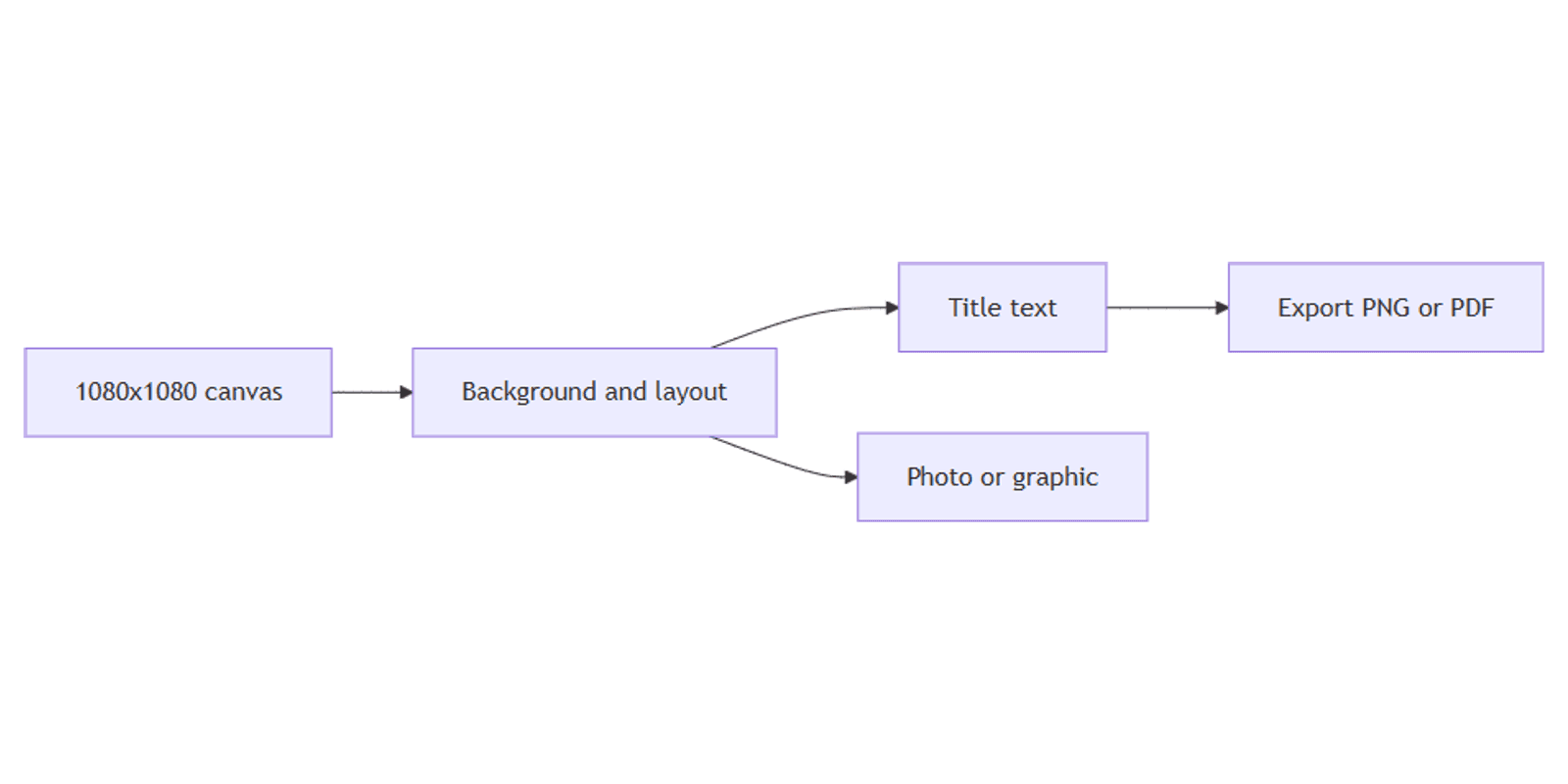
How to Create LinkedIn Posts in Canva: Size, Layout, and Export
A sharp LinkedIn post earns attention in a professional feed. Canva makes it easy to design 1080×1080 LinkedIn images, portrait creatives, 1200×627 link previews, and PDF carousels - with bold text, clean layouts, and export-ready files.
This guide walks through Canva LinkedIn post canvas setup, layout, carousel tips, typography, and export. Specs below reflect LinkedIn's 2026 image guidance - feed photos and link previews use different sizes.
LinkedIn post size in Canva
LinkedIn supports several image formats. Use the right size for the job:
| Format | Size | Aspect ratio | Best for |
|---|---|---|---|
| Square feed image | 1080 × 1080 px | 1:1 | Default single-image posts |
| Portrait feed image | 1080 × 1350 px | 4:5 | Maximum mobile feed presence |
| Link preview / URL card | 1200 × 627 px | 1.91:1 | When sharing a link (og-style card) |
| Carousel slide (document) | 1080 × 1080 px | 1:1 | Multi-page PDF carousels |
| Landscape feed image | 1200 × 627 px | 1.91:1 | Wide photos (less mobile height) |
Important: many older guides quote 1200 × 627 for every LinkedIn graphic. That size is correct for link previews. For uploaded photos, square (1080×1080) or portrait (1080×1350) usually fills more of the mobile feed. LinkedIn accepts aspect ratios from about 3:1 (wide) to 4:5 (tall) for uploaded images - design at least 1080 px wide when possible.
Keep important text and logos inside a safe margin (~40–50 px). Aim for files under 5 MB.
To create the canvas:
- Open Canva.
- Click Create a design → search LinkedIn Post.
- Pick a square template, or use Custom size → 1080 × 1080 px (feed) or 1200 × 627 px (link preview).
For other formats:
| Use | Size |
|---|---|
| LinkedIn square post | 1080 × 1080 px |
| LinkedIn portrait post | 1080 × 1350 px |
| LinkedIn link preview | 1200 × 627 px |
| Instagram portrait | 1080 × 1350 px |
| Open Graph / blog social | 1200 × 630 px |
| YouTube thumbnail | 1280 × 720 px |
| Blog header (2:1) | 1600 × 800 px |
See our Instagram posts, blog banners, and YouTube thumbnails guides for related sizes.
Step-by-step: build a LinkedIn post
1. Set the background
Pick one approach:
- Solid or gradient - click the background → choose a color or gradient from the toolbar.
- Photo - Elements → Photos → search your topic; drag an image to fill the canvas.
- Split layout - text left, visual right; see our equal-width sections guide.
Apply a semi-transparent overlay over busy photos so title text stays readable.
2. Add a focal image or graphic
- Elements → search icons, frames, or charts related to your topic.
- Use Effects → Background Remover (Canva Pro) to isolate a subject.
- Keep faces and key visuals in the center - LinkedIn crops differently on mobile and desktop.
Preview on a device mockup with the FREE Frame Mockups Bundle.
3. Add title text
- Click Text → Add a heading.
- Type a short hook - 4 to 8 words that state the insight or benefit.
- Use a clean professional font (e.g. Montserrat, League Spartan, or Source Sans 3).
- Size text so it fills roughly one quarter to one third of the canvas.
Typography tips:
- Lead with value - "3 Hiring Mistakes" beats "Thoughts on recruiting".
- High contrast - dark text on light blocks reads well in a busy LinkedIn feed.
- Limit fonts - one family, two weights maximum.
- Mobile-first - zoom to 33%; if the title is still readable, the post works in the feed.
4. Add supporting elements (optional)
- A subtitle or data callout in smaller type.
- Slide numbers for carousels ("1/7").
- Logo in a corner - keep it inside the safe zone.
- Brand Kit (Canva Pro) for consistent colors and fonts across posts.
5. Align and balance
- Select multiple elements → Position → Tidy up.
- Keep ~40–50 px margins from edges.
- Avoid edge-hugging text - LinkedIn UI chrome can cover corners on some devices.
- Zoom out to 33% for a feed-size check.
LinkedIn carousel posts in Canva
LinkedIn carousels are usually uploaded as a PDF document (multi-page), not as separate images.
- Design slide 1 at 1080 × 1080 px (or 1080 × 1350 if you prefer portrait).
- Click + Add page for each additional slide - keep the same dimensions.
- Use a consistent header, footer, and margins.
- Make slide 1 the hook - it is the feed preview.
- Share → Download → PDF Standard (or PDF Print) → download All pages.
- On LinkedIn, create a post → add a document → upload the PDF.
Carousel tips:
- 5–10 slides is a practical range for most posts.
- One idea per slide - avoid dense paragraphs.
- End with a clear CTA ("Comment X", "Save for later", "Link in comments").
- File size: keep the PDF well under LinkedIn's document limits (commonly cited around 100 MB); aim much smaller for fast loads.
Link preview images (1200 × 627)
When you share a URL, LinkedIn shows a card using the page's Open Graph image - typically 1200 × 627 (1.91:1). Design that asset like a mini billboard:
- Custom size → 1200 × 627 px.
- One headline, high contrast, centered safe zone.
- Export PNG or JPG under 5 MB (ideally under 300–500 KB).
For blog posts, pair this with your on-page header - see blog banners in Canva (1600×800 header + 1200×630 OG).
Export settings
- Click Share → Download.
- Choose a format:
- PNG - text-heavy graphics and flat design.
- JPG (85–90% quality) - photo-heavy posts.
- PDF - LinkedIn document carousels.
- For multi-page designs, select All pages.
| Spec | Recommendation |
|---|---|
| Image max (practical) | Under 5 MB |
| Formats | PNG, JPG (GIF also supported for simple motion) |
| Carousel | Multi-page PDF |
Canva can Publish or schedule to LinkedIn from Share when accounts are connected.
Size reference for other platforms
| Platform | Size |
|---|---|
| LinkedIn square post | 1080 × 1080 px |
| LinkedIn portrait post | 1080 × 1350 px |
| LinkedIn link preview | 1200 × 627 px |
| Instagram portrait | 1080 × 1350 px |
| Open Graph | 1200 × 630 px |
| Pinterest pin | 1000 × 1500 px |
| YouTube thumbnail | 1280 × 720 px |
Use Magic Resize (Canva Pro) to adapt a square LinkedIn post to Instagram or OG sizes after the main design is done.
Design checklist
Before you publish, confirm:
- Feed image is 1080 × 1080 or 1080 × 1350 (not only 1200×627 unless it is a link card)
- Link preview assets are 1200 × 627 when sharing URLs
- Title is readable at 33% zoom
- Strong contrast and safe margins
- Carousel slides share one size and export as PDF
- File is under 5 MB for images
Common mistakes to avoid
- Using 1200×627 for every post - reserve it for link cards; prefer square/portrait for photos.
- Tiny text - LinkedIn feeds are skimmed on phones.
- Inconsistent carousel sizes - every PDF page must match.
- Low contrast logos - brand marks disappear on busy backgrounds.
- Wall of text on one slide - split into a carousel instead.
FAQ
What is the LinkedIn post size in Canva?
For uploaded images, start with 1080 × 1080 px (square) or 1080 × 1350 px (portrait). Search LinkedIn Post in Canva or set a custom size.
What size is a LinkedIn link preview image?
1200 × 627 pixels (1.91:1) - the landscape card shown when you share a URL.
Can you make LinkedIn carousels in Canva?
Yes. Design multi-page slides at one size (often 1080×1080), export as PDF, and upload as a LinkedIn document.
Conclusion
Canva is a fast way to create LinkedIn posts - design square or portrait feed graphics, 1200×627 link previews, and PDF carousels, then export PNG, JPG, or PDF. Save a Brand Template and batch posts for a consistent professional look.
For Instagram sizes, see Instagram posts in Canva. For Open Graph and blog headers, see blog banners. For gap-free layouts, see equal-width sections.
Canva Templates
Start Selling Canva Templates - Start Now!