Notion Checkbox Property: Track Completion and Filters
Notion Checkbox properties store a simple yes / no on each database row - reviewed, paid, shipped, or published. They are lighter than Status when you only need a binary flag, and they pair cleanly with filters, automations, and forms.
This guide covers how to add a Notion Checkbox property, when to use it instead of Status, and practical workflows for completion tracking.
What is a Checkbox property?
Checkbox is a database property with two states: checked (true) or unchecked (false). It appears as a clickable box on each row.
| Checkbox | Status | |
|---|---|---|
| States | Checked / unchecked | Multiple stages and groups |
| Best for | Single done flags | Full workflows |
| Form question | Checkbox | Not supported as a form field |
| Example | Paid?, Reviewed?, Shipped? | To-do → In progress → Done |
Use Checkbox when the question is binary. Use Status when work moves through several stages.
How to add a Checkbox property
- Open your database.
- Click + next to the rightmost column.
- Name the property (e.g. Done, Paid, Reviewed, or Published).
- Choose Checkbox as the property type.
- Click the box on any row to toggle it.
You can show Checkbox on board, table, and list cards via property visibility settings.
Checkbox vs Status vs Select
| Scenario | Best property |
|---|---|
| Mark invoice as paid | Checkbox |
| Task pipeline with multiple stages | Status |
| Priority High / Medium / Low | Select |
| Form "I agree to terms" | Checkbox |
| Content draft → review → published | Status |
Avoid using Checkbox as a fake Status - if you later need "In progress", migrate to Status instead of adding more checkboxes.
Filter, sort, and group by Checkbox
Checkbox works with filtering and views:
- Filter → Checkbox is checked - show completed items.
- Filter → Checkbox is unchecked - show remaining work.
- Sort - push checked or unchecked rows to the top.
- Group - split a table into Checked / Unchecked sections.
Example - unpaid invoices:
- Filter: Paid is unchecked.
- Sort: Due date ascending.
- Optional People filter: Owner contains Me.
Automations with Checkbox
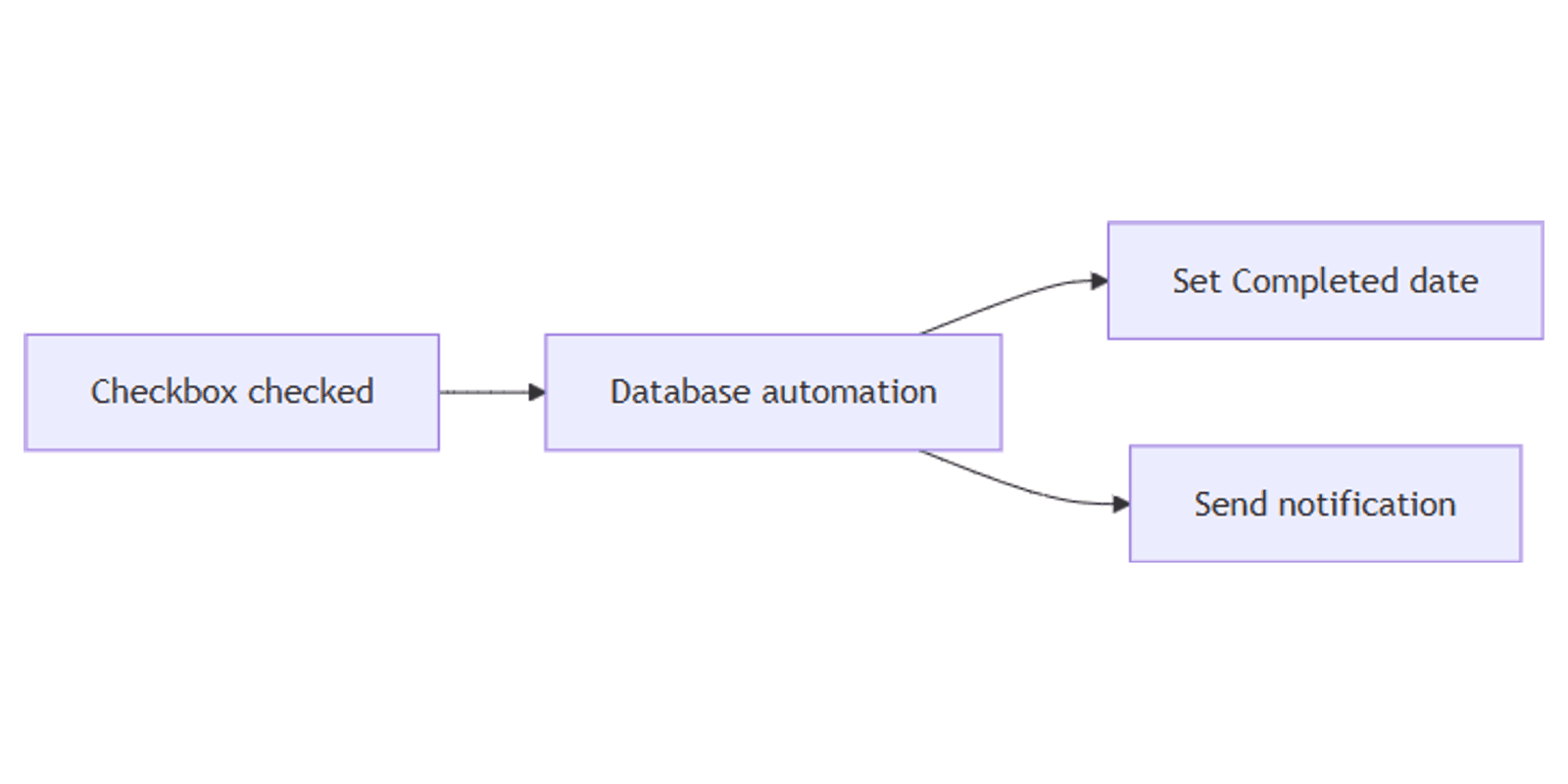
Database automations can trigger when a Checkbox changes.
When checked, set completed date
- Trigger: Property edited → Done → is checked (or Checkbox is set to checked).
- Action: Edit property → Completed date → @Today.
When checked, notify someone
- Trigger: Done is checked.
- Action: Send notification to → project lead → "Item marked complete."
When unchecked, clear a date
- Trigger: Done is unchecked.
- Action: Edit property → clear Completed date.
Combine with a button that checks the box and edits other properties in one click for intentional completion.
Checkbox on forms and charts
Forms
Notion forms support a Checkbox question type - ideal for:
- Consent ("I agree to the terms")
- Optional flags ("Subscribe to newsletter")
- Confirmation ("This is a billing issue")
Required checkboxes force respondents to acknowledge before submit.
Charts
Use a chart view:
- Chart type: Donut or Vertical bar.
- Category: Done (Checkbox).
- Value: Count.
Or use a Number chart filtered to Done is unchecked for an "open items" KPI on a dashboard.
Practical workflow examples
Simple task done flag
On a personal tasks database:
- Done Checkbox + Due Date.
- View: Done is unchecked, sorted by Due.
- Automation: when Done is checked, set Completed date to today.
Prefer Status if you need In progress / Blocked stages.
Invoice paid tracker
On a finance database:
- Paid Checkbox + Amount Number.
- Filter unpaid: Paid is unchecked.
- Chart: sum Amount where Paid is checked this month.
Pair with the Money Management template or Budget Planner.
Content review checklist
On a content calendar:
- Checkboxes: SEO checked, Images ready, Legal approved.
- Filter: any checkbox unchecked and Status is In review.
- Button Publish only after all boxes are checked (manual discipline) or use Status for the final publish step.
Form consent + intake
On a form-backed leads database:
- Required Checkbox: Agreed to terms.
- Automation: Page added → if Agreed is checked, set Status to New.
- Notify People Assignee.
Tips for teams
- Name checkboxes as questions - Paid?, Reviewed?, Shipped? reads clearer than Flag1.
- One concern per checkbox - do not overload a single box with hidden meaning.
- Graduate to Status when stages appear - do not stack five checkboxes for a pipeline.
- Automate timestamps - checking Done should set Completed date so charts stay accurate.
- Filter unchecked weekly - a simple "open items" view prevents forgotten rows.
Permissions and troubleshooting
Who can toggle checkboxes: anyone with Can edit content or above on the database.
Common issues:
- Automation does not run - confirm the trigger matches checked vs unchecked exactly; test on a paid plan if other automation actions are restricted.
- Chart shows odd splits - every row has a true/false value; filter the view if you only want recent items.
- Form checkbox optional when it should be required - mark the question Required in the form builder.
- Used Checkbox instead of Status - migrate carefully: add Status, map checked → Done, then retire the checkbox.
FAQ
What is the Notion Checkbox property?
A yes/no database field for binary flags like Done, Paid, or Reviewed.
When should I use Checkbox instead of Status?
Use Checkbox for a single true/false flag. Use Status when items move through multiple workflow stages.
Can Notion automations run when a checkbox is checked?
Yes. Use a Property edited trigger on the Checkbox, then edit properties or send notifications.
Conclusion
Checkbox properties keep binary tracking simple - add Done or Paid flags, filter unchecked rows, trigger automations on check, and collect consent with forms. Reach for Status when you need a real pipeline, and chart view or dashboard view when you want completion metrics at a glance.
For multi-label tagging, see Multi-select. For single categories, see Select.
Notion Templates
Start Selling Notion Templates - Start Now!