Notion Database Automations: How to Create Trigger-Based Workflows
Notion database automations run actions automatically when something changes in a database - a status moves to Done, a new row is added, or a date property is updated. No button click required.
This guide covers how to create Notion database automations, every trigger and action type, and practical setups you can copy into task trackers, CRMs, and content calendars.
What are database automations?
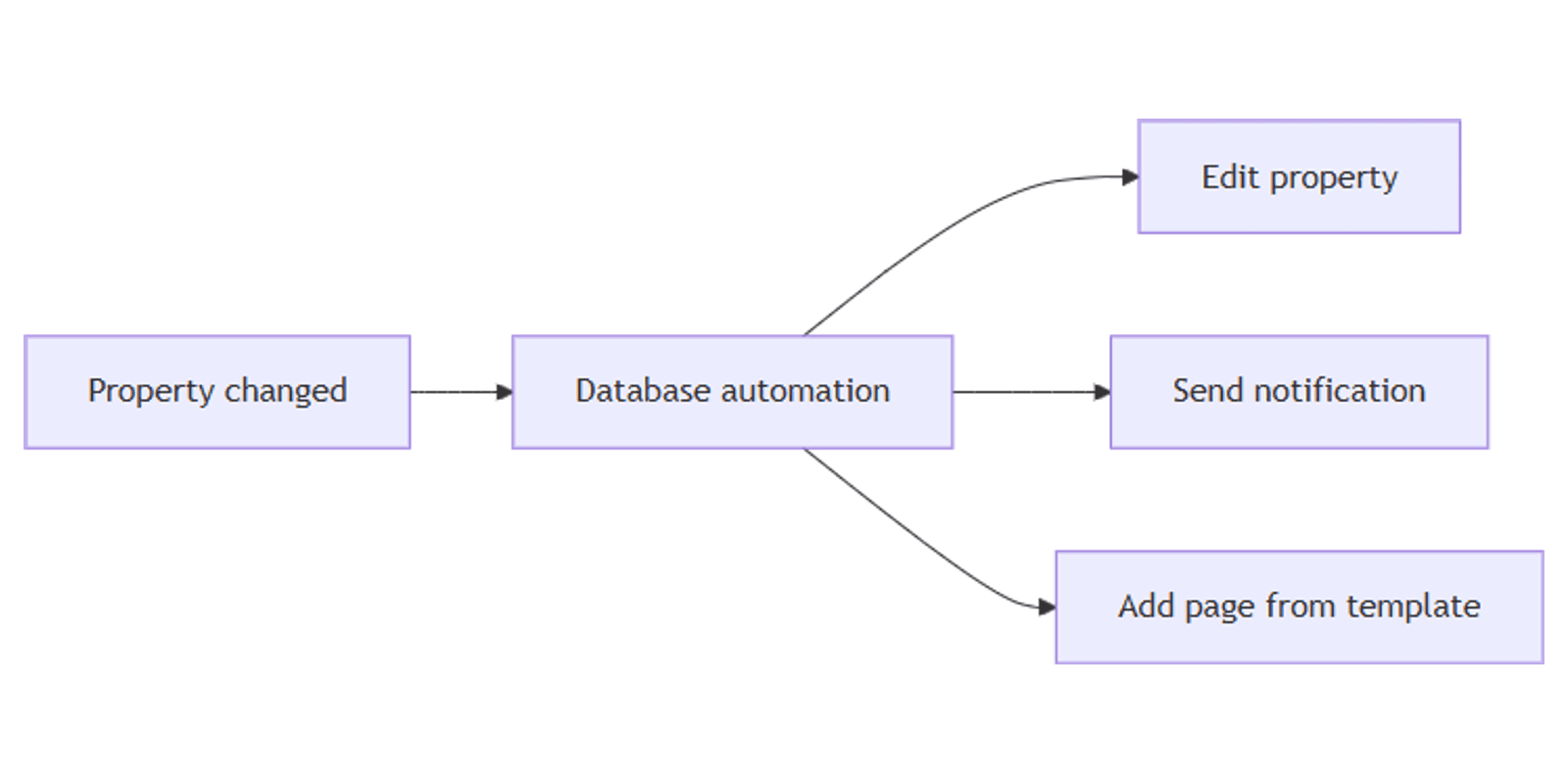
An automation has two parts:
- Trigger - the event that starts the rule (e.g. Status edited, page added).
- Actions - what Notion does in response (edit properties, notify someone, add a page).
| Database automation | Button | |
|---|---|---|
| Starts when | A property changes or a row is added | Someone clicks a button |
| Best for | Consistent rules on every matching change | Human approval, one-off actions |
| Example | Status set to Done sets Completed date automatically | Approve button on a request row |
Use automations when the same rule should run every time a condition is met. Use buttons when someone should decide the moment - approve, log, complete.
Database automations are available on paid Notion plans on all platforms. Free users can run automations bundled in templates but cannot edit them.
Send Slack notification to - the one exception on Free:
- On the Free plan, this is the only automation type you can create (no Edit property, Add page to, etc.).
- The action itself requires Plus, Business, or Enterprise, a connected Slack workspace, and a target channel - same integration as buttons.
- Only the person who created the automation can edit it later.
Send mail to and Send webhook require a paid plan.
Important: automations cannot trigger other automations. A page created by one automation will not fire a Page added rule in another database. However, button actions can trigger automations - for example, a button that adds a row will run Page added automations on that database.
How to create a database automation
- Open the database where the rule should live.
- Click ⚡ at the top of the database.
- Click New automation (or select an existing one to edit).
- Name the automation if you want (e.g. "Set completed date").
- Click New trigger and choose a trigger (see below). Add more with Add trigger if needed.
- Click New action and pick one or more actions.
- Optionally choose whether the automation runs on the entire database or a specific view.
- Click Create.
To manage existing rules, click ⚡ again, hover over an automation, and choose Edit, Pause, or Delete from the ••• menu.
Triggers explained
Triggers define when the automation runs. An automation can have one trigger or several - choose When any of these occur or When all of these occur. If you use multiple is edited triggers that must all fire, they need to happen within about three seconds or the automation may not run; use separate automations or a more specific trigger like is set to instead.
Page added
Runs when a new row is created in the database - including rows added via templates, imports, or buttons that use Add page to. Rows added by another automation do not trigger Page added automations (automations cannot chain).
Use this to apply defaults, notify a team, or create linked entries in another database.
Property edited
Runs when a specific property changes on a row in this database (or in the selected view).
Common setups:
- When Status is set to Done (use your sub-status label)
- When Select Priority is set to Urgent
- When a date property Due date is filled in
For text, select, number, person, and relation properties, you can narrow the trigger - e.g. Status is set to Done, not on every status edit.
Every {frequency}
Runs on a recurring schedule - daily, weekly, monthly, and so on. Set the time, start/end dates, and timezone as needed.
Note: the schedule trigger works with all actions except Edit property. Use schedule triggers for notifications or Add page to, not for updating fields on existing rows.
Actions explained
These actions mirror button actions unless noted.
Edit property
Updates properties on the triggering row (or pages matched by the trigger). Examples:
- Set Completed date to today when Status is set to Done
- Clear Assignee when Status moves back to To-do
- Fill Last updated by with whoever made the change (use @ mentions)
Add page to
Creates a new page in another database. Example: when a deal moves to Won in a CRM, add an Onboarding task in a Tasks database.
Pair with database templates to pre-fill the new page.
Edit pages in
Changes properties on pages in a linked database - useful for closing related tasks when a project is archived.
Send notification to
Notifies up to 20 people or a People property on the row. Add a custom message with @ mentions for dynamic text.
Send mail to, Send webhook, Send Slack notification to
Same plan requirements as buttons: Gmail and webhooks on paid plans; Slack on Plus, Business, and Enterprise.
Define variables
Creates a named variable with @ mentions or ∑ formulas, then reuses it in later actions. Useful for cross-database steps - e.g. reference Trigger page.Sub-item in an Edit pages in action to mark all sub-tasks complete when a parent task is done. See our sub-items guide for the full parent-child setup.
Notion database automation examples
When Status → Done, set Completed date to today
On a Tasks database with Status and a Completed date date property:
- Click ⚡ → New automation.
- Trigger: Property edited → Status → is set to Done (your sub-status label).
- Action: Edit property → Completed date → @Today.
- Click Create.
Every time someone marks a task Done - by editing Status directly or via a button - the date fills in automatically.
When a new row is added, apply a default template
On an Expenses database:
- Trigger: Page added.
- Action: Edit property → set Category to Uncategorized and Date to @Today. (Or rely on a database template with defaults and skip this automation.)
Alternatively, set the database's default template so every new row opens with pre-filled properties - automations are better when you also need notifications or cross-database actions.
When Priority = Urgent, notify assignee
On a support or task database with Select Priority and Assignee:
- Trigger: Property edited → Priority → Priority is Urgent.
- Action: Send notification to → Assignee → message: "Urgent item assigned to you."
Combine with a filtered view that shows only Urgent open items.
When Status → Published, log publish date
On a content calendar with Status groups To-do, In progress, Complete and sub-status Published under Complete:
- Trigger: Property edited → Status → Status is Published.
- Action: Edit property → Published date → @Today.
- Optional second action: Send notification to → editor with "Post is live."
Works well with the Social Media Multi-Platform Content Planner workflow.
Cross-database: project archived, close linked tasks
On a Projects database with a relation to Tasks:
- Trigger: Property edited → Status → Status is Archived.
- Action: Edit pages in → Tasks (linked) → set Status to Done.
Test carefully - this updates all linked tasks. Add a filter condition on the action if Notion supports scoping to open tasks only.
Automations and views
Automations change data; views show the result.
When creating an automation, choose whether it applies to the entire database or a specific view. View-scoped automations only run for rows in that view; if a row no longer matches the view's filters after an edit, the automation may not fire.
- Build a board grouped by Status - when an automation sets Status to Done, the card moves columns automatically.
- Use filtering for "Active" views (Status is not Done) while automations handle completion timestamps in the background.
- Pair with formulas for computed labels like Overdue that views can filter on.
Similar to recurring task templates, automations reduce manual property updates. Schedule-based automations can create recurring pages; property-edited triggers react to status and field changes in real time.
Permissions and troubleshooting
Who can create or edit automations: paid workspace members with full access to the database. Guests cannot create automations even with full access.
Who triggers automations: anyone who can edit the triggering property - typically Can edit content and above. Automations skip pages with restricted access.
Common issues:
- Automation does not run - check that the trigger matches the exact sub-status or select option spelling. Confirm the automation is Active (not paused). Verify the row is in the selected view if the automation is view-scoped.
- Automation does not run after another automation - automations cannot chain; use a button or manual edit as the trigger instead.
- Property not updating - the target property may have been renamed; reopen the automation and fix broken steps. Notion shows inline errors while editing; broken automations pause until fixed and re-enabled.
- Runs too often - use is set to instead of any edit on the property.
- Schedule + Edit property fails - the Every {frequency} trigger cannot use Edit property actions.
- Notification not received - recipient needs workspace access and notification settings enabled.
Notion blocks saving automations with invalid steps - same behavior as button automations.
When to use buttons instead
| Scenario | Better choice |
|---|---|
| Manager must approve before status changes | Button with confirmation |
| User logs an entry when they choose | Button Add page to |
| Every Done status should set a date | Automation |
| New row should always get today's date | Automation or default template |
Many teams use both - a Done button for intentional completion plus an automation that sets Completed date when Status becomes Done (whether changed by button or manually).
Conclusion
Database automations keep Notion databases consistent without manual follow-up. Start with one rule - When Status is set to Done, set Completed date to today - then add notifications, cross-database updates, and template defaults as your workflow grows.
For click-triggered workflows, see Notion buttons. For computed columns that views can filter on, see Notion Formulas 2.0.
Notion Templates
Start Selling Notion Templates - Start Now!