Notion Buttons: How to Automate Database Workflows
Notion buttons let you automate repetitive tasks with a single click - mark a task complete, create a meeting note from a template, or notify a teammate without opening menus. You can add buttons inside any page or as a Button property on database rows.
This guide covers both types of Notion buttons, every common action, and practical setups you can copy into your workspace today.
What are Notion buttons?
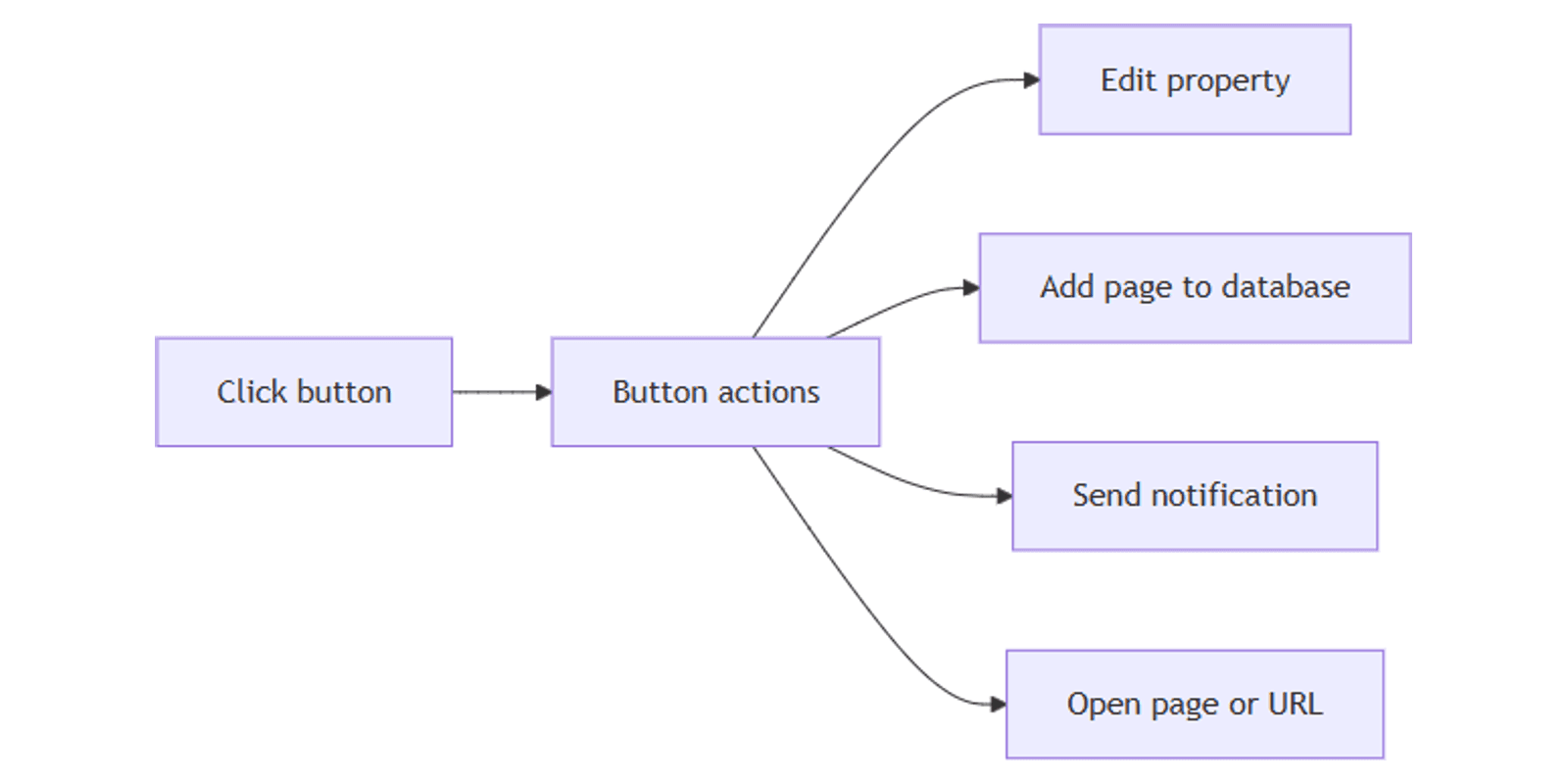
A button runs one or more automated actions when someone clicks it. Instead of manually creating a page, updating Status, and sending a notification, the button does it for you.
Notion offers two ways to use buttons:
| Page button | Database button | |
|---|---|---|
| Where | Any Notion page (/button) | A Button property on a database |
| Runs on | The page where it lives | The row where you click it |
| Best for | Meeting agendas, quick inserts, dashboard shortcuts | Approve items, mark done, log entries per row |
Both types share most actions (Add page to, Edit pages in, notifications, and more). Database buttons add Edit property on the current row; page buttons add Insert blocks on the page.
Buttons are available on all Notion plans. Some actions (Gmail, webhooks, Slack) require a paid plan.
How to create a page button
Use a page button when the automation belongs to a specific page - a team hub, project doc, or meeting notes template.
- Open the page where you want the button.
- Type
/buttonand select Button. - Name the button and pick an emoji.
- Click New action and choose an action (see below).
- Add more actions if needed, then click Done.
To edit later, hover over the button and click ⚙️. To delete, drag the ⋮⋮ handle and choose Delete.
How to create a database button
Database buttons are ideal when each row needs its own action - approve a request, complete a task, or create a linked sub-page.
- Open your database.
- Click the slider icon at the top → Edit properties → New property (or click + next to the rightmost column).
- Choose Button as the property type.
- Add a label (e.g. Complete or Approve).
- Click Edit automation → New action → pick an action.
- Click Save.
Each row shows the button in that column. Anyone with Can edit content, Can edit, or Full access on the database can click it. Creating or editing the button automation requires Can edit or Full access.
Pair database buttons with database templates in Add page to actions to pre-fill new entries.
Notion button actions explained
These actions work for both page buttons and database buttons unless noted.
Edit property (database buttons only)
Updates properties on the current row. Common setups:
- Set Status to Complete
- Fill Approved by with whoever clicked
- Set Completed date to today
This is the fastest way to build a one-click "Mark done" workflow on a task board.
Add page to
Creates a new page in a database and sets its properties. Examples:
- Add a follow-up task linked to the current project
- Log an expense in a finance database
- Create a meeting note with today's date in the title (use @ mentions)
When using a database template, template values can override button property settings - set defaults in the template and use the button for the trigger only.
Edit pages in
Changes properties on pages in another database - useful for cross-database workflows like closing related tasks when a project is archived.
Insert blocks (page buttons only)
Adds blocks to the current page - text, toggles, to-do lists, and more. Choose where they appear: above the button, below it, at the top of the page, or at the bottom.
Great for meeting agendas: one click inserts a dated header and checklist.
Send notification to
Notifies up to 20 people in your workspace, or people from a People property. Add a custom message and @-mention pages or dates.
Open page or URL
Opens an existing Notion page or external link. Can open a page created by another action in the same button.
Show confirmation
Displays a confirmation dialog before running destructive actions - recommended before archiving or deleting data.
Define variables
Create a named variable with @ mentions or ∑ formulas, then reuse it in later actions. Helpful for dynamic page titles like "Follow-up – @Today".
Paid-plan actions
| Action | Plan |
|---|---|
| Send mail to (Gmail) | Paid - requires a linked Gmail account |
| Send webhook | Paid |
| Send Slack notification to | Plus, Business, Enterprise |
Once someone links Gmail to a button, only they can edit that automation; others can still click it. Emails may take up to two minutes to arrive.
Practical examples
Mark a task complete
On a Tasks database with a Status property:
- Add a Button property named Done.
- Edit automation → Edit property.
- Set Status → Complete.
- Optional: add Show confirmation so clicks are intentional.
Use a board view grouped by Status - after clicking Done, the row's Status updates and the card appears in the Complete column.
Create a meeting note
On a team homepage (page button):
- Add a Button named New meeting note.
- Add page to → select your Meeting notes database.
- Set the title to include @Today.
- Optional: Open page or URL → open the page just created.
Log a recurring entry
Similar to recurring task templates, but triggered manually:
- Add a database button Log payment.
- Add page to → your tracker database.
- Apply a template with pre-filled amount and category.
- Set Date to @Today.
Notify on approval
On a requests database:
- Button label: Approve.
- Edit property → set Status to Approved.
- Send notification to → assignee with message: "Your request was approved."
Mentions and formulas in buttons
Use @ in action fields to insert dates, people, pages, or property values from the current row. Use ∑ for formula expressions - for example, a page title that combines a project name and today's date.
Tips:
- Mentions and formulas work in actions, not triggers.
- Formulas cannot be used when inserting blocks, opening URLs, or sending Slack messages.
- If a created page name looks wrong, check whether a template is overwriting button property values.
Permissions and troubleshooting
Who can click buttons:
- Page buttons: Can edit or Full access on the page.
- Database buttons: Can edit content, Can edit, or Full access on the database.
Who can edit automations: Can edit or Full access.
Common issues:
- Button does nothing - the clicker needs edit access to any target database, and view access to any page the button opens. Private or shared pages outside the workspace block some actions.
- Property not updating - the property may have been renamed or deleted; reopen Edit automation and fix the broken step.
- Gmail or Slack fails - reconnect the integration in button settings.
Notion shows inline errors while you build an automation and blocks saving until steps are valid.
Buttons vs database automations
Notion also offers database automations (trigger-based rules that run when properties change). Use buttons when a human should decide the moment - approve, complete, log. Use automations when every matching change should run the same rule without a click.
Buttons pair well with filtering - create a view that shows only rows where Status is not Complete, and use a Done button to clear your list fast.
Tips for effective button setups
- Name buttons as verbs - Complete, Approve, Log, Notify - so their purpose is obvious.
- Add confirmation on actions that change shared data.
- Keep chains short - two or three actions per button is easier to maintain than long sequences.
- Test as another user - permissions differ; confirm teammates with Can edit content can click.
- Document buttons on team wikis - especially when Gmail or webhooks are involved.
Conclusion
Notion buttons turn repetitive database work into one-click workflows. Add a Button property to mark tasks done, use a page button to spin up meeting notes, and chain actions like notifications or new pages when you need more.
Start with a single Edit property button on a task database, then expand into templates, notifications, and cross-database actions as your setup grows.
Pair buttons with sub-items on parent tasks or database automations for rules that run when properties change.
Notion Templates
Start Selling Notion Templates - Start Now!