Notion Sub-items: How to Build Task Hierarchies
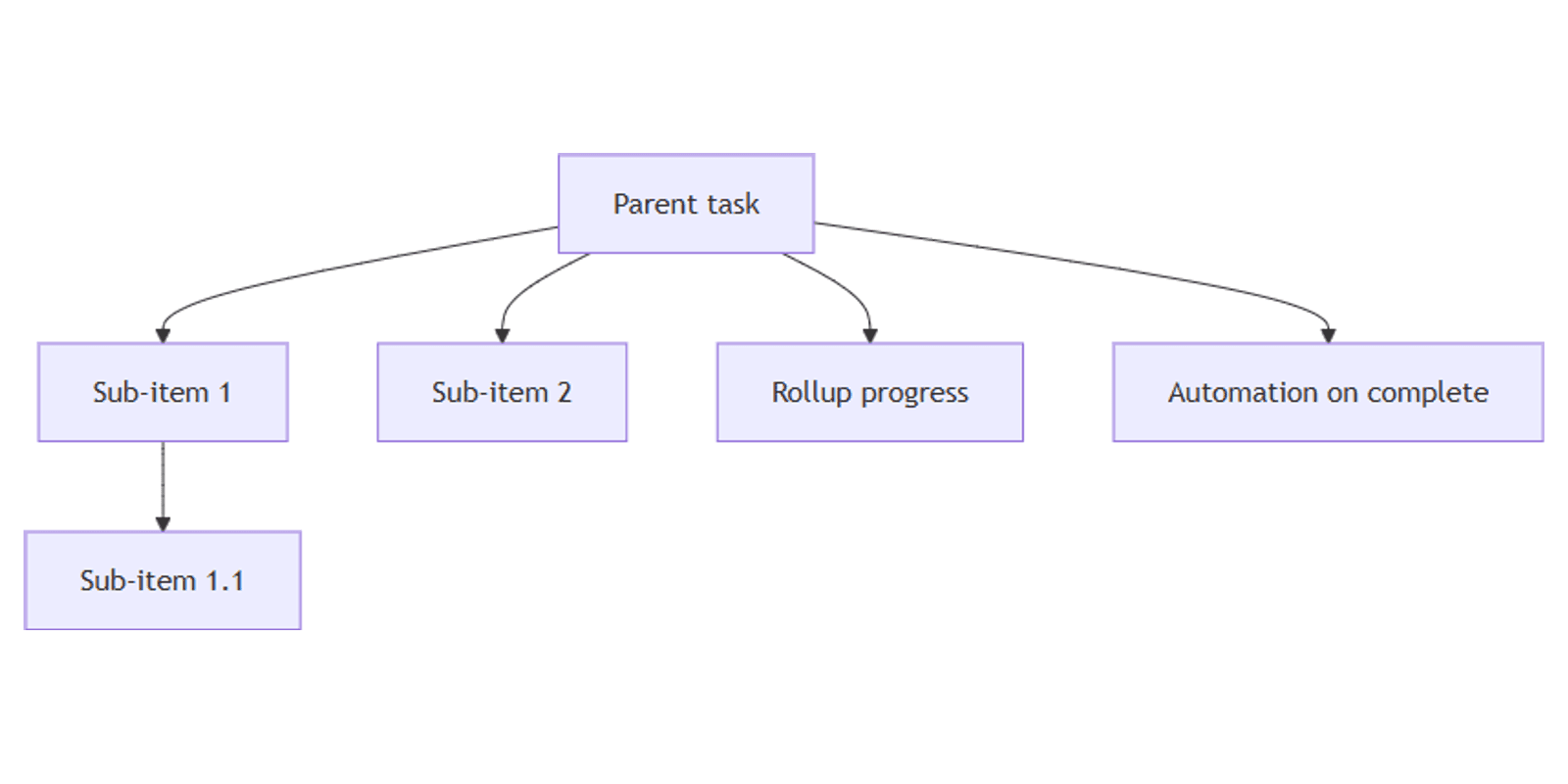
Notion sub-items let you nest tasks inside tasks - a project breaks into phases, each phase into action items, all in one database. Parent and child rows share the same properties (Status, due dates, assignees) and appear across every view.
This guide covers how to turn on sub-items, build a task hierarchy, track progress with rollups, and pair sub-items with database automations.
What are sub-items?
Sub-items are nested database rows linked through a self-referencing relation - each database entry can be a parent item with one or more sub-items beneath it.
Example: Parent task Launch website with sub-items Write copy, Design homepage, and Configure domain. Each sub-item has its own Status and due date, but stays grouped under the parent.
Sub-items differ from sub-pages:
| Sub-items | Sub-pages | |
|---|---|---|
| What they are | Database rows linked as parent/child | Pages nested inside another page |
| Properties | Share database columns (status, date, etc.) | No shared database structure |
| Best for | Task breakdowns, org charts, phased goals | Notes, docs, freeform content |
If you need links between separate databases, use a relation property instead. Sub-items are for hierarchy within one database.
How to turn on sub-items
- Open the database (e.g. a Tasks database).
- Click ⋮⋮ at the top right of the database.
- Select Sub-items.
- Toggle Sub-items on.
- Optionally rename the properties (e.g. Parent item and Sub-item).
Notion adds two relation columns on the same database - one pointing up to parents, one pointing down to children. You can nest multiple levels (sub-items under sub-items).
Tip: two to three nesting levels work best. Very deep trees with hundreds of sub-items per parent can slow large databases.
How to add sub-items
From table or list view:
- Hover over a parent row.
- Click the ▸ arrow that appears on the left.
- Select + New sub-item and name it.
- Set properties on the sub-item like any other row.
Other ways to nest:
- Drag and drop - drag an existing row onto another to make it a sub-item.
- From the page - open a parent row; use the Sub-item section at the bottom to add children.
- Relation column - link a row to its parent via the Parent item property.
Deleting a parent row deletes all sub-items under it. Move sub-items out first if you want to keep them.
Sub-items in database views
Sub-items appear in all database views. How they display depends on the layout:
Table and list views
Choose how sub-items nest:
- Nested in toggle - sub-items indent under parents; click to expand or collapse.
- Flattened list - every row appears at the same level (no indentation).
Board view
- Card property - sub-items show on the parent card.
- Flattened list - parent and sub-items appear as separate cards in columns.
Timeline view
Sub-items appear as bars on the timeline like any other row. Use Nested in toggle or Flattened list display options (same as table and list views).
Calendar and gallery views
Sub-items show as separate entries on the calendar or in the gallery. Filter by the Parent item relation to focus on one parent's children.
Filter behavior
When you filter a view, choose how sub-items are affected:
| Option | What it shows |
|---|---|
| Parents only | Matching parents, with a sub-item count |
| Parents and sub-items | Both levels that match the filter |
| Sub-items only | Only matching sub-items |
Table, list, and timeline views support all three options. Board, calendar, and gallery views support Parents only for filter scope.
Track progress with rollups
Use a rollup on the parent row to summarize sub-item data.
Count open sub-items:
- Add a Rollup property on the parent database.
- Relation: Sub-item
- Property: Name (or any property)
- Calculate: Count all
Percent of sub-items complete (with Status):
- Relation: Sub-item
- Property: Status
- Calculate: Percent checked - only when Status uses checkbox display (uncommon on task databases). For dropdown Status, use Count all minus a filtered count, or a formula on the parent row instead.
Pair rollups with Notion Formulas 2.0 for labels like 3 of 5 done on the parent row.
Automations with sub-items
Database automations can act on sub-items when a parent changes. A common setup:
When parent Status → Done, mark all sub-items Done:
- Trigger: Property edited → Status → is set to Done.
- Action: Define variables → Trigger page.Sub-item.
- Action: Edit pages in → variable → set Status to Done.
See the Define variables section in our database automations guide for step-by-step setup.
Buttons on the parent row can still trigger property edits; automations then cascade to children.
Practical examples
Project task breakdown
Parent: Publish blog post
Sub-items:
- Research topic
- Write draft
- Edit and review
- Schedule publish
Use a Nested in toggle table view to see parents and sub-items in one list. For a board, choose Flattened list so sub-items appear as their own cards - board filter scope is limited to Parents only.
Quarterly goals
Parent: Q3 revenue goal
Sub-items: monthly targets (July, August, September). Use number properties and a rollup Sum to track totals on the parent.
Org chart (single database)
Parent: Engineering
Sub-items: Frontend, Backend, DevOps. Nest teams under departments with two levels of sub-items.
Works well with the Second Brain and Goal Tracker templates.
Tips and limitations
- Rename properties clearly - Parent item / Sub-item (or Parent task / Sub-task) so formulas and automations are easy to read.
- Move between databases - moving a parent to another database turns sub-items on there if needed. Without permission, sub-items become top-level rows.
- Do not confuse with relations - sub-items are built-in self-relations; use cross-database relations for projects ↔ tasks in separate tables.
- Show properties on sub-item cards - in board Card property mode, pick which columns (assignee, due date) appear on parent cards.
Conclusion
Notion sub-items turn a flat task list into a hierarchy - parents, nested steps, and rollups for progress. Turn on sub-items in your task database, add three sub-items to one parent, then layer in rollups and automations as your workflow grows. For sequencing blockers across tasks, see Notion dependencies.
Notion Templates
Start Selling Notion Templates - Start Now!