Notion Formulas 2.0: How to Build Formula Properties
Notion Formulas 2.0 power formula properties - database columns that compute values from other properties. Build due-date countdowns, overdue flags, progress labels, or combined project names that update automatically whenever source data changes.
This guide covers how to add a Notion formula property, core syntax (prop(), if(), dateBetween()), and copy-paste Notion formula examples for task trackers, finance databases, and project boards.
What do formula properties do?
A formula reads values from other properties on the same row and returns a result - text, number, date, or boolean. Formulas are read-only; you cannot type into a formula cell.
Use formulas when you need to calculate or combine data on one row:
| Need | Use |
|---|---|
| Sum or count linked pages | Rollup |
| Run actions on click | Button |
| Compute from properties on this row | Formula |
| Run when a property changes | Database automation |
Formulas pair naturally with date, number, status, and select properties.
How to add a formula property
- Open your database.
- Click + next to the rightmost column (or Edit properties → New property).
- Choose Formula as the type.
- Name it (e.g. Days left or Overdue?).
- Click the formula cell header or Edit formula to open the editor.
- Type your expression and press Done.
The editor shows property names you can click to insert. Use prop("Property name") to reference a column - the name must match exactly, including capitalization.
Example - reference a due date:
prop("Due date")
Core syntax
Data types
Formulas 2.0 work with text, numbers, dates, booleans, and lists (from multi-select or relation properties).
| Type | Example |
|---|---|
| Text | "Overdue", "Done ✅" |
| Number | 42, prop("Amount") |
| Boolean | true, false, prop("Active") |
| Date | prop("Due date"), now() |
Essential functions
| Function | What it does |
|---|---|
if(condition, trueValue, falseValue) | Return one value or another |
and(...), or(...), not(...) | Combine conditions |
empty(value) | True when value is blank |
length(text) | Character count |
format(value) | Turn a value into display text |
dateAdd(date, count, unit) | Add days, weeks, months, etc. |
dateBetween(date1, date2, unit) | Difference between dates |
now() | Current date and time |
today() | Current date (no time) |
Units for date functions: "days", "weeks", "months", "quarters", "years", "hours", "minutes".
You can also use dot notation as shorthand: prop("Due date").dateBetween(now(), "days") is equivalent to dateBetween(prop("Due date"), now(), "days").
Operators
- Math:
+,-,*,/ - Comparison:
==,!=,>,<,>=,<= - Text join: use
+between strings, e.g.prop("First") + " " + prop("Last")
Notion formula examples
Copy these into a formula property and adjust property names to match your database.
Days until due date
Requires a date property named Due date:
if(
  empty(prop("Due date")),
  "No date",
  if(
    dateBetween(prop("Due date"), now(), "days") < 0,
    "Overdue",
    format(dateBetween(prop("Due date"), now(), "days")) + " days left"
  )
)
dateBetween(first, second, "days") subtracts the second date from the first. With dateBetween(prop("Due date"), now(), "days"), a positive number means days remaining; a negative number means the due date has passed. Returns No date when Due date is empty.
Overdue flag from status and date
Combines Status and Due date. Replace "Done" with your exact sub-status label (not the group name Complete):
if(
  prop("Status") == "Done",
  "Done",
  if(
    empty(prop("Due date")),
    "No due date",
    if(
      prop("Due date") < now(),
      "Overdue",
      "On track"
    )
  )
)
Use this in a table view or filter rows where the formula equals Overdue.
Progress label from a number
Works with a number property named Progress (0–100):
if(
  prop("Progress") >= 100,
  "Complete",
  if(
    prop("Progress") >= 75,
    "Almost there",
    if(
      prop("Progress") >= 25,
      "In progress",
      "Just started"
    )
  )
)
Pair with a Bar or Ring display on the Progress column for visual tracking.
Concatenate project and task name
When Project is a text or select property:
prop("Project") + " → " + prop("Name")
Useful in linked databases or dashboards where task titles alone are not enough context.
Emoji label based on select value
When Priority is a select property:
if(
  prop("Priority") == "Urgent",
  "🔴 Urgent",
  if(
    prop("Priority") == "High",
    "🟠 High",
    if(
      prop("Priority") == "Medium",
      "🟡 Medium",
      "🟢 Low"
    )
  )
)
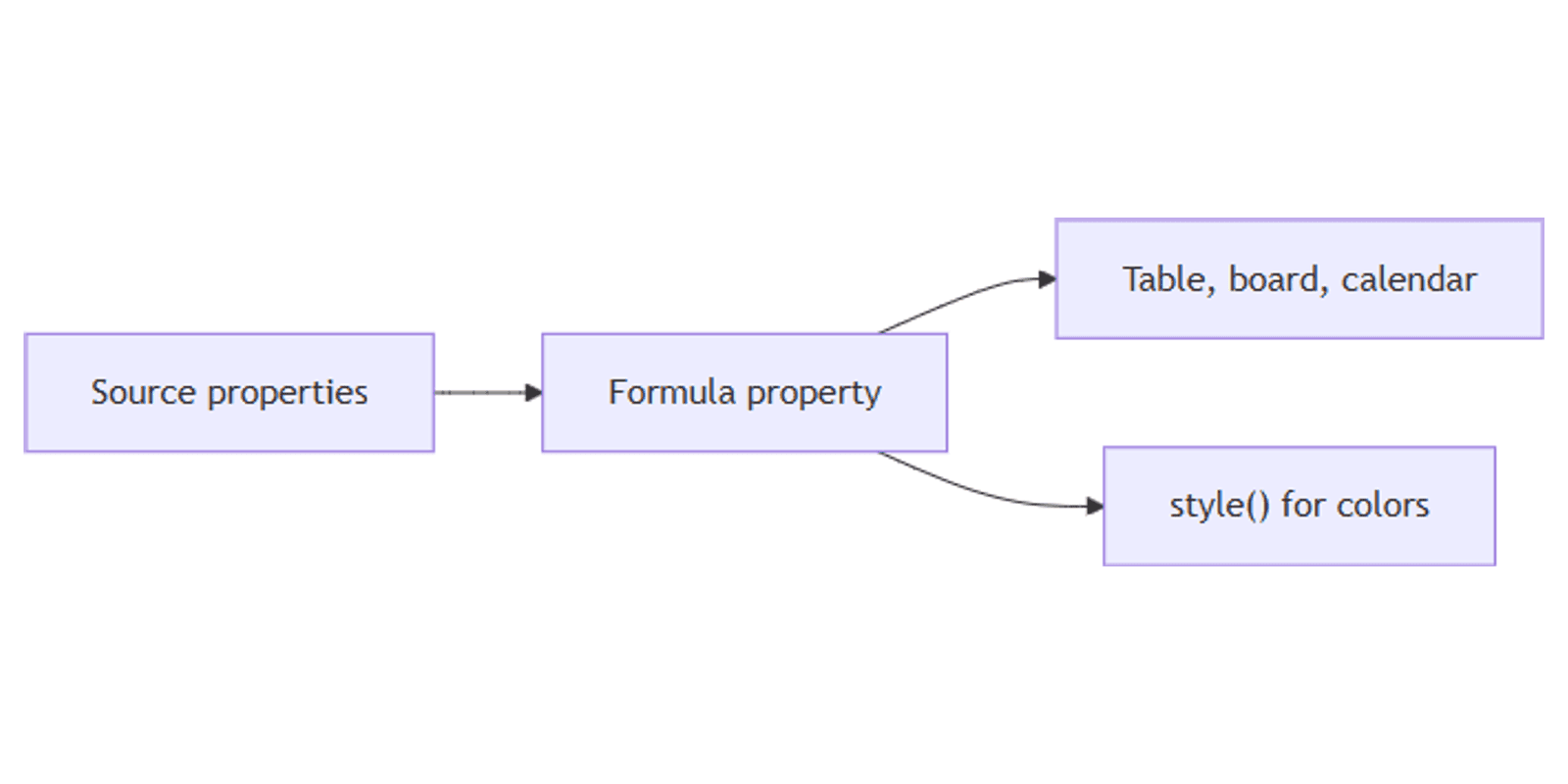
For colored text and backgrounds instead of emoji, use the style() function - see our formula color guide.
Days since created
Uses Notion's built-in Created time property (add it from the property type list):
format(dateBetween(now(), prop("Created time"), "days")) + " days ago"
Formulas with relations
When a relation property links rows, you can reference linked pages in formulas - but for aggregations (count, sum, latest date), use a rollup instead.
| Goal | Property type |
|---|---|
| Count linked tasks | Rollup → Count all |
| Sum linked invoice amounts | Rollup → Sum |
| Show linked page name as text | Formula with relation reference |
| Check if any linked page exists | Formula with empty() on relation |
Rule of thumb: one row's formula for logic and labels; rollups for totals across linked pages.
Formatting output with style()
The style() function adds bold, colors, and backgrounds to formula output. Example - color-code status labels (use your sub-status names):
if(
  prop("Status") == "Done",
  style("Done", "b", "green", "green_background"),
  style("In progress", "b", "orange", "orange_background")
)
See the full style() reference in our Color Notion Formula with the style function guide.
Debugging tips
Formula shows empty or unexpected results:
- Property renamed? Formulas break silently when a referenced property is renamed. Open Edit formula and re-select the property from the list.
- Type mismatch - comparing a date to text fails. Wrap values with
format()when mixing types. - Empty dates - always wrap date math in
if(empty(prop("Due date")), ...)to avoid errors. - Status labels - compare to the exact sub-status name shown in the cell (e.g.
"Done","In progress"), not the group name ("Complete","To-do"). Spelling and capitalization must match your database.
Test in table view - add the formula column next to source properties so you can spot wrong values quickly. Use filtering on formula output to build focused views (e.g. show only Overdue rows).
Free reference: Formulas 2.0 Cheatsheet
For a quick lookup of every function and operator, grab our free Notion Formulas 2.0 Cheatsheet
- it covers Terms, Built-ins, Variables, Functions, and Tips with examples.
Paid templates that use formulas heavily:
- Ultimate Notion Time Tracker - hours and earnings calculations
- Money Management, Personal Finance Tracker - budget summaries
- Ultimate Quarterly Goal Tracker - progress labels
Conclusion
Notion Formulas 2.0 turn your database properties into computed columns - due-date countdowns, overdue flags, progress labels, and styled status text. Add one formula property, start with an if() and prop(), then layer in date math and style() as your setup grows.
For aggregations across linked databases, switch to rollups. For workflows that run when data changes, use database automations.
Notion Templates
Start Selling Notion Templates - Start Now!