Notion Synced Blocks: Reuse Content Across Pages
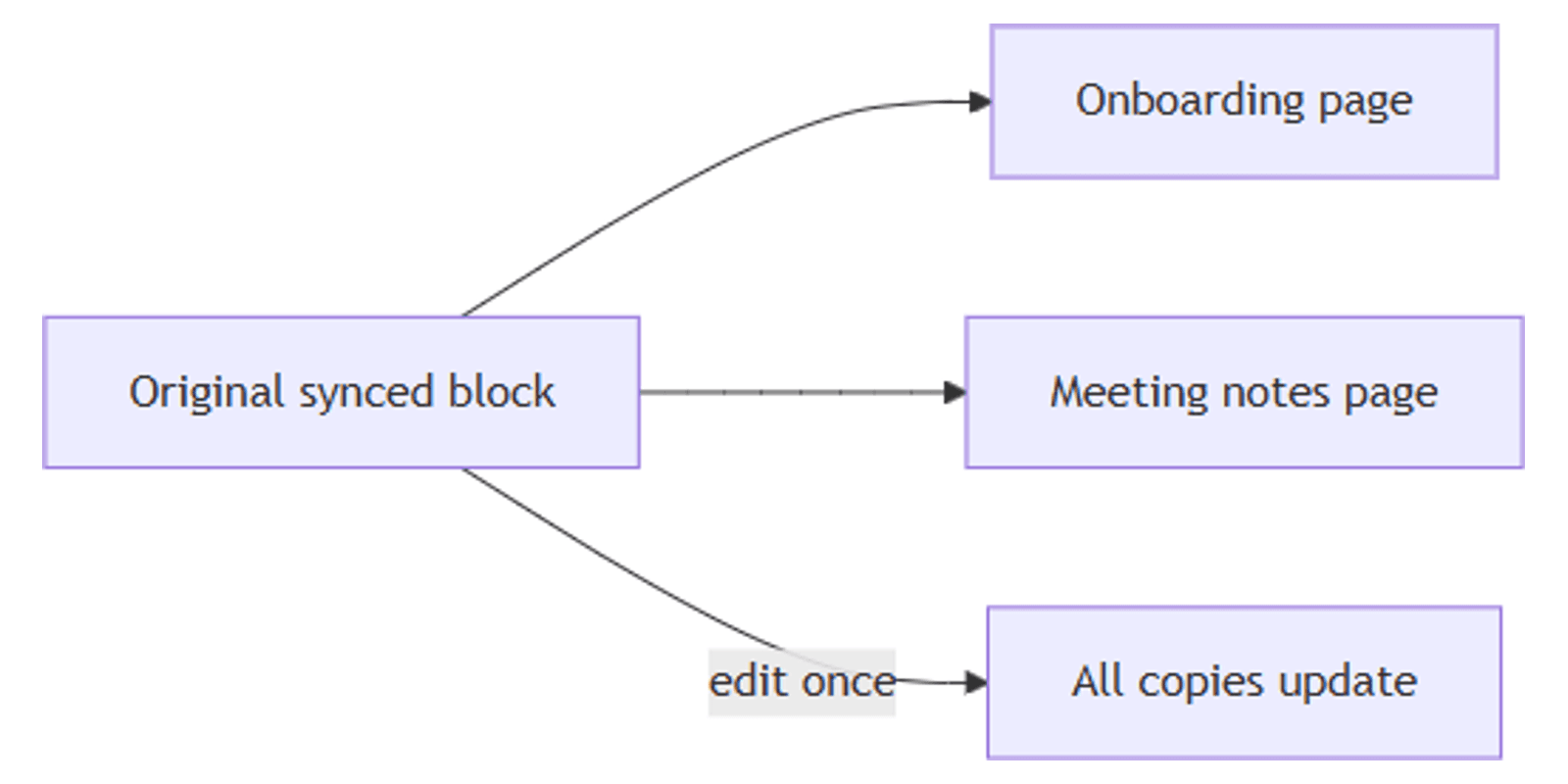
If the same paragraph, checklist, or callout appears on multiple Notion pages, synced blocks keep them in sync. Edit the original once and every copy updates automatically.
This guide covers how to create, edit, and unsync Notion synced blocks - and when to use them instead of linked databases or plain duplication.
What is a synced block?
A synced block is a group of Notion blocks that exists in multiple places at once. All copies show the same content. Change text in one copy and the rest update instantly.
Example: Your team mission statement lives in an onboarding doc and a weekly meeting notes page. When the mission changes, you edit it once - both pages reflect the update.
| Synced block | Duplicate content | Linked database | |
|---|---|---|---|
| Content type | Any blocks (text, lists, callouts) | Any blocks | Database rows |
| Edits | Sync everywhere | Independent copies | Data syncs; views local |
| Best for | SOPs, shared checklists, policy text | Page-specific notes | Task lists, CRM data |
How to create a synced block
- Select the blocks you want to sync - drag your cursor across them, or click ⋮⋮ and choose Select all for a section.
- Click ⋮⋮ next to the selection → Turn into → Synced block.
- Click the copy icon on the synced block.
- Paste the block on any other page (same workspace or another page in the same workspace).
You can paste the same synced block on multiple pages or in multiple spots on one page.
Tip: Callouts, toggle lists, to-do lists, and headings all work inside synced blocks.
Edit synced blocks
When you click into a synced block, Notion shows:
- A border around the block indicating it is synced.
- Editing in ↙ N other pages - click to see every location and jump to them.
- ORIGINAL next to the page where the block was first created.
- A copy icon to paste another instance.
Changes you make in any copy apply to all copies immediately.
Unsync a synced block
To break the connection and make one copy independent:
- Hover over the copy you want to separate.
- Click ••• → Unsync.
That copy becomes a normal block. Other copies stay synced with each other.
To unsync every copy at once:
- Hover over the original synced block (marked ORIGINAL).
- Click ••• → Unsync all.
Each copy becomes independent. Page links inside the block keep working after unsyncing.
Important: If a synced block has more than 10 copies, using Unsync all or deleting the original removes all copies. Undo will not restore them. Unsync individual copies one at a time when you have many instances.
Permissions
Anyone who should edit a synced block needs edit access to the page containing the original block.
If someone can see a page with a synced copy but not the original page, they may see empty content or a prompt to request access. Share the original page with the right people before pasting copies widely.
Practical use cases
- Team mission or values - one statement on onboarding, wiki, and all-hands pages.
- Onboarding checklist - same steps in HR docs and manager playbooks.
- Meeting agenda template - shared structure synced into every week's notes page.
- Policy reminders - legal or security callouts repeated across team spaces.
- Release checklist - engineering steps synced into sprint and launch pages.
When not to use synced blocks
- Page-specific content - meeting notes, project status, or personal drafts should stay independent. Duplicate or write fresh content instead.
- Database rows - use a linked database or relation for structured data, not synced blocks.
- Content that changes per context - if each page needs different wording, syncing creates friction.
Synced blocks vs linked databases
Both features reuse content, but for different types of data:
- Synced blocks - free-form page content: text, bullets, callouts, toggles.
- Linked databases - structured rows with properties, filters, and views.
A project page might use a synced block for the team's definition of done (same text everywhere) and a linked database for tasks filtered to that project (same data, local filter).
Tips
- Keep originals on a shared team page - makes permissions and finding the source easier.
- Label originals clearly - the ORIGINAL tag helps, but a dedicated "Synced content" wiki page reduces confusion.
- Avoid huge synced sections - smaller blocks are easier to manage and unsync if needed.
- Check copy count before deleting - remember the 10+ copies behavior.
Conclusion
Synced blocks let you maintain one version of reusable content across your workspace. Select blocks, turn them into a synced block, paste copies where you need them, and edit once.
Use them for shared text and checklists. For database data with custom filters on each page, use linked databases instead.
Notion Templates
Start Selling Notion Templates - Start Now!