Notion Linked Databases: Show the Same Data in Multiple Places
A linked database lets you show the same Notion database on multiple pages - each with its own view, filters, and layout - without duplicating data. Edit a row in one place and it updates everywhere.
This guide explains how Notion linked databases work, how to create them, and how they differ from relations and synced blocks.
What is a linked database?
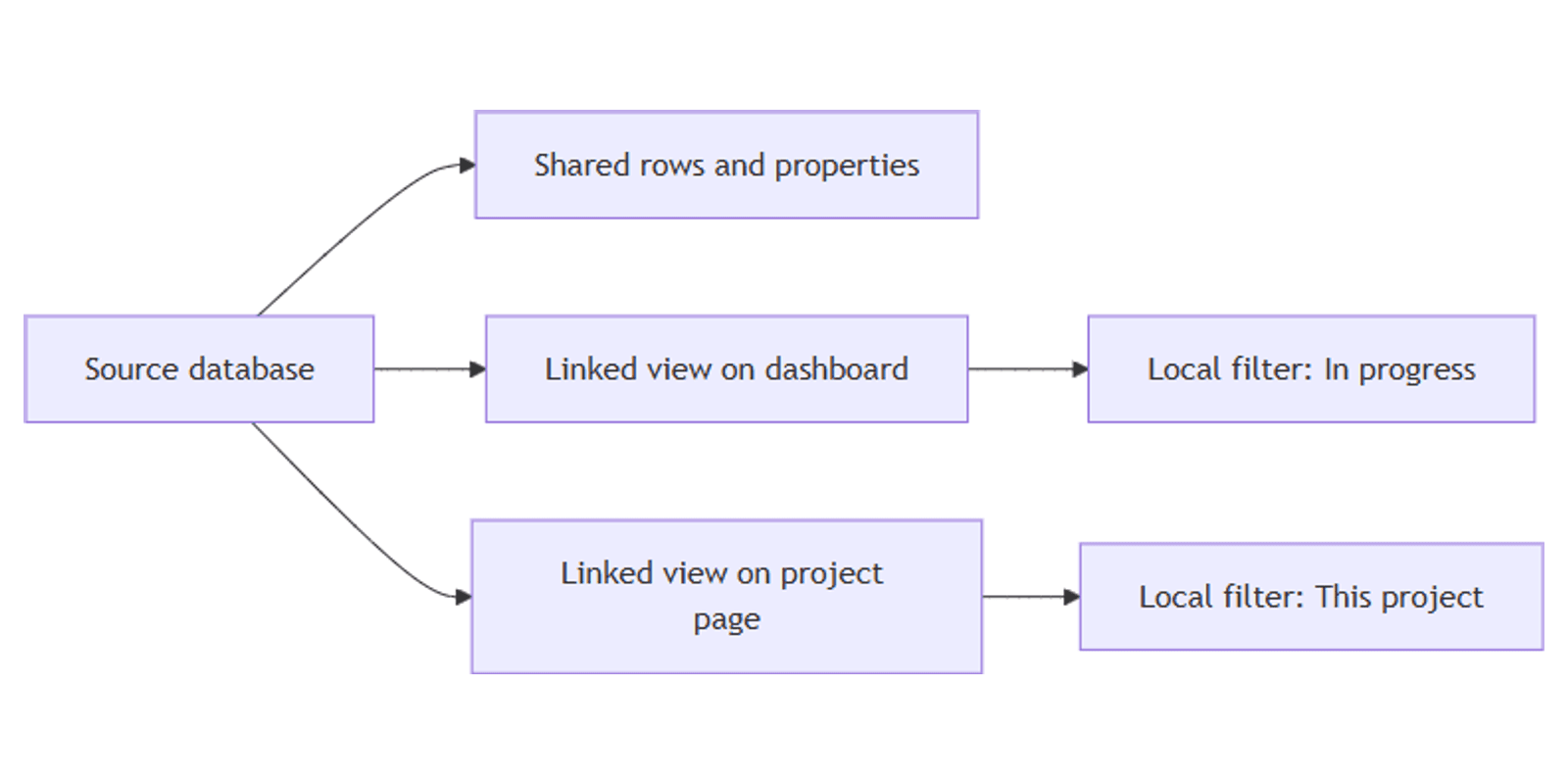
A linked database is a view of an existing database embedded on another page. The underlying rows and properties are shared; only the presentation is local to that linked instance.
Example: You maintain one Tasks database for the whole team. On your homepage, you add a linked view filtered to your open tasks. On each project page, you add another linked view filtered to tasks for that project. Same data, different slices.
| Linked database | Duplicate database | |
|---|---|---|
| Data | Single source - edits sync everywhere | Separate copies - edits stay isolated |
| Views & filters | Independent per linked instance | Fully independent |
| Best for | Dashboards, personal views, project hubs | One-off experiments, templates |
The key rule: data syncs, views do not
This is the most important concept for linked databases:
- Syncs across all instances: rows, property values, new pages, deleted pages, property schema changes on the source database.
- Stays local to each linked view: layout type (table, board, calendar), filters, sorts, groups, and property visibility.
Add a filter on a linked database and it affects only that linked view - not the original database or other linked copies. Learn more in our filtering and grouping guides.
How to create a linked database
Method 1: Slash command
- Open the page where you want the database to appear.
- Type
/linkedand select Linked view of database (or Linked view of data source). - Search for and select the source database.
- Choose an existing view to copy, or create a New view.
- Customize filters, sorts, and layout in the linked instance.
Method 2: Paste a database link
- Copy a link to any database (click ⋮⋮ next to the database title → Copy link).
- Paste the link on your target page.
- Select Paste as linked database view.
Both methods create a linked instance - not a duplicate database.
Copy an existing view vs create a new one
When you link a database, Notion asks whether to reuse a view or start fresh:
- Copy existing view - quick setup; inherits that view's layout and settings as a starting point. You can still change filters locally afterward.
- New view - blank slate; pick table, board, calendar, timeline, or gallery and configure from scratch.
For dashboards, a New view filtered to what you need is usually cleaner than copying a shared team view.
Practical examples
Team dashboard
On a team homepage:
- Add a linked view of your Tasks database.
- Create a Board view grouped by Status.
- Filter to In progress and To-do only.
- Hide properties you do not need on the dashboard.
Everyone sees live task data without visiting the source database.
Personal task list with Can edit content
Users with Can edit content (but not full edit access) on the source database cannot add views to the main database - but they can create custom filters on linked databases embedded in pages they edit. Add a linked Tasks view on a personal page and filter with Assignee is me and Due date is this week.
Filtered linked database in a template
In a database template, embed a linked database filtered to the current page's properties - for example, show only tasks where Project equals the new project row. Paste the database link inside the template, choose Paste as linked database view, then set a dynamic filter referencing a property on the template page.
Linked databases vs relations vs synced blocks
These features are often confused. They solve different problems:
| Feature | What it does |
|---|---|
| Linked database | Shows one database in many places with local views |
| Relation | Connects rows between two databases via a property |
| Synced block | Reuses the same content blocks across pages |
Use linked databases when you want the same table of data on a dashboard or project page. Use relations when rows in one database need to point to rows in another. Use synced blocks for reusable text, checklists, or callouts - not database rows.
Relations and linked databases work well together: relate tasks to projects, then embed a filtered linked task view on each project page.
Data sources (brief note)
Notion databases can include multiple data sources - collections of pages that share one database shell. When you link a database, you are linking to a data source's pages.
If you create a new database and choose Link to existing data source, you are pointing a new database container at data that lives elsewhere. Edits to pages and properties still sync to the original source. Views, filters, and sorts on the new container stay local, just like a standard linked view.
For most workflows, the /linked command on any page is all you need.
Permissions
- Viewers need access to the source database to see data in a linked view.
- Can edit content users can edit rows through linked views but may be restricted from changing the source database's views or properties.
- Page-level access rules on the source database apply across all linked views.
If someone sees an empty linked database, check that they have at least view access to the original.
Tips and limitations
- Name linked views clearly - "My open tasks" vs "All tasks" avoids confusion on busy pages.
- Do not duplicate databases when a linked view would do - duplication creates sync headaches.
- Test filters on linked views - a filter on the source DB and a filter on a linked view are independent.
- Remove a linked view by selecting the database block and deleting it - this does not delete the source database or its data.
Conclusion
Linked databases give you one source of truth with many tailored views. Add a linked view with /linked, set filters for the context of each page, and let row edits flow back to the source automatically.
Start with a filtered task list on your homepage, then add project-specific linked views as your workspace grows. For reusable page content rather than database rows, use synced blocks instead.
Notion Templates
Start Selling Notion Templates - Start Now!