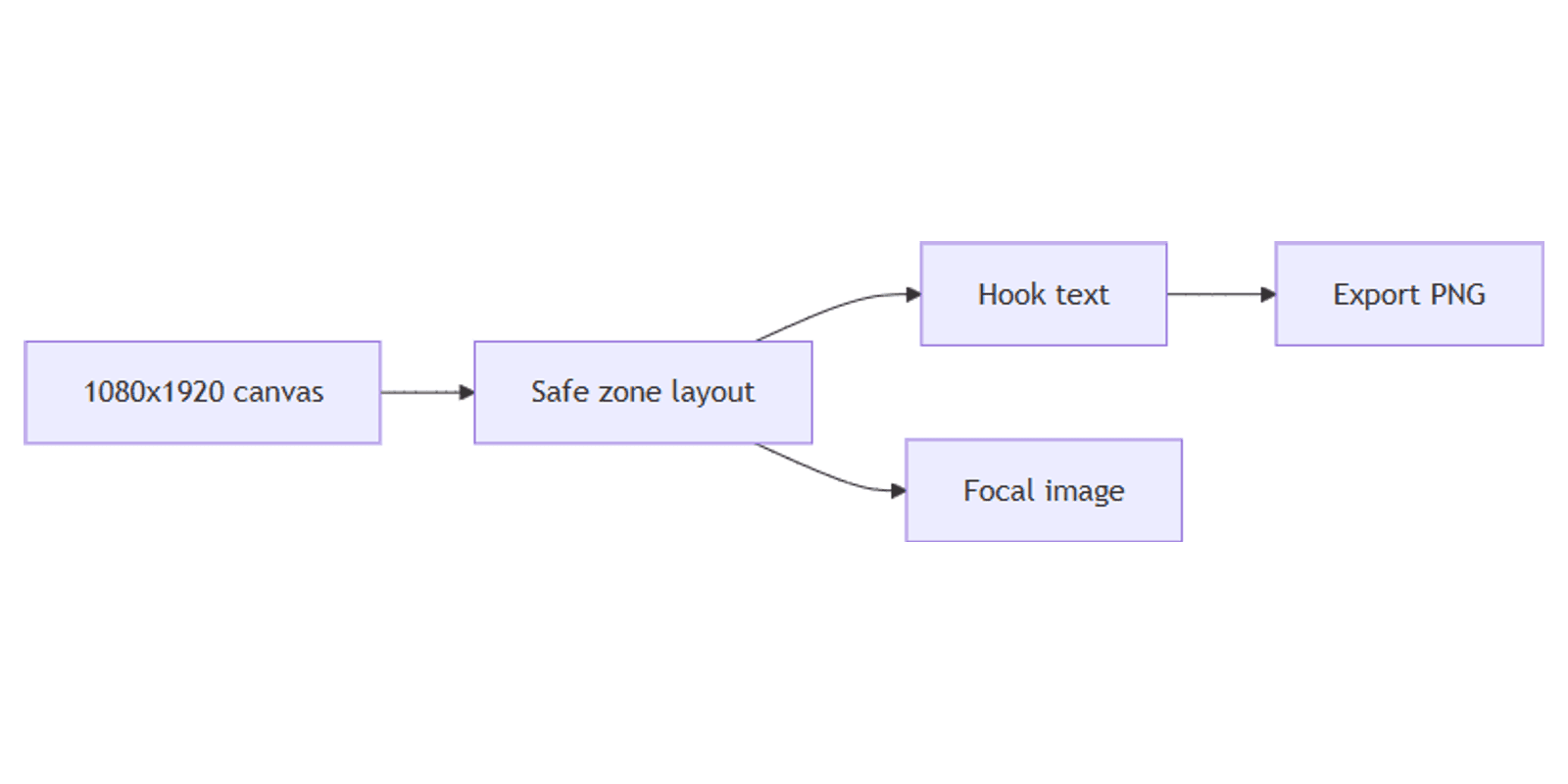
How to Create TikTok and Reels Covers in Canva: 1080×1920
A strong TikTok or Instagram Reels cover decides whether viewers tap play. Canva makes it easy to design 1080×1920 (9:16) covers with bold hooks, readable type, and export-ready files - while staying inside platform safe zones.
This guide covers canvas setup, UI safe zones, the profile-grid crop, typography, and export for TikTok covers and Reels covers. The same size works for Stories and many Shorts creatives.
TikTok and Reels cover size in Canva
Design vertical covers at:
| Spec | Value |
|---|---|
| Canvas size | 1080 × 1920 px |
| Aspect ratio | 9:16 |
| Formats | PNG or JPG |
| Practical file size | Under 5–10 MB |
To create the canvas:
- Open Canva.
- Click Create a design → search TikTok Video, Instagram Reel, or Instagram Story.
- Or use Custom size → 1080 × 1920 px.
| Use | Size |
|---|---|
| TikTok / Reels / Stories cover | 1080 × 1920 px |
| Instagram portrait feed | 1080 × 1350 px |
| YouTube thumbnail | 1280 × 720 px |
| LinkedIn square post | 1080 × 1080 px |
| Blog header (2:1) | 1600 × 800 px |
See Instagram posts, YouTube thumbnails, and LinkedIn posts for other formats.
Safe zones (do not put text here)
TikTok and Reels overlay UI on the video. Keep hooks and faces in the center of the frame.
Rough safe margins on a 1080×1920 canvas:
| Zone | Approx. avoid | Why |
|---|---|---|
| Top | ~150–220 px | Username, tabs, status |
| Bottom | ~400–480 px | Captions, buttons, music |
| Right | ~100–150 px | Like / comment / share column |
Practical rule: keep critical text and faces between roughly Y = 220 and Y = 1440, and inward from the right edge. When in doubt, design for the center ~60% of the canvas.
Profile grid crop (1:1)
On your profile grid, platforms often show only a center square crop of the 9:16 cover (about the middle 1080 × 1080). A title at the very top or bottom can look fine in the feed and get cut off on the grid.
Design for both:
- Place the hero face / product in the center square.
- Keep the main hook inside that same center band when possible.
- Use the top/bottom thirds for secondary graphics only.
Step-by-step: build a cover in Canva
1. Set the background
- Solid or gradient for text-first covers.
- Photo or video still - Elements → Photos, or upload a frame from your clip.
- Add a semi-transparent overlay so white or light text stays readable.
2. Add a focal subject
- Place the subject in the vertical center.
- Use Background Remover (Canva Pro) for cutouts.
- Preview on a phone mockup with the FREE Frame Mockups Bundle.
3. Add hook text
- Text → Add a heading.
- Use 3 to 6 words that tease the payoff ("3 Budget Mistakes").
- Bold, high-contrast fonts (e.g. Montserrat, League Spartan, Bebas Neue).
- Size large enough to read at ~25–33% zoom.
Typography tips:
- One message only - covers are thumbnails of a second.
- High contrast over busy video stills.
- Outline or shadow if text sits on a photo.
- Avoid the bottom caption and right-button zones.
4. Optional badges
- Episode or part number ("Part 1").
- Series label in a small corner inside the safe zone.
- Brand mark - small, not competing with the hook.
5. Align and check crops
- Enable rulers/guides; keep ~40 px inner margin inside the safe zone.
- Mentally crop a center square - does the cover still make sense?
- Zoom to 25% - if the hook fails, enlarge type or shorten copy.
Cover layout patterns
| Pattern | Structure | Best for |
|---|---|---|
| Hook center | Big text + face/product in middle third | Most tutorials |
| Before / after | Split vertical halves in safe zone | Transformations |
| List tease | Large number + short promise | Listicles |
Save your winner as a Brand Template (Canva Pro) for batch covers.
Export settings
- Share → Download.
- PNG for text-heavy covers; JPG for photo-heavy stills.
- Upload as a custom cover in TikTok or Instagram (cover picker / edit cover).
Keep files under platform caps (often around 10 MB for covers) - aim smaller for fast uploads.
You can also design multiple pages in one Canva file (one cover per page) and download All pages.
Size reference for other platforms
| Platform | Size |
|---|---|
| TikTok / Reels / Stories | 1080 × 1920 px |
| Instagram portrait post | 1080 × 1350 px |
| YouTube thumbnail | 1280 × 720 px |
| LinkedIn square | 1080 × 1080 px |
| Pinterest pin | 1000 × 1500 px |
| Open Graph | 1200 × 630 px |
Magic Resize (Canva Pro) can adapt a Reels cover toward Instagram portrait or LinkedIn square - recheck safe zones after resizing.
Design checklist
- Canvas is 1080 × 1920 px (9:16)
- Hook readable at small size (25–33% zoom)
- Text and face inside center safe zone (not under bottom/right UI)
- Center square crop still works for the profile grid
- Strong contrast
- Exported PNG or JPG under ~10 MB
Common mistakes to avoid
- Title in the bottom fifth - buried under captions and buttons.
- Ignoring the 1:1 grid crop - key text vanishes on your profile.
- Tiny fonts - covers compete at phone size.
- Edge-aligned faces on the right - covered by engagement buttons.
- Landscape exports - letterboxed and easy to skip.
FAQ
What size are TikTok and Reels covers in Canva?
1080 × 1920 pixels (9:16). Search TikTok Video or Instagram Reel, or set a custom size.
Where is the safe zone for TikTok covers?
Keep important content away from the top ~150–220 px, bottom ~400–480 px, and right ~100–150 px. Center the hook and subject.
Do Reels covers get cropped on Instagram profiles?
Often yes - profile grids show a center 1:1 crop of the vertical cover. Put the hero visual in the middle square.
Conclusion
Canva is a fast way to create TikTok and Reels covers at 1080×1920 - set the canvas, keep hooks in the safe zone, design for the center square crop, and export PNG or JPG. Save a template and batch covers for consistent series branding.
For feed posts, see Instagram posts in Canva. For landscape video thumbs, see YouTube thumbnails. For gap-free layouts, see equal-width sections.
Canva Templates
Start Selling Canva Templates - Start Now!