How to Create Instagram Carousels in Canva: Multi-Page Posts
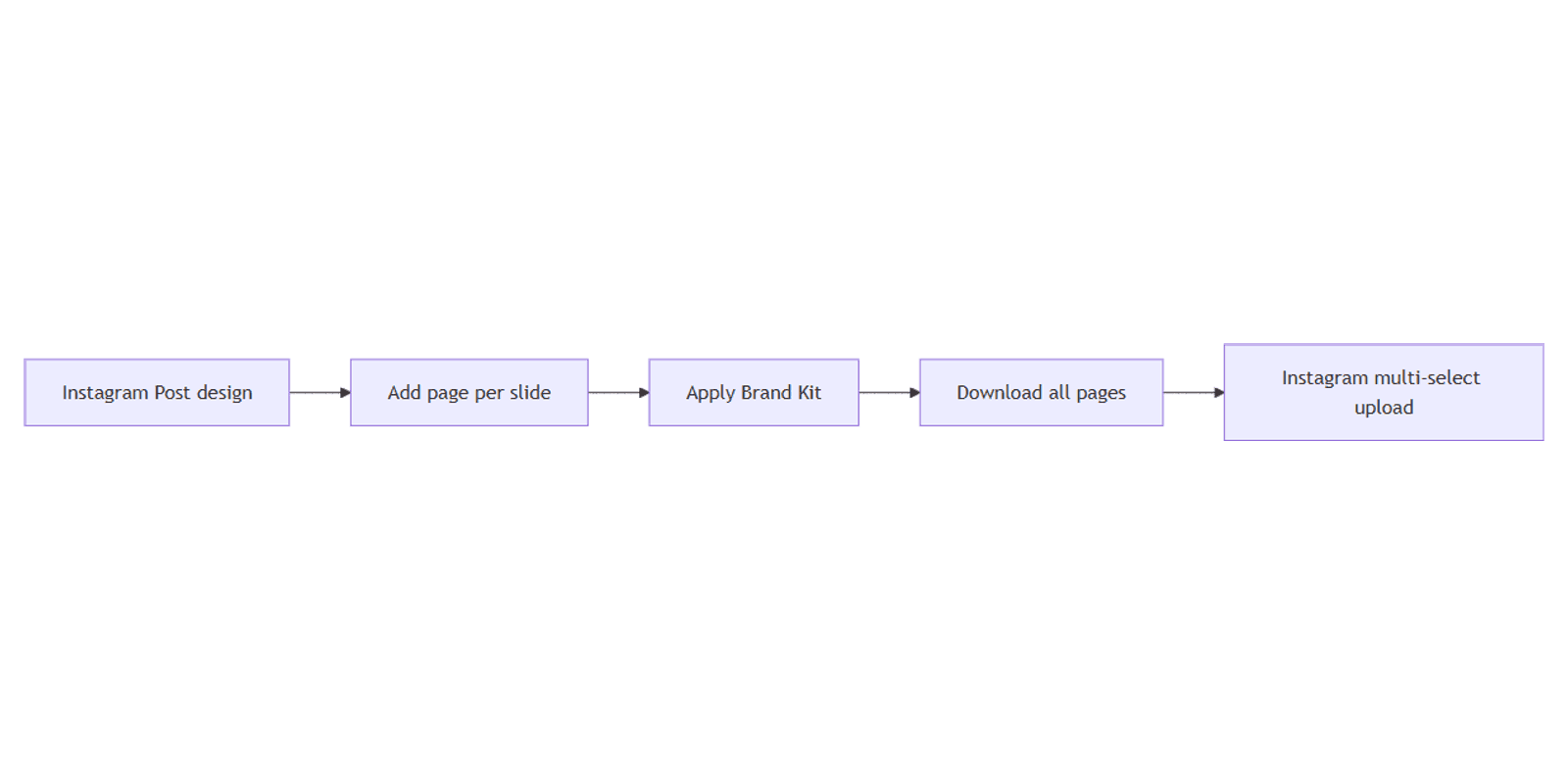
An Instagram carousel is a multi-image feed post viewers swipe through. Canva is ideal for building those slides: one design file, matching page sizes, Brand Kit consistency, then download every page and publish as a carousel in the Instagram app.
This guide covers carousel sizes, page setup, hook-first layout, Brand Kit, export, and Instagram upload. Official Instagram scheduling note: Canva Content Planner does not schedule Instagram Galleries/carousels (nor Stories or Reels) - see Content Planner and Scheduling posts on Instagram. For single-image scheduling, use Canva Content Planner.
Related design guides: Instagram posts, Instagram Stories, Instagram Reels video, and Brand Kit.
Carousel slide sizes in Canva
Keep every slide the same size. Mixed dimensions break the swipe experience and can crop unevenly in the feed.
| Format | Size | Aspect ratio | Best for |
|---|---|---|---|
| Portrait feed (recommended) | 1080 × 1350 px | 4:5 | Most feed carousels |
| Square | 1080 × 1080 px | 1:1 | Quotes, product grids, simple tips |
| Grid-oriented | 1080 × 1440 px | 3:4 | When you prioritize profile grid crop |
Prefer 1080 × 1350 (4:5) for feed carousels unless your brand already ships square-only templates. Do not mix 4:5 and 1:1 slides in the same carousel.
Leave roughly 40–50 px safe margin on every page so text and logos survive feed and grid crop.
How to create an Instagram carousel in Canva
1. Start an Instagram Post design
- Open Canva.
- Click Create a design.
- Search Instagram Post (Portrait) for 1080 × 1350, or Instagram Post for square, or enter Custom size.
- Pick a template or start blank.
2. Add a page for each slide
- Design page 1 as the hook.
- Click + Add page (or Duplicate page) for slides 2, 3, and so on.
- Aim for a clear arc - typically 3–7 slides for tutorials and listicles; Instagram allows a larger max count, but more slides need a stronger reason to swipe.
- Keep header bars, margins, and background style consistent across pages.
3. Design the hook on page 1
Slide 1 earns the swipe. Use:
- A short, high-contrast title (about 3–6 words)
- One supporting line or number ("5 steps", "Before → After")
- A visual cue ("Swipe →" or a chevron) that does not fight the headline
- Slide numbers later ("1/6") once the full set exists
Avoid dumping the full tutorial on page 1 - save detail for slides 2+.
4. Apply Brand Kit
Open Brand Kit so every slide shares colors, fonts, and logos.
- Open Brand / Brand Kit in the editor.
- Apply brand colors and approved fonts.
- Place the correct logo variant with clearance from edges.
- Duplicate page 1 styles rather than rebuilding fonts from scratch on each slide.
5. Build the middle and CTA slides
| Slide role | Goal |
|---|---|
| 1 - Hook | Stop scroll; promise the outcome |
| 2–N - Body | One idea per slide; scannable text |
| Last - CTA | Save, follow, comment, or link-in-bio prompt |
Carousel layout tips:
- One point per slide - no dense paragraphs
- Same text box position across slides for a steady swipe rhythm
- High contrast on mobile - zoom to ~33% and check readability
- Optional slide numbers ("3/6") in a consistent corner
6. Download all pages
- Click Share → Download.
- Choose JPG or PNG (PNG for text-heavy graphics; JPG for photo-heavy slides).
- Select All pages.
- Download the zip or multi-file set and confirm every slide exported.
| Format | Best for |
|---|---|
| PNG | Sharp text, flat graphics, icons |
| JPG | Photos, smaller uploads |
Keep each file under Instagram's image limits (practical target: well under 5 MB per slide when possible).
7. Upload as a carousel in Instagram
- Open the Instagram mobile app.
- Create a new post.
- Multi-select the exported images in swipe order (slide 1 first).
- Adjust crop only if needed - matching Canva sizes reduces re-crop work.
- Add caption, location, and tags.
- Publish.
Canva Content Planner cannot replace this step for galleries/carousels. Schedule single-image posts via Content Planner; publish carousels from the app.
Carousel vs Stories vs Reels
| Format | Size mindset | Canva → publish |
|---|---|---|
| Carousel | Matching 1080×1350 (or square) pages | Download all pages → Instagram app multi-select |
| Single feed post | One 1080×1350 page | Download or Content Planner (Business) |
| Stories | 1080×1920 | Download / share; not Content Planner galleries |
| Reels video | 1080×1920 video | Export video; not Content Planner Reels schedule |
Planning the series outside Canva
Map themes, captions, and publish dates before you design. A lightweight Social Media Multi-Platform Content Planner helps you batch carousel topics while Canva holds the visual files. Preview swipe order on a phone mockup with Canva frame mockups when you present drafts to a client.
Design checklist
- Every slide uses the same pixel size (prefer 1080 × 1350)
- Page 1 is a clear hook; last page has a CTA
- Brand Kit colors, fonts, and logo applied
- Safe margin (~40–50 px) on all sides
- Slide numbers optional but consistent
- Downloaded All pages as JPG or PNG
- Uploaded in order via Instagram multi-select
- Not relying on Content Planner for carousel scheduling
Common mistakes
- Mixed slide sizes - resize every page to match before export
- Expecting Content Planner to schedule carousels - it does not; use the Instagram app
- Wall of text on slide 1 - hook first, teach later
- Inconsistent headers - duplicate pages instead of redesigning each time
- Publishing from a multi-design file via schedule - Content Planner prefers single-design docs for supported single posts; carousels stay download-and-upload anyway
FAQ
What size should Instagram carousel slides be in Canva?
Match all slides. 1080 × 1350 px (4:5) is the common feed choice; 1080 × 1080 works for square carousels. Do not mix ratios in one post.
Can Canva Content Planner schedule Instagram carousels?
No. Content Planner does not schedule Instagram Galleries/carousels, Stories, or Reels. Design in Canva, download all pages, and publish in the Instagram app. For single-image scheduling, see Canva Content Planner and Canva's Instagram scheduling help.
How many slides should a carousel have?
Enough to finish one idea without padding - often 3–7 for tips and tutorials. Instagram supports more; quality and swipe rate matter more than max count.
Should I use JPG or PNG?
PNG for text-heavy or flat graphic slides; JPG for photo-heavy sets when file size matters. Export All pages so order stays intact when you select files.
How do I keep slides on-brand?
Use Brand Kit, duplicate page 1 for structure, and lock header/footer positions. Save a Brand Template when your team repeats the same carousel shell.
Conclusion
To create Instagram carousels in Canva, start an Instagram Post at one size (prefer 1080 × 1350), add a page per slide, hook on page 1, apply Brand Kit, download All pages, and multi-select upload in the Instagram app. Do not expect Content Planner to schedule carousels - that path is for supported single posts only.
Next, refine single-image feed work in Instagram posts, vertical Stories in Instagram Stories, and video in Instagram Reels. Keep brand assets centralized with Brand Kit.
Canva Templates
Start Selling Canva Templates - Start Now!