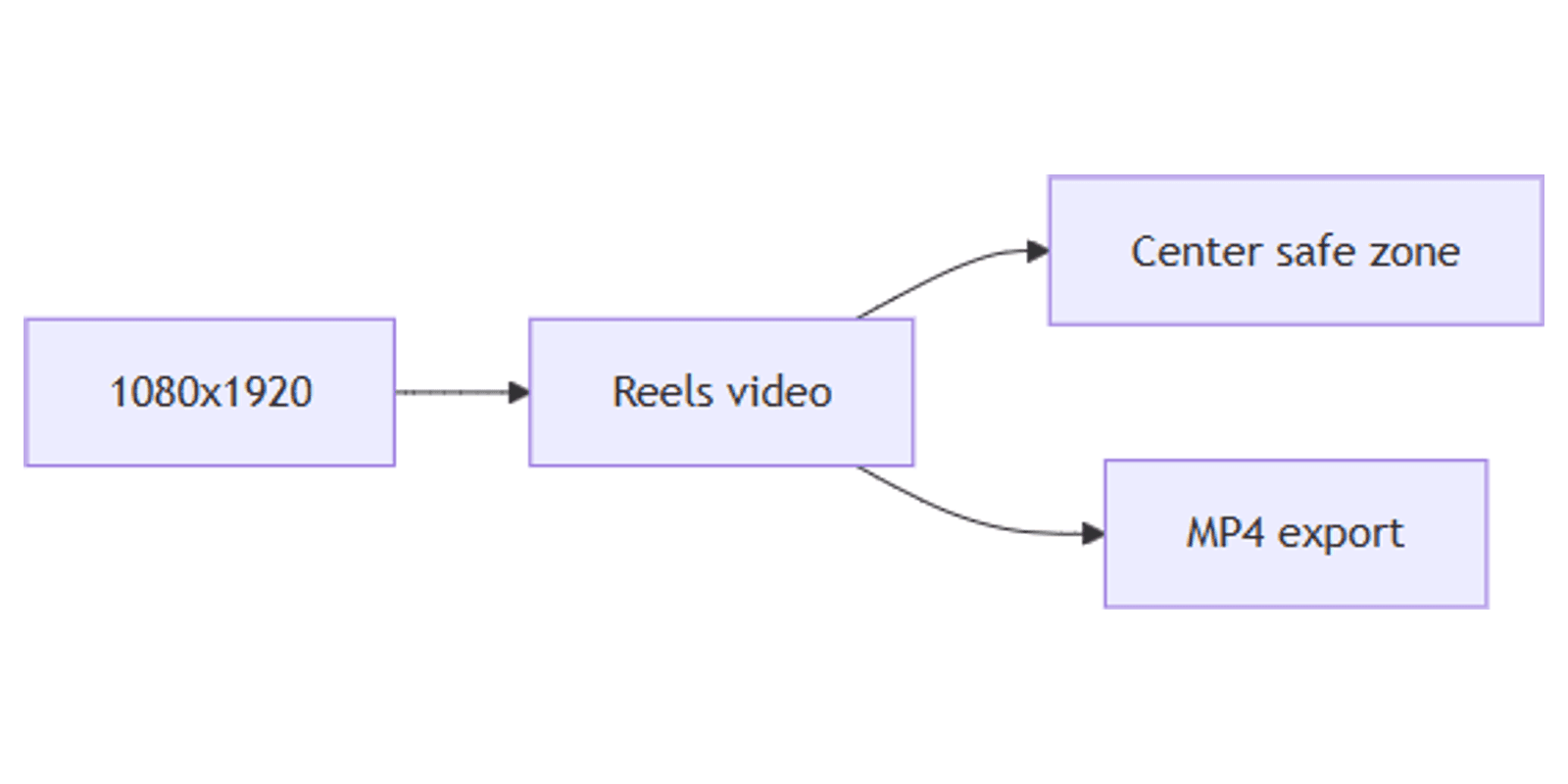
How to Create Instagram Reels Videos in Canva: 1080×1920
Instagram Reels videos in Canva are full 9:16 MP4 edits - footage, text, brand marks, and export - not just the still cover image. For cover art only, use TikTok and Reels covers; this post builds the playable Reel.
This guide covers the 1080 × 1920 canvas, safe zones, Brand Kit, Magic Resize from other formats, and MP4 download. Pair vertical Stories graphics with Instagram Stories when you need matching stills.
Instagram Reels video size in Canva
| Spec | Value |
|---|---|
| Canvas | 1080 × 1920 px |
| Aspect ratio | 9:16 |
| Export | MP4 Video (with audio when used) |
| Related still | Cover / thumbnail art at the same size |
To create the canvas:
- Open Canva.
- Create a design → search Instagram Reel, TikTok Video, or Instagram Story.
- Or Custom size → 1080 × 1920 px.
- Uploads → add your clip, then place it full-bleed on the page.
| Asset | Size | Guide |
|---|---|---|
| Reels video (this post) | 1080 × 1920 MP4 | Full motion edit |
| Reels / TikTok cover | 1080 × 1920 still | Covers |
| Stories | 1080 × 1920 | Instagram Stories |
Safe zones for Reels UI
Instagram chrome (username, captions, buttons, progress) eats the edges - especially bottom and right. Design like a cover: keep the hook and face in the center band.
| Zone | Guidance |
|---|---|
| Center | Face, product, main hook text |
| Bottom third | Avoid critical words - caption UI and buttons sit here |
| Right edge | Leave room for like / comment / share controls |
| Top | Light branding only - easy to crop in previews |
Practical check:
- Place the subject in the middle ~square of the frame.
- Keep on-screen captions inside the center safe band.
- Preview at phone width before export.
Step-by-step: build a Reels video
1. Footage and timing
- Drop your clip full-bleed on the 1080 × 1920 page.
- Trim on the timeline so the hook lands in the first seconds.
- Match page duration to the clip (or split into pages for multi-beat Reels).
2. Text and captions
- Add short hook text (3–6 words) in the safe center.
- Style with Brand Kit fonts and colors.
- Keep captions large enough to read at ~25–33% zoom.
3. Brand Kit
- Apply brand colors to bars, end screens, and lower-thirds.
- Place the logo small - not competing with the hook.
- Reuse the same kit on Stories and covers for a consistent grid.
4. Magic Resize from other formats
Already have a square post or Story?
- Open the design → use Magic Resize (paid feature) toward Instagram Reel / 1080 × 1920.
- Re-check safe zones - resized text often sits too close to edges.
- Re-trim timing after resize; export as MP4, not only PNG pages.
Magic Resize is a starting point - always re-center the hook for Reels UI.
Export MP4 for Instagram
- Share → Download.
- File type MP4 Video.
- Download, then upload in the Instagram app as a Reel.
- Optionally export a matching still cover from the same brand system - see TikTok and Reels covers.
Plan length/resolution caps for Canva MP4 follow download as video (Free up to 30 min / 1080p; Pro up to 2 h / 4K). Instagram may impose its own Reel length and file limits on upload - keep edits within both Canva and Instagram caps.
Checklist:
- Canvas is 1080 × 1920 (9:16)
- Hook and subject inside center safe zone
- Brand Kit applied
- Previewed on a narrow viewport
- Exported MP4 (not only a cover PNG)
- Cover still designed separately if you need a custom grid face
Practical workflows
Series Reels
- Master template with Brand Kit + fixed caption style.
- Duplicate pages; swap clip + hook per episode.
- Batch-minded: export each page as MP4 when lengths differ.
From Stories to Reels
- Start from an Instagram Stories layout at 1080 × 1920.
- Replace static pages with video, or Magic Resize carefully, then re-check safe zones.
- Export MP4 for the Reel; keep Story PNG/JPG variants for ephemeral posts.
Cover + video pair
- Edit the motion Reel in this workflow.
- Design the grid cover in TikTok and Reels covers.
- Same hook line and Brand Kit on both.
Preview layouts with Sparxno Canva frame mockups.
FAQ
What size should Instagram Reels videos be in Canva?
1080 × 1920 pixels (9:16). Use an Instagram Reel / TikTok / Story template or Custom size.
Is this the same as a Reels cover?
No. Covers are stills for the grid and player face - covers guide. This post is the full MP4 Reel.
Where should text sit on a Reel?
Keep hooks and faces in the center - bottom and right UI overlays hide edge-only text.
Can I resize another Canva design into a Reel?
Yes - Magic Resize toward 1080 × 1920, then fix safe zones and export MP4.
Conclusion
Instagram Reels videos in Canva ship as 1080 × 1920 MP4 edits with center-safe captions and Brand Kit styling. Use Magic Resize when adapting other formats, and keep covers separate via TikTok and Reels covers.
For matching vertical stills, see Instagram Stories.
Canva Templates
Start Selling Canva Templates - Start Now!