How to Edit Videos in Canva: Trim, Captions, and MP4 Export
Canva’s video editor lets you trim clips, layer text and captions, apply brand styles, and export MP4 - without leaving the same design canvas you use for social graphics. This guide is about timeline editing and export, not one-click subject cutouts (see Background Remover for photo/video BG removal).
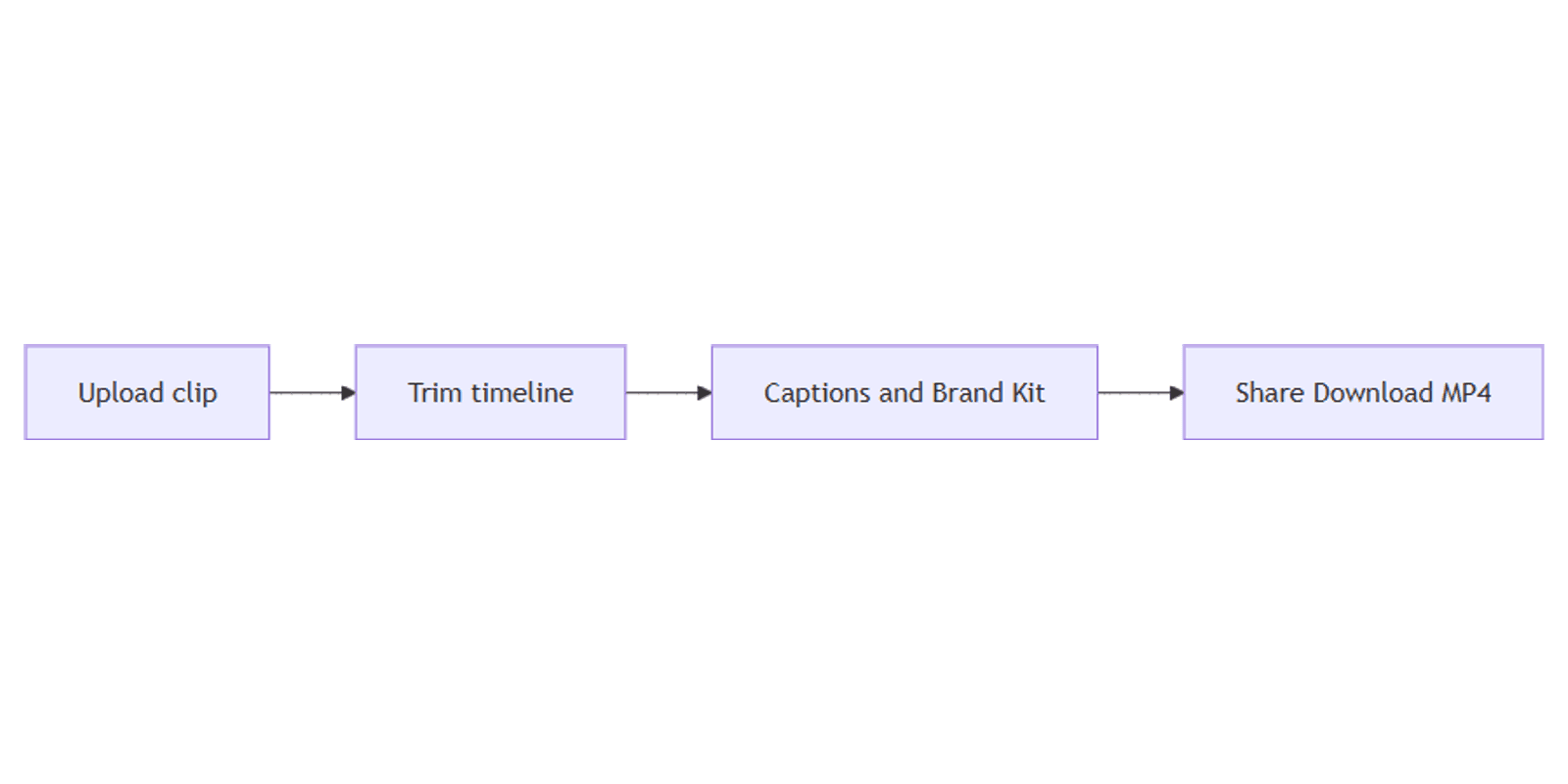
This walkthrough covers opening a video design, trimming, captions and text, Brand Kit, preview, and Share → Download as MP4. Official download limits: Downloading designs as video or GIF.
Open a video design in Canva
- Open Canva.
- Create a design → search a video template (e.g. Instagram Reel, TikTok Video, YouTube Video, or Presentation), or Uploads → add your clip to any canvas.
- Or use Custom size when you need a specific pixel size first, then drop video onto the page.
Drag video from Uploads onto the canvas. Select the clip to show the timeline and toolbar controls for trim, volume, and page timing.
Trim and arrange clips
- Select the video on the canvas.
- Use the timeline under the editor to drag start/end handles - trim silence or dead air.
- Split longer footage into pages or separate clips when you need different text overlays per beat.
- Adjust volume, mute stock audio if you add your own track, and stretch or shorten page duration so text and cuts stay in sync.
Tips:
- Keep one primary clip per page for simple social edits; multi-page designs work well for chapters.
- Upload source video at the resolution you need - export cannot invent detail that was never there.
- For cutouts on a clip, use Background Remover separately - then continue editing here.
Captions and on-screen text
- Text → Add a heading or body text for hooks and captions.
- Position captions in the safe center on vertical formats so platform UI does not cover them.
- Match fonts and colors from your Brand Kit.
- Draft or rewrite caption lines with Magic Write when you need faster hooks, CTAs, or voice variants.
Caption habits that read well:
- One idea per line; short phrases beat paragraphs on mobile.
- High contrast (light text on dark bar, or outline/shadow on busy footage).
- Time text appearance with Animate if you need motion - see Canva animations.
Brand Kit and consistency
Apply Brand Kit logos, colors, and fonts so every export matches your channel art - including YouTube thumbnails you design as stills alongside the video.
- Open Brand in the side panel (paid Brand Kit features vary by plan).
- Apply brand colors to text bars and end screens.
- Drop the approved logo with clear margins from edges and UI overlays.
Preview before export
- Click Present / play preview (or the preview control above the editor when available).
- Watch for clipped text, audio spikes, and mistimed captions.
- Fix timing on the timeline, then preview again.
Export MP4: Share → Download
- Click Share → Download.
- Choose MP4 Video as the file type (required if the design includes audio).
- Pick quality if offered, then Download (or Pay and Download for paid elements).
- For social posts that also need a still, export a frame separately or design a matching YouTube thumbnail.
Details and plan caps: Canva Help - download as video or GIF.
Free vs Pro length and resolution
| Plan | MP4 length (max) | MP4 resolution (max) | GIF (separate limits) |
|---|---|---|---|
| Canva Free | Up to 30 minutes | Up to 1080p (1920 × 1080) | Up to 1 minute, max 720p |
| Canva Pro (and Teams / Education / Nonprofits) | Up to 2 hours | Up to 4K (3840 × 2160) | Up to 2 minutes, max 1080p |
GIF limits are separate from MP4 - use GIF only for short loops; use MP4 for normal video with audio. Caps can change - confirm on Canva’s download help page.
Checklist:
- Clips trimmed; audio levels OK
- Captions readable on a phone
- Brand Kit colors / logo applied
- Previewed end-to-end
- Share → Download → MP4 Video
- Length and resolution within your plan’s limits
Practical workflows
Talking-head social cut
- Upload the raw clip; trim to the hook in the first 3 seconds.
- Add 3–6 word captions; style with Brand Kit.
- Export MP4 at 1080p (or 4K on Pro when the canvas supports it).
Thumbnail + video pair
- Edit and export the MP4 from this workflow.
- Design the still in YouTube thumbnails (1280 × 720) or a vertical cover guide as needed.
- Reuse the same hook line via Magic Write variants.
Product demo with clean subject
- Remove the backdrop with Background Remover if you need a cutout.
- Place the subject on a brand-color page; add caption bars.
- Export MP4 - do not confuse BG removal with timeline trim/export in this post.
Track publish dates in a content planner.
FAQ
How do I download a Canva design as MP4?
Share → Download → MP4 Video, then Download. Use MP4 when the design has audio (Canva Help).
What are Free vs Pro video download limits?
Free: MP4 up to 30 minutes at up to 1080p. Pro (and similar paid plans): MP4 up to 2 hours at up to 4K. GIF caps are separate and shorter.
Is this the same as Background Remover for video?
No. Background Remover cuts out a subject. This guide covers trim, captions, Brand Kit, and MP4 export in the video editor.
Can Magic Write help with video captions?
Yes - draft hooks and caption lines with Magic Write, then place them as text on the timeline.
Conclusion
Edit videos in Canva by trimming on the timeline, styling captions with Brand Kit, drafting copy via Magic Write, and exporting with Share → Download → MP4. Respect Free vs Pro length and resolution limits from Canva’s video download help.
For stills that sit next to your upload, see YouTube thumbnails. For subject cutouts, see Background Remover.
Canva Templates
Start Selling Canva Templates - Start Now!