Notion Audio Blocks: Record or Embed Sound on Pages
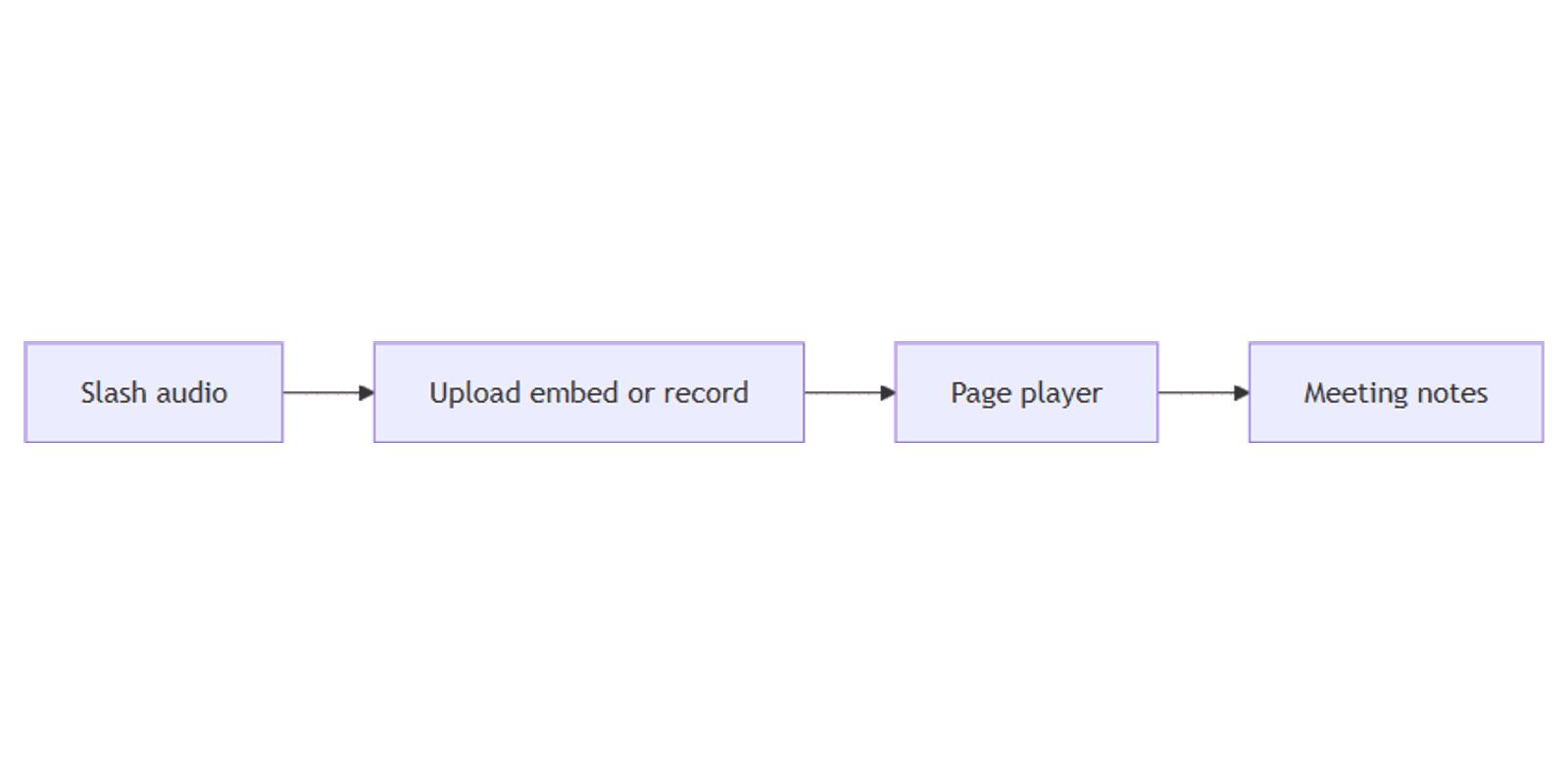
Notion audio blocks put sound on a page - voice notes, meeting snippets, podcast embeds, and reference clips next to your written notes. Add one with /audio, then upload, embed a link, or record when your client shows that option.
This guide covers inserting audio, upload vs embed, practical meeting-note workflows, and how audio differs from Files & media on databases. Labels can vary by desktop, web, and mobile - hedge and look for the closest control names. Official media help: Images, files & media.
What is an audio block?
An audio block is an inline page block with Notion’s audio player (for supported formats) or an embedded player from a link. It lives in page content - different from a database Files & media property that stores files on a row.
| Audio block | Files & media property | |
|---|---|---|
| Lives on | Page body | Database row property |
| Best for | Listen-in-place on a doc | Attachments tied to a record |
| Player | Inline audio / embed | Open or download from the cell |
How to add audio with /audio
- On a Notion page, type /audio and press Enter (or click + → Audio).
- Choose from the menu that appears - commonly Upload, Embed link, and on some clients Record (wording and availability vary by app and device).
- Complete upload, paste a URL, or finish recording when that path is available.
- Play back in the block to confirm the browser/OS can decode the format.
You can also drag an audio file onto the page - Notion often converts it into an audio block (Notion Help).
Upload a file
- /audio → Upload.
- Pick a file from your computer (e.g. MP3, WAV, M4A - support depends on browser/OS).
- Wait for upload; use the player controls on the block.
If playback fails, the format may be unsupported in that browser - try another format or embed from a host that provides a web player.
Embed a link
- /audio → Embed link, or paste a track/playlist URL and choose Create embed when prompted.
- Notion embeds supported streaming or file URLs via its embed pipeline.
Embeds depend on the source allowing embedding - if the player stays blank, upload the file instead or link out with a bookmark.
Record (when available)
Some Notion clients expose an in-block or nearby Record control for quick voice capture. If you do not see Record:
- Check the mobile app vs desktop.
- Upload a voice memo recorded in your OS voice app.
- For fuller meeting capture with AI notes, look for Notion’s meeting-notes / AI recording features in your workspace plan - UI names change over time.
Treat Record as optional and client-dependent; Upload and Embed are the reliable baseline.
Meeting notes and collaboration
Lightweight voice + notes:
- Create a meeting page (or database row page).
- Add /audio for the raw snippet or voice summary.
- Write decisions and actions as bullets under the player.
- Collect feedback with comments instead of editing over the transcript.
Team review feed:
- Keep audio on the meeting page body.
- Browse updates in Feed view when the parent is a database.
- @-mention owners in comments for action items.
Database of recordings:
- Use a database with a Files & media property for the master file when you need gallery/forms/filtering by attachment.
- Still place an /audio block inside the page when you want inline playback while reading notes.
Tips and troubleshooting
- Name files before upload -
standup-2026-07-25.m4abeatsrecording.m4a. - Watch storage - long recordings count against workspace limits on Free plans.
- Permissions - viewers need page access to play; see share & permissions if teammates cannot open the page.
- Blank player - try another browser, re-upload, or embed from a supported host (Notion Help).
- UI differs - if menus do not match this guide, search /audio and use Upload or Embed first.
FAQ
How do I add audio in Notion?
Type /audio, then Upload, Embed link, or Record when your client offers it.
Can I record voice directly in Notion?
Sometimes - Record appears on some clients and devices. If missing, upload a voice memo or use your workspace’s meeting-notes recording tools when available.
Audio block vs Files & media?
Audio blocks play inline on a page. Files & media attaches files to database rows for properties, forms, and gallery covers.
Can teammates comment on a page with audio?
Yes - use comments on the page or selection; pair with Feed view for database-driven review streams.
Conclusion
Notion audio blocks keep sound next to your notes - /audio to upload or embed, and record when the UI allows. Use them for meeting snippets and voice context; use Files & media when the file is row data.
For feedback threads, see comments. For database activity streams, see Feed view.
Notion Templates
Start Selling Notion Templates - Start Now!