Notion Share and Permissions: Guests, Edit Access, and Teamspaces
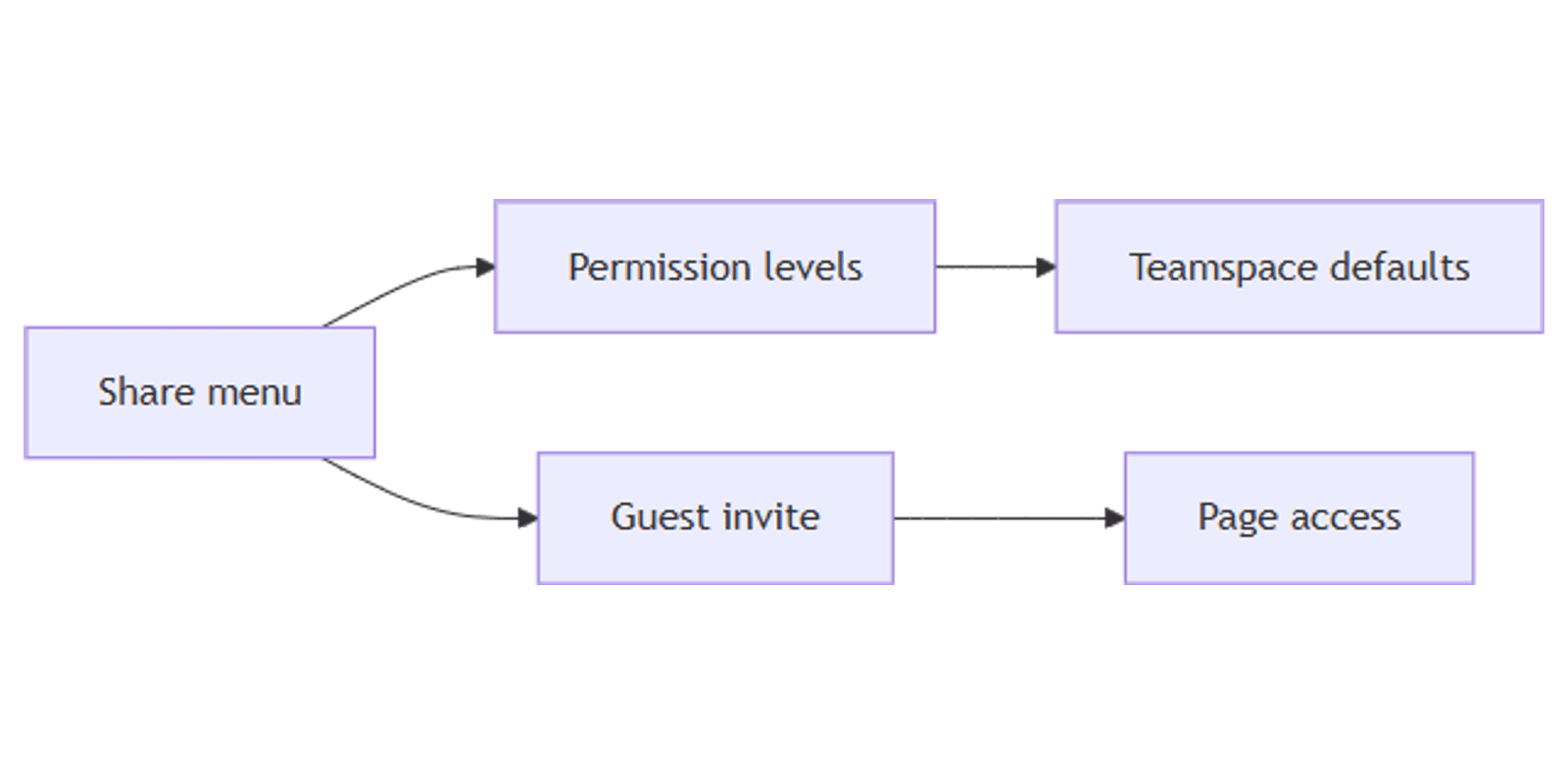
Notion Share and permissions control who can open, comment on, and edit pages - from one private doc to a whole teamspace. Use the Share menu (top right) to invite people, set access levels, and override inherited permissions when needed.
This guide covers permission levels, guests vs members, teamspace defaults, page rules from Person or Created by, and how sharing differs from Notion Sites. See Sharing and permissions for official details.
Where to share a page
- Open the page or database.
- Click Share in the top right.
- Invite by email, or adjust access for people already listed.
- Choose a permission level, then confirm.
You can also copy an invite link when available, and manage who already has access from the same menu (Notion Help).
Permission levels
Notion’s page permission levels include (Sharing and permissions):
| Level | What people can do |
|---|---|
| Full access | Edit content and share the page with others |
| Can edit | Edit content, but not share the page with others |
| Can edit content | Databases only - create/edit pages and property values; cannot change structure, views, sorts, or filters |
| Can create | Databases only (Business and Enterprise) - create new pages, but cannot view/edit existing pages they were not granted access to |
| Can comment | Comment only - no edit or share |
| Can view | Read only |
| Can edit | Can edit content | Can create | |
|---|---|---|---|
| Edit existing rows | Yes | Yes | No (unless separately granted) |
| Change DB structure | Yes | No | No |
| Best for | DB owners | Everyday contributors | Intake / tickets without browsing others’ rows |
General access
Under Share → General access you can set who can open the page broadly:
| Option | Meaning |
|---|---|
| Only people invited | You and invited people only |
| Everyone at your workspace | Workspace members can access (optional Hide in search) |
| Anyone on the web with link | Link access; optional link expiry; visitors need a Notion login to comment/edit |
Anyone on the web with link is collaboration sharing - not the same as publishing a Notion Site for a public website experience.
Guests vs members
Guests are people outside your workspace. They need a Notion account and are invited by email. Guests get access only to the pages (and nested content, depending on rules) you share with them - not the whole workspace by default (Notion Help).
| Member | Guest | |
|---|---|---|
| Belongs to workspace | Yes | No |
| Invite | Workspace membership | Email invite to specific pages |
| Typical use | Full team | Clients, contractors, external reviewers |
Guest limits depend on your plan. If you hit a guest limit, people on the same email domain as your workspace may be converted to members in some cases - check your plan and current Notion billing docs for the exact rules that apply to you. Enterprise workspaces may also restrict who can invite guests.
Teamspaces and inheritance
Teamspaces have default permissions for their members. Pages inside a teamspace inherit those defaults, then you can override access on a specific page from Share.
Typical pattern:
- Set teamspace defaults for the working group.
- Open a sensitive page → Share.
- Narrow access (remove people or lower their level) or invite a guest for that page only.
Inherited access is convenient for shared hubs; overrides keep private specs and HR docs locked down.
Page-level rules from Person or Created by
Business and Enterprise only. If the source database has a Person (People) or Created by (Created by / Last edited by) property, you can add page-level access rules so tagged people get a set permission on matching rows (Notion Help):
- Open the source database (not only a linked view).
- Click Share → under Page-level access, Add a new rule.
- Choose the Person or Created by property and an access level → Create rule.
Use Created by for “submitters edit their own row.” Use People when a manager assigns an owner who is not the creator. Notion applies the broadest access a user has anywhere - do not also grant workspace-wide Full access if you want page-level rules to stay narrow.
Share vs Notion Sites
| Share / permissions | Notion Sites | |
|---|---|---|
| Audience | Named people, guests, workspace | Public web visitors |
| Where | Share menu (invite / access) | Share → Publish |
| Best for | Collaboration inside Notion | Docs, portfolios, public templates |
Publishing a Site is not the same as inviting a guest. Use Sites for public web pages; use Share for people who work in Notion.
Mentions, inbox, and private pages
If you @ mention someone on a private page they cannot access, they typically do not get a useful notification path until they have access - pair mentions with an invite from Share. See Notion mentions and Inbox for how alerts surface when access exists.
Practical sharing setups
Client guest on one project page
- Open the project page → Share.
- Invite the client by email as a guest.
- Set Can comment or Can view unless they need to edit.
Team database with Can edit content
- Share the database with the working group.
- Give most contributors Can edit content.
- Keep schema changes to a smaller group with higher access.
Works with the CRM Dashboard when account owners need row edit without redesigning properties.
Creator-owned form rows
- Feed a database with forms.
- Add Created by.
- Set a Share rule so Created by gets edit access on their rows - see Created by.
Tips
- Invite the lowest useful level - view or comment first; upgrade only when needed.
- Prefer teamspace defaults for standing teams; use page overrides for exceptions.
- Check guest limits on your plan before a large external rollout.
- Enterprise admins - confirm whether guest invites are restricted.
- Sites for public, Share for people - do not confuse Publish with guest access.
FAQ
What is the difference between a Notion guest and a member?
A member belongs to the workspace. A guest is outside the workspace and is invited by email to specific pages (Notion Help).
What does Can edit content mean on a database?
Can edit content lets people edit rows and content without changing the database structure - useful for contributors who should not redesign properties or views. Confirm details in Sharing and permissions.
How do I share a Notion database?
Open the database → Share (top right) → invite by email or adjust access for listed people, then choose a permission level such as Can edit content, Can edit, or Can view.
Do @ mentions notify people without page access?
On private pages, mentions generally do not help someone who has no access - share the page first. See mentions and Inbox.
Conclusion
Share (top right) is how you invite guests, set Full access / Can edit / Can comment / Can view, and use Can edit content on databases. Teamspaces set defaults; pages inherit then override. For public web publishing, use Notion Sites. For assignee-based rules, pair Share with People or Created by. For alerts after access exists, see mentions and Inbox.
Notion Templates
Start Selling Notion Templates - Start Now!