Notion Web Clipper: Save Web Pages to Pages and Databases
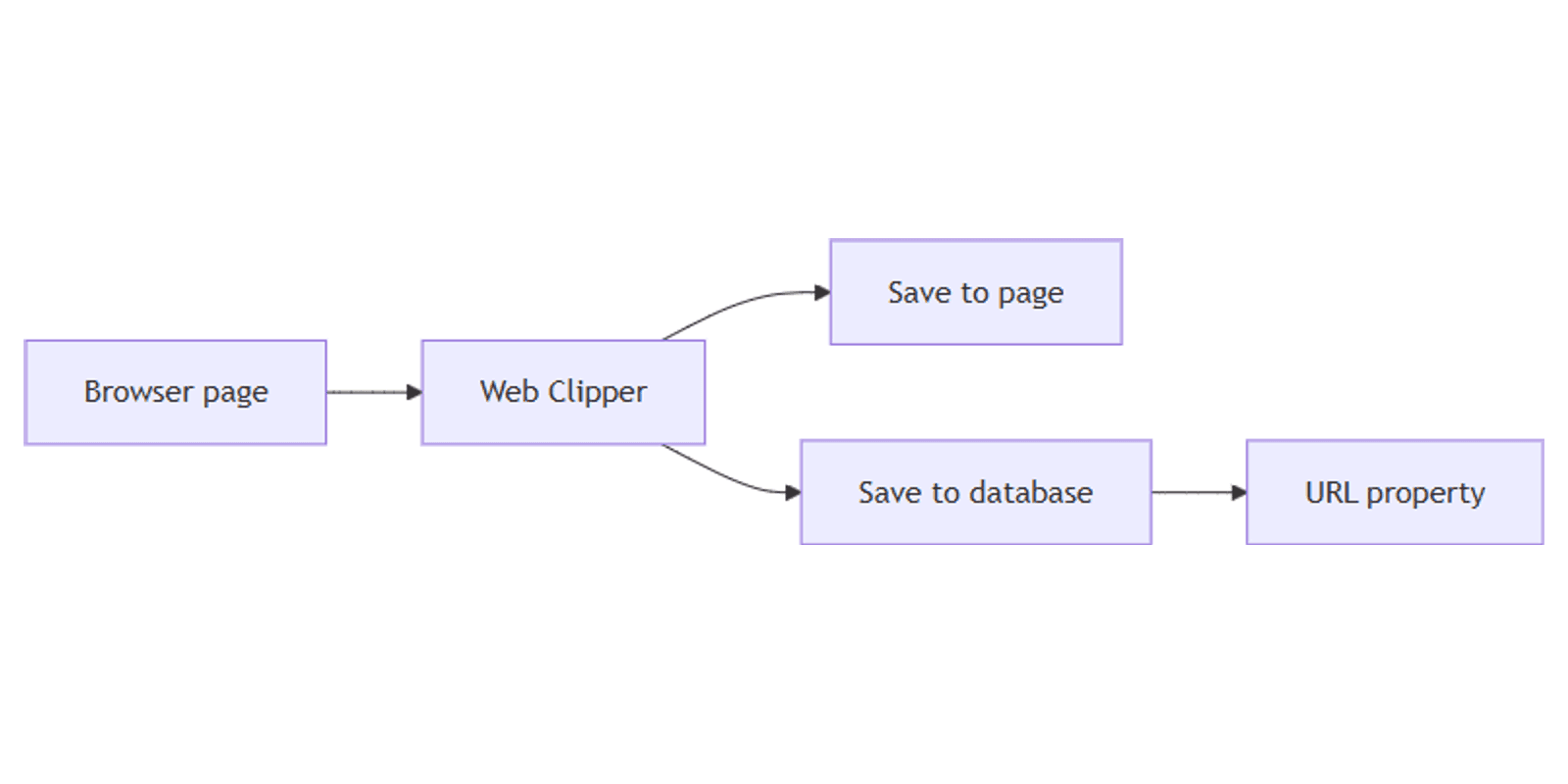
Notion Web Clipper saves web pages into Notion - as standalone pages or as rows in a database - so research, articles, and reference links live next to your notes. Clip from the browser on desktop, or from the share sheet on mobile.
This guide covers how to install and use the clipper, clipping into databases, mobile limits, and what you cannot clip. See Notion Web Clipper help for official details.
What is Notion Web Clipper?
Web Clipper is Notion’s browser and mobile capture tool. You pick a workspace and destination (page or database), then save the current page. Formatting depends on the site - some pages clip cleanly; others need cleanup in Notion afterward (Notion Help).
| Destination | What you get |
|---|---|
| Page | Nested page under the destination you chose |
| Database | New row; Notion auto-adds a URL property with the original address |
| + New links database | Create a fresh links database as the save target |
Clipping local files into a database does not add a URL property - there is no web address to store.
How to clip on desktop (Chrome and Safari)
Desktop Web Clipper is available as a Chrome and Safari browser extension (Notion Help).
- Install the Notion Web Clipper extension for Chrome or Safari.
- Open the web page you want to save.
- Click the Notion icon in the browser toolbar.
- Choose your workspace.
- Pick a destination page or database (or + New links database).
- Click Save page.
Open Notion to confirm the clip landed where you expected. If the destination was a database, check the auto-filled URL property for the source address.
Tags while clipping
You cannot add tags or other property values during the clip itself. Save first, then open the row in Notion and edit Select, Multi-select, Text, or other properties afterward.
How to clip on mobile (iOS and Android)
Mobile clipping uses the system share sheet - Notion supports iOS 13+ and Android 7+ (Notion Help).
iOS
- Open the page (or photo/file) in a supported app.
- Tap Share.
- Choose Notion (if missing, open More and enable Notion).
- Pick workspace and destination, then save.
Android
- Open the page (or photo/file).
- Tap Share.
- Choose Notion - it typically appears without an extra enable step.
- Pick workspace and destination, then save.
On phone you can also clip photos and local files. Local files saved into a database get no URL property.
What Web Clipper does and does not support
| Supported | Not supported |
|---|---|
| Browser web pages (Chrome / Safari clipper) | Clipping from other apps like the Twitter app or Notes as a general “clip from any app” flow |
| Mobile share sheet for pages, photos, local files | Adding tags or database properties during the clip |
| Database destinations with auto URL | Guaranteed identical formatting across every site |
Web Clipper is built for browser pages and photos/files on mobile - not as a universal capture button inside every third-party app (Notion Help).
Clip into a research database
A links or research database works well with Web Clipper:
| Property | Role after the clip |
|---|---|
| URL (auto) | Original web address - see URL, Email, Phone |
| Text Notes | Your summary or quote |
| Select Topic | Category for filtering |
| Files & media | Screenshots or PDFs you attach later |
| Created time | When you clipped it |
Quick setup:
- Create a database named Reading list (or use + New links database from the clipper).
- Clip articles into it from Chrome or Safari.
- After each save, set Topic and a short Notes summary in Notion.
- Use search to find clipped titles later.
- Optional: collect related intake with Notion forms for team submissions that are not from the open web.
Works with the Social Media Multi-Platform Content Planner when clipped inspiration feeds a content calendar.
Tips for cleaner clips
- Prefer the original article URL - clip the canonical page, not a truncated mobile preview when you have a choice.
- Expect cleanup - tables, paywalls, and heavy scripts often clip imperfectly.
- Edit properties in Notion - tags, status, and owners happen after save.
- Use a dedicated links database - easier to filter than nesting random pages under a catch-all Notes page.
- Attach files deliberately - use Files & media when the clip body is incomplete.
FAQ
Does Notion Web Clipper work on Chrome and Safari?
Yes. Desktop clipper is available as Chrome and Safari extensions (Notion Help).
Does clipping into a database add a URL?
Yes for web pages - Notion adds a URL property with the original address. Local files clipped into a database do not get a URL.
Can I add tags while clipping?
No. Save the page first, then edit properties inside Notion.
Can I clip from the Twitter app or Apple Notes?
Web Clipper does not support clipping from other apps like Twitter or Notes as a general capture path. Use browser pages and photos/files via the documented flows (Notion Help).
What mobile versions are required?
iOS 13+ and Android 7+, via the share sheet (Notion Help).
Conclusion
Notion Web Clipper moves web research into your workspace - install the Chrome or Safari extension, save to a page or database, and finish tags in Notion. On mobile, use the share sheet (enable Notion under More on iOS if needed). Pair clipped URLs with URL / Email / Phone, notes in a Text property, attachments via Files & media, and discovery via search.
For structured team intake that is not from the open web, see Notion forms. For a broader template set, see the Notion Templates Bundle.
Notion Templates
Start Selling Notion Templates - Start Now!