Notion Files & Media Property: Attach Images and Docs to Rows
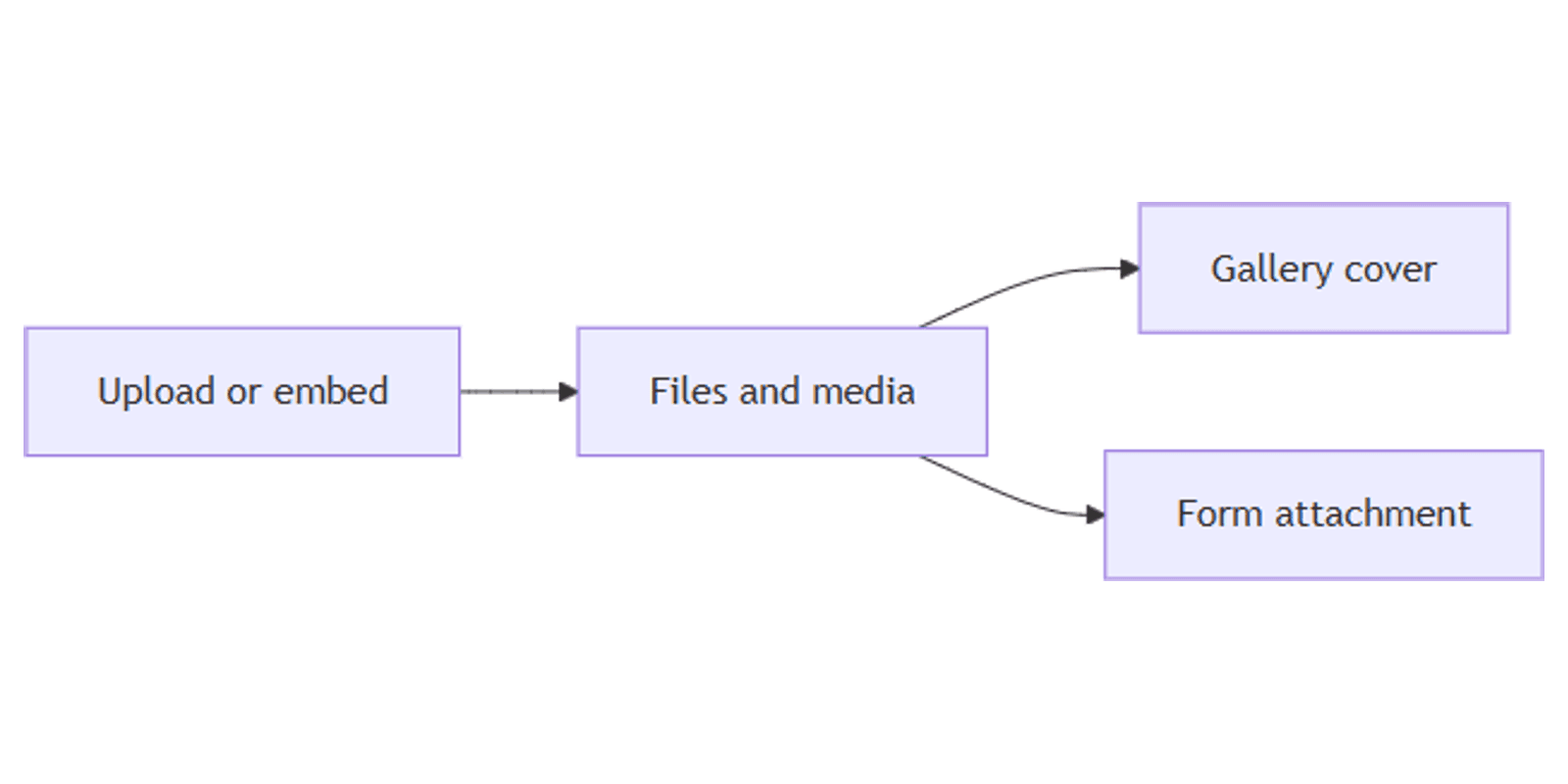
Notion Files & media properties store uploaded files or embedded links on each database row - receipts, screenshots, mockups, PDFs, and brand assets. They power gallery covers and form file uploads without leaving your workspace.
This guide covers how to add a Files & media property, upload and reorder files, show covers in Gallery view, and collect attachments from forms. See Notion's images, files & media docs for official details.
What is a Files & media property?
Files & media (also labeled File in property menus) is a database field that holds one or more files on a row - uploaded from your computer or embedded via link.
| Files & media | Page cover / content | |
|---|---|---|
| Stored on | A database property | The page itself |
| Best for | Assets tied to a row (invoice, screenshot) | Visual page styling |
| Gallery cover | Can drive card images | Fallback when no file property is set |
| Forms | File upload question | Not applicable |
Use Files & media when the file is data about the item - a receipt for an expense, a mockup for a design request. Use page covers when you only need a decorative header.
How to add a Files & media property
- Open your database.
- Click + next to the rightmost column.
- Name the property (e.g. Attachments, Receipt, Cover image, or Assets).
- Choose Files & media (or File) as the property type.
Upload or embed files
- Click the Files & media cell on a row.
- Upload a file from your computer, or Embed link to a file hosted elsewhere.
- Drag and drop files onto the cell in table view, or onto cards in board/gallery views.
You can add multiple files to the same field. Hover a file and use ••• to Download, Full screen, View original, or Delete. Drag the ⋮⋮ handle to reorder files.
Files & media with Gallery view
Gallery view displays each row as a card. Covers typically come from:
- A Files & media property (recommended for catalogs and portfolios).
- Page content / cover when no file property is set.
Quick setup:
- Add Cover image (Files & media).
- Upload one clear image per row (first image often works best as the card face).
- Create a Gallery view and set the card preview to that property if available in view options.
- Show 2–4 key properties on the card (price, Status, tags).
Forms: collect file uploads
Notion forms support a Files & media question type. Respondents can attach files that land on the new database row.
Typical limits cited for form uploads: up to 10 files and about 100 MB total per submission
- confirm in your form builder if Notion updates caps.
Use cases:
- Bug report screenshots
- Brand kit / logo uploads for client onboarding
- Receipt photos for expense intake
Pair with a Page added automation that sets Status to New and notifies an assignee.
Practical workflow examples
Expense receipts
- Database properties: Amount (Number), Paid (Checkbox), Receipt (Files & media).
- Form or mobile upload for receipt photos.
- Filter: Paid is unchecked, Receipt is not empty.
Works with the Money Management template or Budget Planner.
Design asset library
- Assets (Files & media) + Multi-select Type (Mockup, Logo, Photo).
- Gallery view grouped or filtered by Type.
- Preview mockups before client handoff - pair with the Frame Mockups Bundle for presentation frames.
Bug tracker screenshots
- Form fields: Summary, Steps, Screenshot (Files & media), Severity (Select).
- Unique ticket numbers via Unique ID.
- Board by Status; open the row to view screenshots full screen.
Content calendar creatives
- Creative (Files & media) for finished Canva exports.
- Filter Status is In review and Creative is not empty.
- Link out to platform size guides: Instagram, LinkedIn, TikTok & Reels covers.
Tips for teams
- One primary image first - reorder so the cover file sits first for Gallery.
- Name files clearly before upload -
invoice-2026-07.pdfbeatsScan001.pdf. - Prefer upload for private docs - embed links for public CDN assets.
- Do not replace Relations with files - use relations to link pages; use Files & media for binary attachments.
- Watch workspace storage - large video uploads add up on Free plans.
Permissions and troubleshooting
Who can upload: anyone with Can edit content or above on the database.
Common issues:
- Gallery shows blank cards - add a Files & media image or set page covers; check property visibility.
- Cannot upload on a form - confirm the question type is Files & media and the form is still accepting responses.
- File missing after move - files live on the row; filters or views may hide the property - open the page to confirm.
- Embed link fails - the source must allow embedding; try uploading instead.
FAQ
What is the Notion Files & media property?
A database field for uploading or embedding one or more files (images, PDFs, and other media) on each row.
Can Gallery view use Files & media as card covers?
Yes. Gallery cards commonly show images from a Files & media property, or fall back to page content when none is set.
Can Notion forms accept file uploads?
Yes. Add a Files & media question to a form; submissions attach files to the new row.
Conclusion
Files & media turns any database into an attachment hub - upload receipts, screenshots, and creatives, drive gallery covers, and collect files through forms. Pair with Status and automations for intake workflows.
For visual card layouts, see Gallery view. For ticket numbers on attachment rows, see Unique ID.
Notion Templates
Start Selling Notion Templates - Start Now!