Notion Gallery View: Build Visual Card Layouts
Notion gallery view shows each database row as a visual card - ideal for portfolios, product catalogs, recipes, mood boards, and content libraries. When images matter more than dense spreadsheets, Gallery beats Table or Board.
This guide covers how to create a Notion gallery view, set card covers from Files & media, choose visible properties, and filter visual collections. See the database views overview for how Gallery fits alongside other layouts.
What is gallery view?
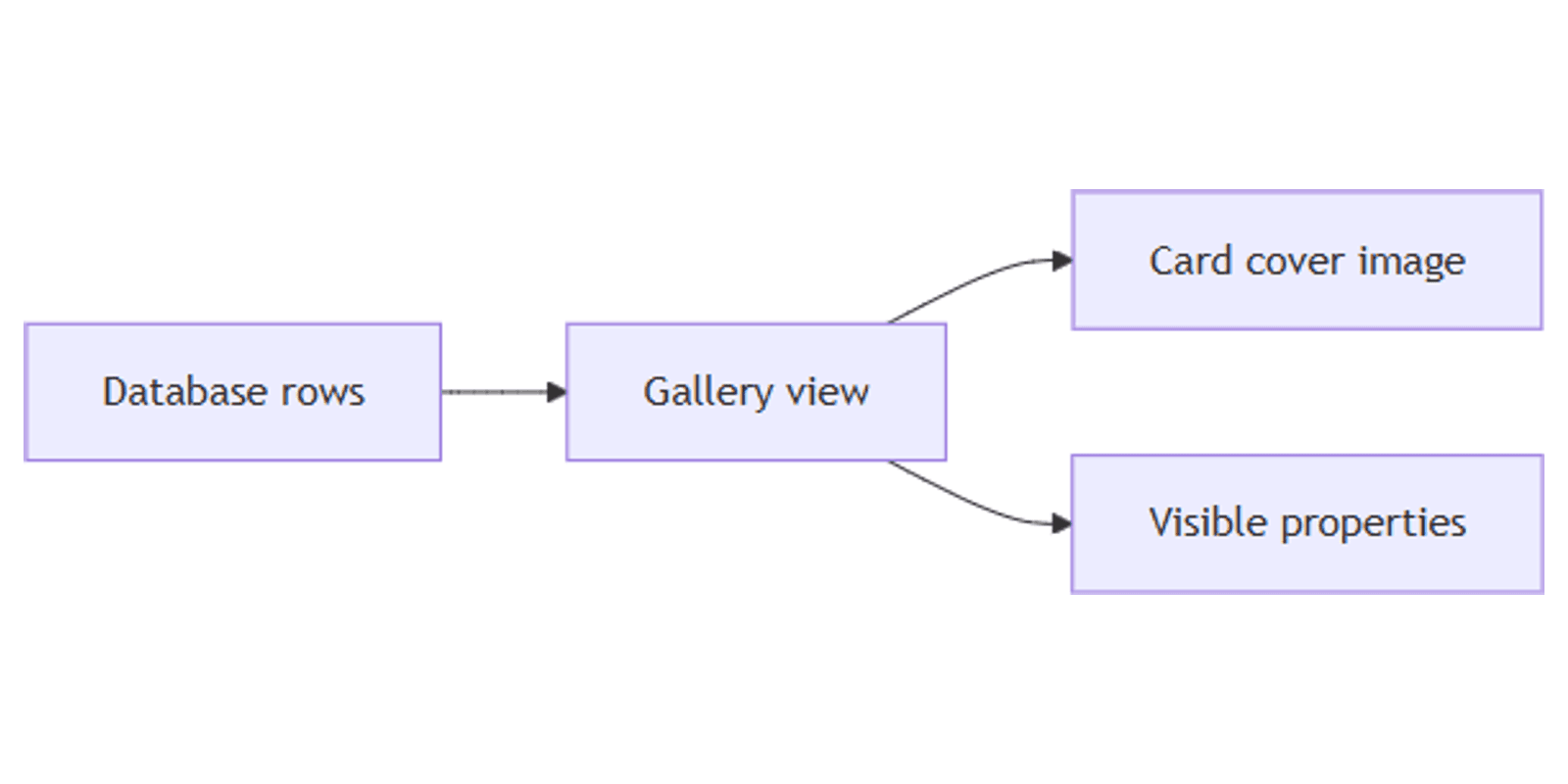
Gallery is a database layout that displays entries as a grid of cards. Each card usually shows:
- A cover image
- The page title
- Selected properties (status, price, tags)
| Gallery | Board | Table | |
|---|---|---|---|
| Focus | Images and browsing | Status columns / kanban | Editing many fields |
| Best for | Portfolios, catalogs | Pipelines | Spreadsheet work |
| Cover source | Files & media or page content | Optional on cards | Rarely used as primary UI |
Use Gallery when people browse and pick visually. Switch to Table to bulk-edit properties, or Board to move items by Status.
How to create a Notion gallery view
- Open the database.
- Click + next to your view tabs (or Add view).
- Select Gallery.
- Name the view (e.g. "Portfolio" or "Product catalog").
- Open view settings to choose card size, cover source, and visible properties.
Card size and layout
In gallery view settings you can typically adjust:
- Card size - small / medium / large (wording may vary by client)
- Fit image - how the cover fills the card
- Properties - which fields appear under the title
Keep cards scannable - 2 to 4 properties under the title is usually enough.
Set gallery card covers
Gallery cards pull images from:
- A Files & media property (best for catalogs).
- Page cover or content images when no file property is configured.
Recommended setup:
- Add a Files & media property named Cover or Image.
- Upload one strong image per row; put it first if multiple files exist.
- Open Gallery view settings and point the preview/cover to that property when offered.
- Hide unused properties so cards stay clean.
Without images, Gallery still works - cards show titles and properties only - but the layout loses its main advantage.
Filter, sort, and group in Gallery
Gallery supports the same view tools as other layouts:
- Filter - e.g. Status is Published, or Type Select is Recipe.
- Sort - newest first, price ascending, name A–Z.
- Group - sections by category or status (when available for gallery).
Save multiple galleries on one database - e.g. All products, In stock only, Featured.
Practical layout examples
Portfolio or case studies
- Properties: Cover (Files & media), Role (Select), Year (Number).
- Gallery sorted by Year descending.
- Filter Role contains Design for a client-facing view.
Product or digital goods catalog
- Cover image + Price (Number) + Tags (Multi-select).
- Filter: Status is Available.
- Open a card to see full description and purchase links.
Useful when promoting template packs - e.g. the Online Business Bundle.
Recipe or mood board
- Photo in Files & media; Tags for cuisine or room type.
- Gallery card size large for visual browsing.
- Linked database on a trip or home page - see linked databases.
Content creative library
- Cover = finished social graphic.
- Platforms (Multi-select) + Status.
- Filter by platform before scheduling - pair with Social Media Content Planner.
Gallery vs other views
| Goal | Best view |
|---|---|
| Browse by image | Gallery |
| Edit many properties quickly | Table |
| Move work through stages | Board |
| Totals and trends | Chart |
| Multi-widget overview | Dashboard (Business+) |
Many databases keep Table for editing and Gallery for presenting.
Tips for teams
- Consistent image ratios - similar crops (e.g. 1:1 or 4:5) keep the grid tidy.
- One hero file first - reorder Files & media so the cover is file #1.
- Limit properties on cards - dump the rest inside the page.
- Name covers in the title - "Summer lookbook" beats "Untitled".
- Pair with Forms - intake photos via Forms Files questions, then browse in Gallery.
Permissions and troubleshooting
Who can edit gallery settings: members with Can edit access to the database.
Common issues:
- Blank covers - upload to Files & media or set page covers; confirm cover settings in the view.
- Wrong image showing - reorder files or remove extra attachments.
- Cards feel sparse - increase card size or show 1–2 more properties.
- Hard to edit data - keep a Table view for bulk changes; use Gallery for browsing.
FAQ
What is Notion gallery view?
A database layout that shows each row as an image card in a grid - used for portfolios, catalogs, and visual libraries.
How do I set images on Notion gallery cards?
Add a Files & media property, upload images, and configure the gallery cover/preview in view settings (or rely on page covers as a fallback).
Is gallery view available on the Free plan?
Yes. Gallery is a standard database view available on Notion plans that include databases - unlike Dashboard view, which requires Business or Enterprise.
Conclusion
Gallery view makes Notion databases visual - create a Gallery, drive covers from Files & media, show a few key properties, and filter for portfolios or catalogs. Keep a Table view nearby for editing, and use Board when workflow status matters more than imagery.
For all view types, see Notion database views. For attachment intake, see Files & media and Forms.
Notion Templates
Start Selling Notion Templates - Start Now!