Notion Search: Find Pages, Mentions, and Verified Docs Fast
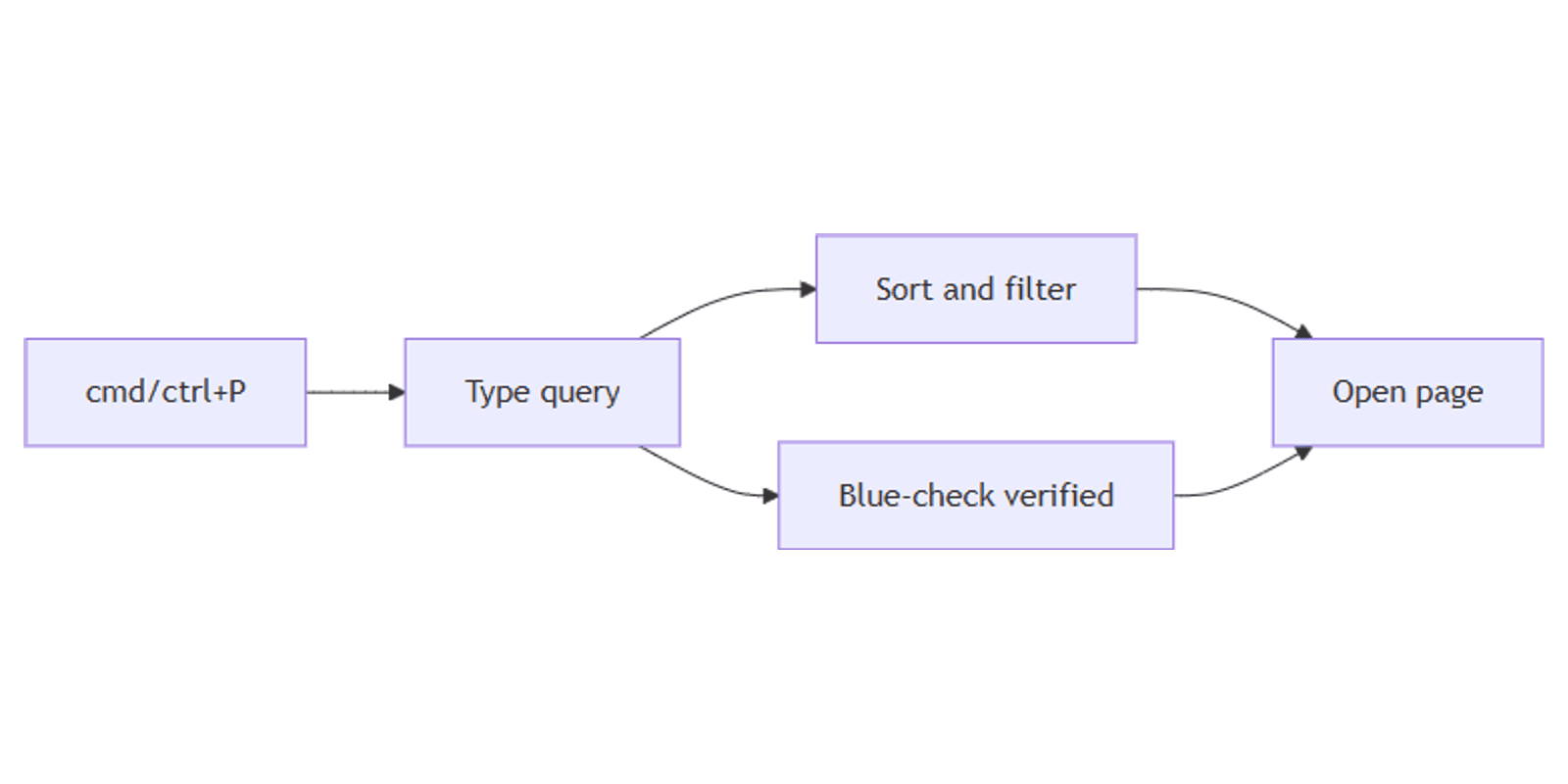
Notion Search (Quick Find) is the fastest way to jump to a page or find text inside content you can access - open it from the sidebar or with cmd/ctrl+P, type a few words, and go.
This guide covers workspace search, filters and sorts, recent pages, verified pages with a blue check in results, and how search differs from database find. Official details: Search in your workspace and wikis and verified pages.
Notion search surfaces workspace content you already have permission to open - it will not reveal private pages you cannot access.
How to open search
- Click Search at the top of the sidebar, or
- Press cmd/ctrl+P (Quick Find).
- If your cursor is not focused in a block, cmd/ctrl+K can also open search.
- Type your query at the top of the search window.
- Click a result - hold cmd/ctrl while clicking to open in a new tab (web) or window (desktop).
For an exact phrase, wrap the query in quotes - for example, the phrase launch checklist in double quotes.
When the window first opens, you also see recently viewed pages for one-click jumps (Notion Help).
What search finds (and what it skips)
| Included | Not included in workspace search |
|---|---|
| Page titles and page body content you can access | Comments and discussions |
Date mentions such as @Today | @ mentions of people/pages like @Alex or @Roadmap |
| Content inside database pages | Select / multi-select property values (use database search instead) |
Database search (the search box on a database) matches titles and property values, not the full page body. Workspace search is the opposite for database rows: it can find text inside the page, but not those property tags (Notion Help).
To find linked pages and backlinks in context, use Notion mentions on the page itself - search will not treat person/page @ mentions as indexed hits the same way.
Verified pages in results
If your team uses page verification, verified pages show a blue check next to the name in search results (and when @-mentioned). That mark means the owner treated the doc as current - useful in wikis and SOPs.
Learn how verification works in wikis and verified pages. Manage verified docs under Settings → Verified pages in the sidebar (Notion Help).
Sort and filter tips
Inside the search window you can refine results:
Sort
| Sort | Best for |
|---|---|
| Best Matches (default) | Relevance; recent edits and titles rank higher |
| Last Edited: Newest First | What changed lately |
| Last Edited: Oldest First | Stale docs to refresh |
| Created: Newest / Oldest First | Creation timeline cleanup |
Filter
| Filter | Use when |
|---|---|
| Title only | You know the page name, not body text |
| Created by | Limit to one or more people |
| Teamspace | Plus / Business / Enterprise - scope by teamspace you can access |
| In | Limit to a parent page and its subpages |
| Date | Created or edited in Today, Last 7/30 days, or a custom range |
Labels such as Most viewed or Popular this week may appear beside some results to highlight busy docs.
Search in a page vs workspace
- Workspace search - find across pages you can access (cmd/ctrl+P).
- In-page find - open a page and press cmd/ctrl+F to highlight matches on that page only.
Jump shortcuts inside search: type home or settings to open those destinations quickly.
If your workspace has Notion AI, Search all sources with AI under the search bar can expand across connected apps - optional, and separate from classic Quick Find.
Practical workflows
Find the verified SOP
- Open search → type the policy keyword.
- Prefer the result with the blue check.
- Star the page if you reopen it often.
Narrow a teamspace wiki
- Filter In → parent wiki page (includes subpages).
- Or filter Teamspace when available.
- Publish outward with Notion Sites when the doc is public-ready.
CRM and content databases
- Use database search for Status / tag property matches.
- Use workspace search for prose inside a deal or brief page.
- Organize rows with clear database views; pair contacts with the CRM Dashboard.
Content calendar copy
- Search a campaign phrase in quotes.
- Filter Last Edited: Newest First before a publish week.
- Track slots in a content planner.
Tips
- Quotes for exact phrases - cuts noise from common words.
- Title only when the page name is unique.
- Trust the blue check for official process docs - then confirm the verification date on the page.
- Star frequent pages - search presets for recent/filters are not customizable yet; favorites live in the sidebar.
- Remember permissions - no access means no result.
FAQ
How do I open Notion Quick Find / search?
Click Search in the sidebar or press cmd/ctrl+P. You can also use cmd/ctrl+K when your cursor is not focused on a block (Notion Help).
Do verified pages look different in search?
Yes. Verified pages show a blue check in search results (wikis help).
Can Notion search find comments?
No. Comments and discussions are not included in workspace search results. Open the page comments pane or Inbox instead.
Does search find pages I cannot access?
No. Results are limited to content your account can open.
Conclusion
Notion Search gets you to pages and body content fast - open Quick Find with cmd/ctrl+P, use quotes and filters, jump from recent, and watch for the blue check on verified docs. Use database search for property tags, and mentions / backlinks when you need linked context on the page itself.
For trusted wikis, see wikis and verified pages. For public docs, see Notion Sites. For structuring results you reopen daily, see database views.
Notion Templates
Start Selling Notion Templates - Start Now!