How to Add Animations in Canva: Motion for Pages and Elements
Canva animations add motion to text, images, and whole pages - entrances, emphasis, and page transitions that make social clips and presentations feel alive. Still PNG/PDF exports ignore most motion; when you need the animation to ship, export video or GIF.
This guide covers animating elements and pages, previewing playback, and choosing MP4 vs GIF. For timeline trim and captions, see the video editor. For GIF export details, see GIF export.
Element vs page animation
| Type | What moves | Best for |
|---|---|---|
| Element animation | One text box, image, shape, or group | Hooks, logos, callouts |
| Page animation | The whole page transition | Decks, multi-page stories, slide feel |
You can combine both - keep it restrained so motion supports the message instead of competing with it.
Animate an element
- Open your design in Canva.
- Select the text, image, or shape.
- Click Animate in the editor toolbar.
- Browse presets (e.g. rise, pan, pop-style effects - labels vary).
- Click a style to apply; adjust speed/direction options when shown.
- Click away or play preview to confirm timing.
Tips:
- Animate the hook element, not every object on the page.
- Match motion direction to reading order (e.g. text rising into the safe center on vertical videos).
- On busy photos, pair a simple fade with a solid caption bar for readability.
Animate a page
- With nothing selected (or via page controls), open Animate for the page.
- Choose a page transition / page motion preset.
- Set duration so the page stays readable before advancing.
- Preview the full multi-page sequence.
Page motion works well for presentations and multi-beat social stories. For a single continuous video edit (trim, captions, audio), build on the video editor workflow and use element Animate on overlays.
Preview motion
- Use Present / play / preview controls above the editor.
- Watch once at full speed - check overlapping animations and cut-off text.
- Fix: reduce simultaneous animations, shorten duration, or move critical text into the safe center on vertical canvases.
Always preview on a phone-sized width before you export Reels- or Stories-shaped designs.
Export when motion matters
Static downloads (PNG, JPG, PDF) will not preserve animated playback. When the motion is part of the deliverable:
| Format | Use when |
|---|---|
| MP4 Video | Normal video with audio, longer motion, social uploads |
| GIF | Short silent loops, chat/email previews, lightweight embeds |
Export path:
- Share → Download.
- Choose MP4 Video or GIF.
- Download and review the file outside Canva.
Plan limits for video/GIF length and resolution: Downloading designs as video or GIF. Step-by-step GIF settings live in Canva GIF export. Full edit/export walkthrough: video editor.
Checklist:
- Only key elements (or one clear page transition) animated
- Previewed at real speed
- Text still readable mid-motion
- Exported MP4 or GIF - not a still - when motion must ship
- Length within Free/Pro download caps
Practical workflows
Presentation opener
- Build slides in presentations.
- Animate the title on slide 1; light page transition into slide 2.
- Present live in Canva, or export MP4 when you need a recorded run-through.
Social hook clip
- 1080 × 1920 page with footage or a strong still.
- Animate headline + CTA button only.
- Export MP4 via the video editor download path.
Looping logo sting
- Logo on a brand-color page; short element animation.
- Export GIF for chat or docs - see GIF export.
- Prefer MP4 if you need audio or sharper long motion.
FAQ
How do I add animations in Canva?
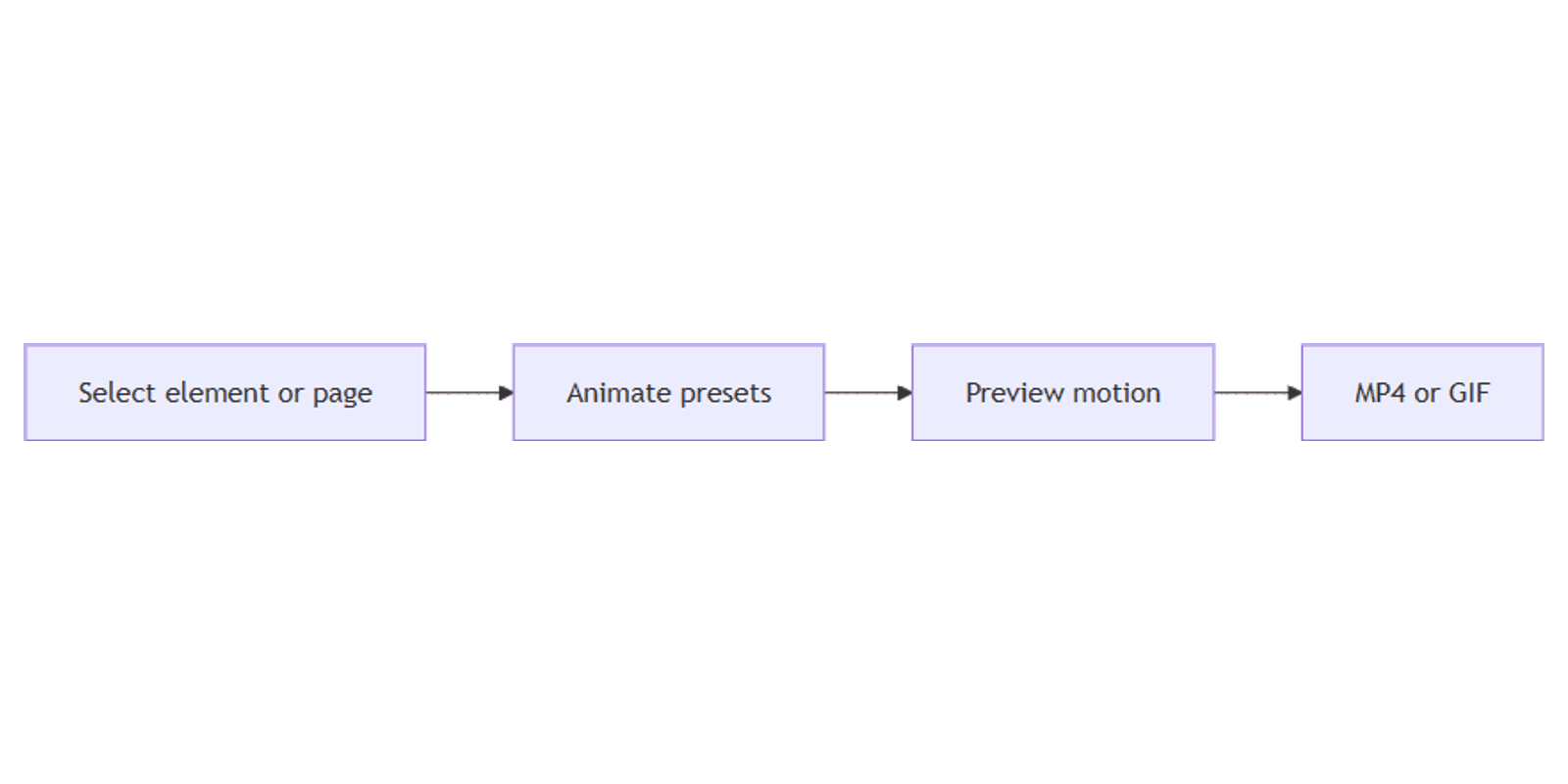
Select an element or use page Animate, pick a preset, preview, then export MP4/GIF if the motion must leave Canva.
Do PNG downloads include animations?
No. Use MP4 or GIF when recipients need to see motion.
Should I animate every element?
No. One strong motion per beat reads cleaner - especially on mobile Reels and Stories.
Where do I go for GIF vs full video editing?
GIF export for loops; video editor for trim, captions, and MP4; presentations for deck-style page motion.
Conclusion
Canva animations turn static pages into motion - animate elements or pages, preview at full speed, and export MP4 or GIF when the motion is the product. Keep motion selective so presentations and social clips stay readable.
Next: video editor for timeline export, and GIF export for short loops.
Canva Templates
Start Selling Canva Templates - Start Now!