How to Create Presentations in Canva: Slides, Brand Kit, and Present Mode
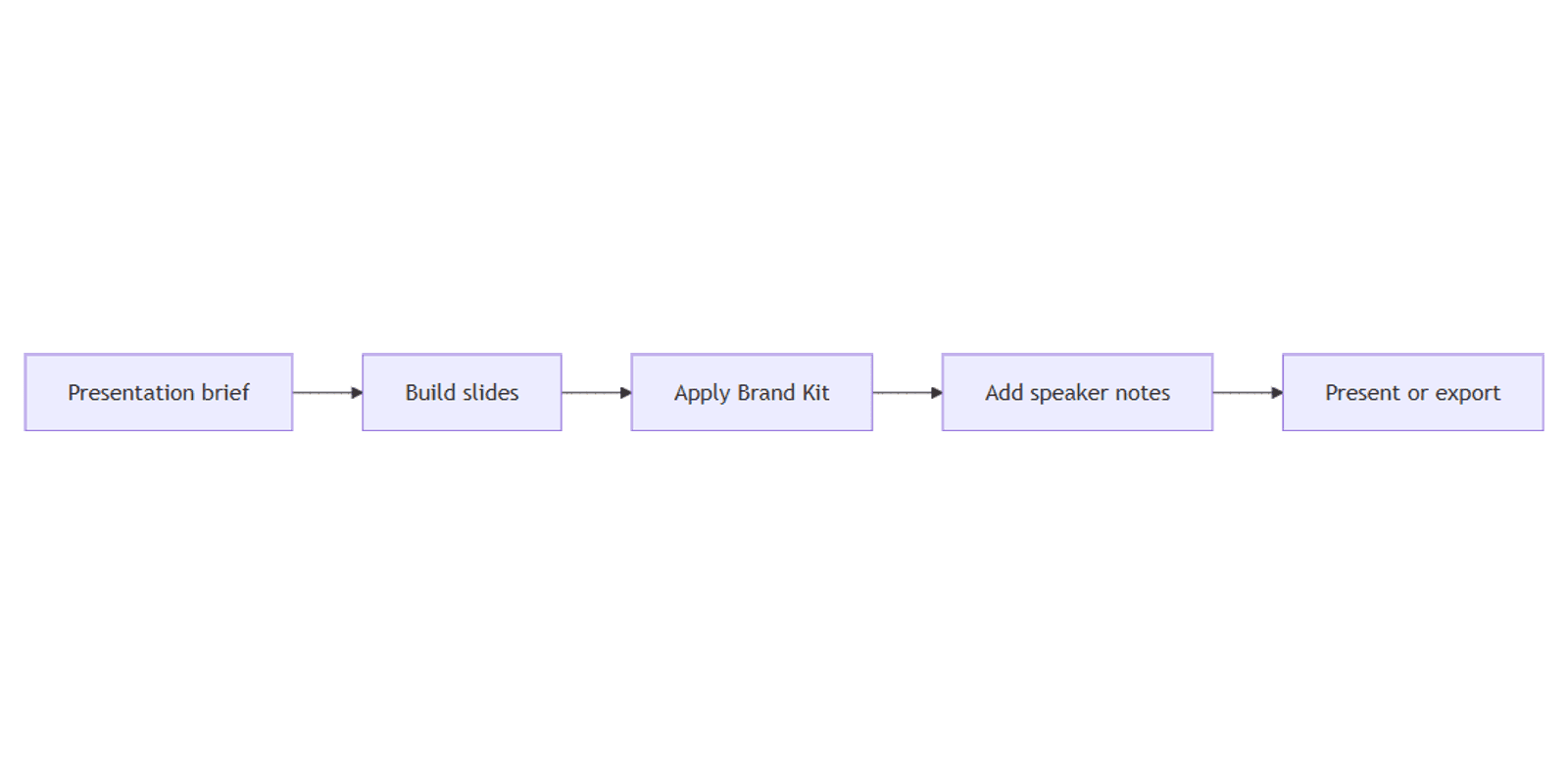
Canva presentations combine multi-page slides, templates, brand controls, speaker notes, and a built-in Present mode. Start with the standard 16:9 widescreen format, build one idea per slide, and present from Canva or download a copy for sharing.
This guide explains how to create a presentation in Canva manually, apply Brand Kit, draft copy and notes with Magic Write, and export the finished deck.
Canva presentation sizes
Canva's standard widescreen Presentation format is approximately 1920 × 1080 px, a 16:9 landscape canvas. Canva also offers a Presentation 4:3 option, and Custom size is available when a venue or platform requires different dimensions.
| Format | Approximate size | Best for |
|---|---|---|
| Presentation 16:9 | 1920 × 1080 px | Modern displays, video calls, projectors |
| Presentation 4:3 | 1024 × 768 px | Older screens and legacy projectors |
| Custom size | Your required dimensions | Fixed signage or unusual displays |
Choose the aspect ratio before layout work. Converting a finished deck between 16:9 and 4:3 can move or crop elements, so every resized slide needs review.
How to create a presentation in Canva
- Open Canva.
- Click Create a design and choose Presentation 16:9, or search Presentation.
- Start from a blank canvas or select a template.
- Replace the template's text, images, colors, and logos.
- Click Add page to create another slide.
- Rename the design so it is easy to find and share.
The manual template workflow is reliable and gives you control over the narrative. Treat templates as a visual system, not as a reason to keep every placeholder or decorative element.
Plan the slide sequence
Before polishing colors, outline the deck:
| Slide | Purpose | Keep it focused on |
|---|---|---|
| Title | Set topic and speaker | One clear promise |
| Context | Explain the problem | Why the audience should care |
| Evidence | Support the point | One chart, quote, or example |
| Recommendation | Present the solution | Specific next actions |
| Close | Reinforce the takeaway | One memorable conclusion |
For a longer deck, repeat the context, evidence, and recommendation pattern by section. A content planner can hold campaign briefs and presentation deadlines alongside other publishing work.
Step-by-step: design the slides
1. Build a consistent title slide
- Add a short title and optional subtitle.
- Place the presenter or company name beneath it.
- Use one strong image, illustration, or color field.
- Keep key text away from the edges for projector overscan and small screens.
2. Create a reusable content layout
Use a simple grid: headline at the top, content beneath, and a consistent footer when needed. Duplicate the slide before replacing its content so spacing remains stable.
- Keep one main idea per slide.
- Use short headings that state the takeaway.
- Prefer a chart or diagram to a dense paragraph.
- Keep body text large enough for the back of a room.
- Use alignment guides to maintain margins.
3. Apply Brand Kit
Canva Brand Kit keeps approved colors, fonts, and logos available while you design.
- Open Brand or Brand Kit from the editor.
- Apply the approved color palette.
- Use one heading font and one body font.
- Add the correct logo variant to the title and closing slides.
- Check that text contrast remains readable on every background.
Brand Kit access and available controls depend on the Canva plan and workspace permissions.
4. Add images, charts, and mockups
Use visuals only when they support the spoken point. Crop images consistently, label charts directly, and avoid decorative graphics that compete with the message.
Show websites, products, or campaign concepts inside the FREE Frame Mockups Bundle when the audience needs realistic context.
5. Add transitions sparingly
Apply a simple transition only when it helps the audience follow a section change. Too many animations slow the talk and make exporting to static PDF less predictable.
Draft slide copy and speaker notes
Magic Write can draft headlines, shorten slide text, or change tone. Use it for a first pass, then verify every fact, number, name, and claim.
For presentation notes:
- Open a slide.
- Open Notes.
- Choose Generate notes when the option is available.
- Generate from the page content or provide a custom prompt.
- Edit the notes into your natural speaking voice.
See Canva's Magic Write help for the current notes and writing workflow.
| Content | Put on the slide | Put in notes |
|---|---|---|
| Main takeaway | Yes | Reinforce it |
| Supporting detail | Only the essential evidence | Full explanation |
| Sources and caveats | Short citation if needed | Context and limitations |
| Delivery cue | No | Pause, demo, or audience question |
Canva AI presentation generation
Canva also offers AI-assisted presentation generation from a prompt. Per Canva Help, that flow can count toward your monthly AI allowance depending on plan and product surface - check Canva AI presentations and AI usage before relying on it. Quotas change; do not treat any fixed number as permanent.
For predictable results, use AI to explore an outline or visual direction, then finish the deck with the manual template workflow. Review generated facts, imagery, branding, and slide order.
Present from Canva
- Open the finished deck.
- Click Present.
- Choose the available presentation mode that fits the session.
- Use Presenter view when you need speaker notes, a timer, or presentation controls on your screen while the audience sees the slides.
- Test the display, audio, video, links, and slide controls before the meeting.
The exact controls can vary by device and account. Run a short rehearsal in the room or video-call setup you will actually use.
Share or download the presentation
Share a Canva link
- Click Share.
- Set the intended access level.
- Copy the link and test it in a private browser window.
Use view-only access for an audience. Grant edit access only to collaborators who should change the source deck.
Download PDF
- Click Share → Download.
- Choose PDF Standard for a lightweight digital handout.
- Choose PDF Print when print quality matters.
- Download and inspect every page.
PDF keeps the layout static but does not preserve Canva transitions or presenter behavior.
Download PowerPoint
Choose Microsoft PowerPoint when the PPTX option is available. Open the exported file in PowerPoint and check fonts, animations, video, charts, and spacing because not every Canva feature translates exactly.
| Delivery method | Best for | Check before sending |
|---|---|---|
| Present from Canva | Live talk with Canva controls | Connection, notes, media |
| Share link | Browser-based viewing or collaboration | Permissions |
| Static handout or archive | Page order and links | |
| PPTX | PowerPoint delivery or handoff | Font and feature conversion |
Repurpose slides after the presentation
After the deck is approved, adapt selected slides with Magic Resize. A title slide can become a YouTube thumbnail, while a key insight can become a social post or blog banner.
Resize is a starting point, not a final export. Reflow text and reposition images for each aspect ratio instead of accepting automatic placement without review.
Presentation checklist
- Correct 16:9, 4:3, or custom dimensions
- One main takeaway per slide
- Consistent Brand Kit colors, fonts, and logos
- Readable type and strong contrast
- Speaker notes edited and fact-checked
- Links, videos, and animations tested
- Share permissions checked
- PDF or PPTX export reviewed after download
FAQ
What size is a Canva presentation?
The standard widescreen Canva Presentation is approximately 1920 × 1080 px in a 16:9 landscape ratio. Canva also provides a 4:3 presentation format and Custom size.
Can I present directly from Canva?
Yes. Open the design and click Present. Use Presenter view when available to see notes and controls while the audience sees the slides.
Can I export a Canva presentation as PDF?
Yes. Choose Share → Download, then PDF Standard or PDF Print. Review the downloaded file; transitions and other interactive presentation features do not carry into a static PDF.
Can I download a Canva presentation as PowerPoint?
PPTX export is available for supported designs and accounts. Check the exported deck in PowerPoint because fonts, animation, media, and layout can change during conversion.
Conclusion
To create a strong Canva presentation, start in 16:9, plan the story, duplicate a consistent slide layout, apply Brand Kit, and keep detailed delivery cues in notes. Present from Canva for live controls, share a permission-checked link, or export PDF or PPTX after testing.
Next, use Magic Write for a fact-checked first draft, Magic Resize for careful repurposing, and blog banners or YouTube thumbnails for campaign graphics. For paper handouts, see print flyers.
Canva Templates
Start Selling Canva Templates - Start Now!