How to Download GIFs in Canva: Animated Export Settings
Canva GIF export turns animated pages into looping files for chat, email, docs, and lightweight embeds. Static PNG/JPG downloads drop the motion - you need GIF (or MP4) when recipients must see animations play.
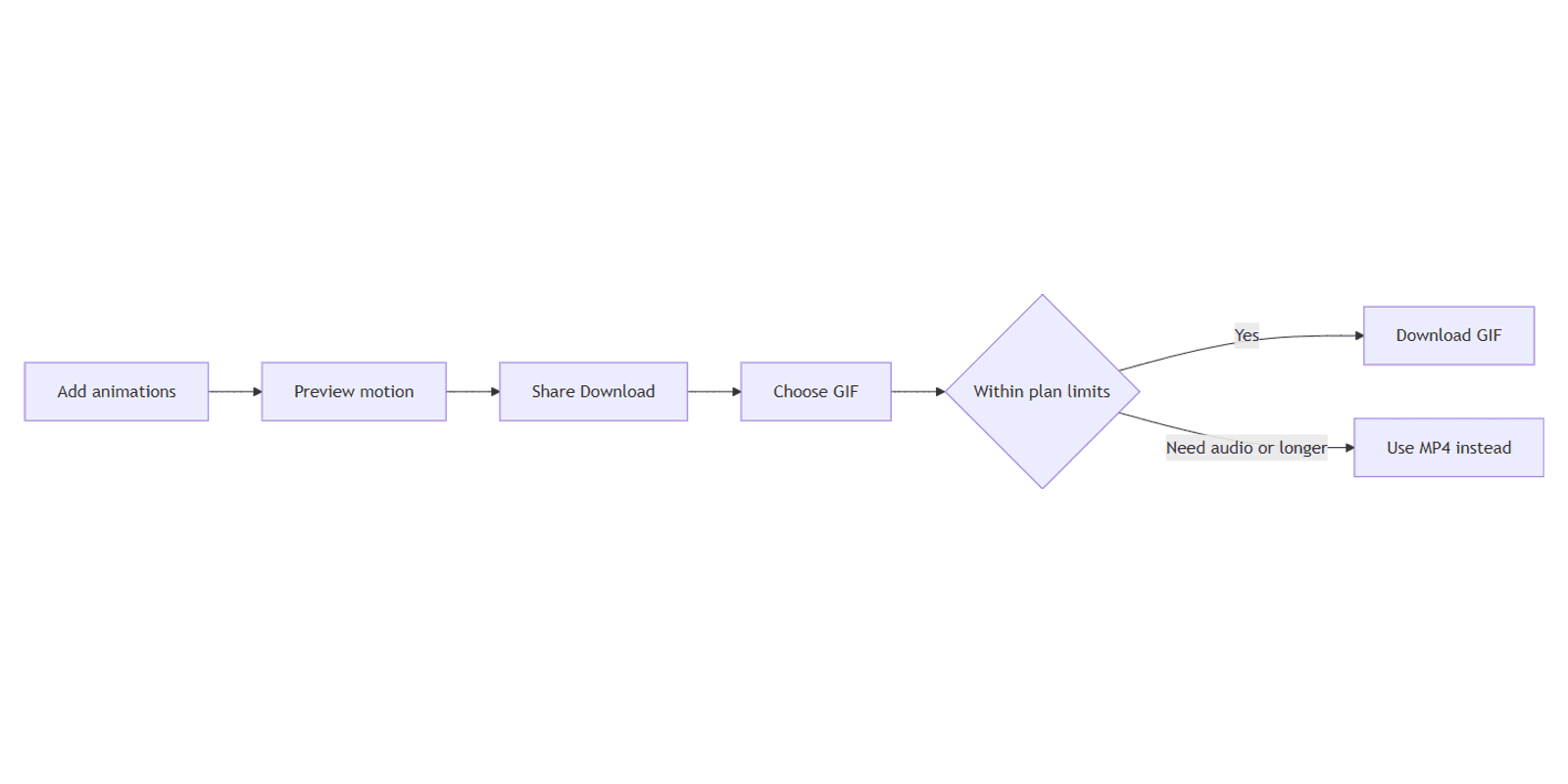
This guide covers Free vs Pro GIF limits, the Share → Download → GIF path, and when MP4 is the better choice. Official limits and steps: Downloading designs as video or GIF.
GIF download limits (Free vs Pro)
| Plan | Max GIF length | Max GIF resolution |
|---|---|---|
| Canva Free | Up to 1 minute | 1280 × 720 |
| Canva Pro, Teams, Education, Nonprofits | Up to 2 minutes | 1920 × 1080 |
Trim or split longer motion before export if you hit the length cap. Upscale expectations past your plan’s max resolution will not apply - design within the limit you can download (Canva Help).
For comparison, Free MP4 goes longer and higher than Free GIF; Pro MP4 extends further still (up to hours / 4K on paid tiers). Use the table above for GIF-only planning.
How to download a GIF in Canva
- Open the design in Canva.
- Add animations to elements or pages, or place video/motion on the timeline via the video editor.
- Optional: preview playback above the editor so timing looks right.
- Click Share → Download.
- Set the file type to GIF.
- Click Download (or Pay and Download if paid elements require it).
- Open the file outside Canva and confirm the loop, resolution, and length.
If the design uses audio, choose MP4 Video instead - GIF is a silent, looping format for most social and chat uses (Canva Help).
Prepare the design for clean GIFs
- Keep motion short - under your plan’s minute cap with room to spare.
- Animate the hook only; busy multi-object motion balloons file size and looks muddy at GIF color depth.
- Prefer strong contrast and Brand Kit colors that survive dithering.
- Avoid tiny type that crawls during pan/zoom animations.
- Preview once at full speed before you export.
GIF vs MP4
| Format | Best for | Trade-offs |
|---|---|---|
| GIF | Short silent loops, Slack/email previews, simple embeds | No audio, heavier files, softer detail |
| MP4 Video | Social uploads, longer clips, sound, sharper motion | Needs a video player; not a classic “inline loop” everywhere |
Rule of thumb: logo sting or reaction loop → GIF. Reel, story with music, or anything over a few seconds with audio → MP4 via video editor download.
Campaign cut lists for GIF vs video posts fit the Social Media Multi-Platform Content Planner.
Workflow: animate → export GIF
- Build the page and apply Brand Kit.
- Use Animate on key elements (see animations).
- Keep total duration inside Free (1 min) or Pro (2 min) GIF limits.
- Share → Download → GIF.
- Spot-check on mobile - many GIF destinations compress further.
FAQ
What are Canva Free GIF limits?
Up to 1 minute and 1280 × 720. See download as video or GIF.
What are Canva Pro GIF limits?
Up to 2 minutes and 1920 × 1080 on Pro, Teams, Education, and Nonprofits (Canva Help).
How do I export a GIF?
Share → Download → choose GIF → Download.
Should I use GIF or MP4?
GIF for short silent loops; MP4 when you need audio, longer runtime, or sharper video. Build motion with animations or the video editor.
Conclusion
To download GIFs in Canva, animate the design, stay within Free (1 min / 1280×720) or Pro (2 min / 1920×1080) caps, then Share → Download → GIF. Prefer MP4 for audio and longer clips. Pair export with animations, the video editor, and Brand Kit so motion stays on-brand.
Official reference: Downloading designs as video or GIF.
Canva Templates
Start Selling Canva Templates - Start Now!