How to Use Canva Whiteboards: Brainstorm Beyond Slides
Canva Whiteboards give you an expanding canvas for sticky notes, shapes, flows, and workshop layouts - better than forcing a brainstorm into fixed slide dimensions. Ideal for retros, journey maps, concept maps, and early ideation before you design final assets.
This guide covers Whiteboard vs Presentation, infinite-canvas basics, Brand Kit, and export/share. Official details: Brainstorm with Canva Whiteboards and the Whiteboards help hub.
Whiteboard vs Presentation
| Whiteboard | Presentation | |
|---|---|---|
| Canvas | Infinite / auto-expanding space | Fixed slides |
| Best for | Brainstorms, maps, workshops | Linear storytelling and pitch decks |
| Navigation | Pan and zoom the whole board | Advance slide by slide |
| Typical next step | Cluster ideas → turn winners into designs | Present or export PDF / video |
Use a whiteboard to diverge. Move to presentations when you need a rehearsed narrative. Long-form write-ups belong in Docs; AI first drafts of prompts or sticky copy can start in Magic Write.
You can also expand an existing presentation into a whiteboard for workshops - not supported for every design type (for example Websites, Print, Docs, and Video are called out as unsupported for expand-to-whiteboard) (Canva Help).
How to start a whiteboard
New whiteboard
- Open Canva → Create a design.
- Choose Whiteboard (search if needed).
- Start blank or pick a brainstorm / retrospective / journey-map template.
- Add sticky notes, shapes, lines, text, and tables from the editor tools.
Expand a presentation to a whiteboard
- Open a presentation (or compatible brainstorm file).
- Use Expand to whiteboard (wording may vary slightly).
- Pan the larger canvas and keep workshopping beyond the old slide edges (Canva Help).
Move around the infinite canvas
| Action | How |
|---|---|
| Pan | Hold Space and drag |
| Zoom | Trackpad pinch, or Ctrl/Cmd + scroll / +/- |
| Quick sticky | Shortcut S (when supported) |
| Quick shapes | C circle, R rectangle (when supported) |
Drag elements toward the edge to encourage the canvas to expand as you grow the board (Canva Help).
Brand Kit on a whiteboard
Apply team fonts and colors from Brand Kit so workshop outputs still look like your company - not a random sticky rainbow. Brand Kit availability follows your Canva plan / team account (personal accounts may not include a full Brand Kit).
- Open Brand in the editor when available.
- Apply brand colors to sticky notes, shapes, and headings.
- Use brand fonts on section titles and decision labels.
Draft facilitator prompts or sticky starters with Magic Write, then paste onto the board and edit live with the room.
Share, collaborate, and export
Share
- Click Share.
- Invite people as Can edit, Can comment, or Can view as needed.
- Use comments and @mentions for owners of action items after the session.
Export
- Share → Download.
- Choose PDF (Print) for a clean archive, or PNG / JPG for a snapshot.
- For narrative readout, rebuild key decisions as a presentation rather than presenting a huge board zoomed out.
Capture long decisions in a Doc so the whiteboard stays the visual workspace and the Doc becomes the source of truth.
Brainstorm → ship workflow
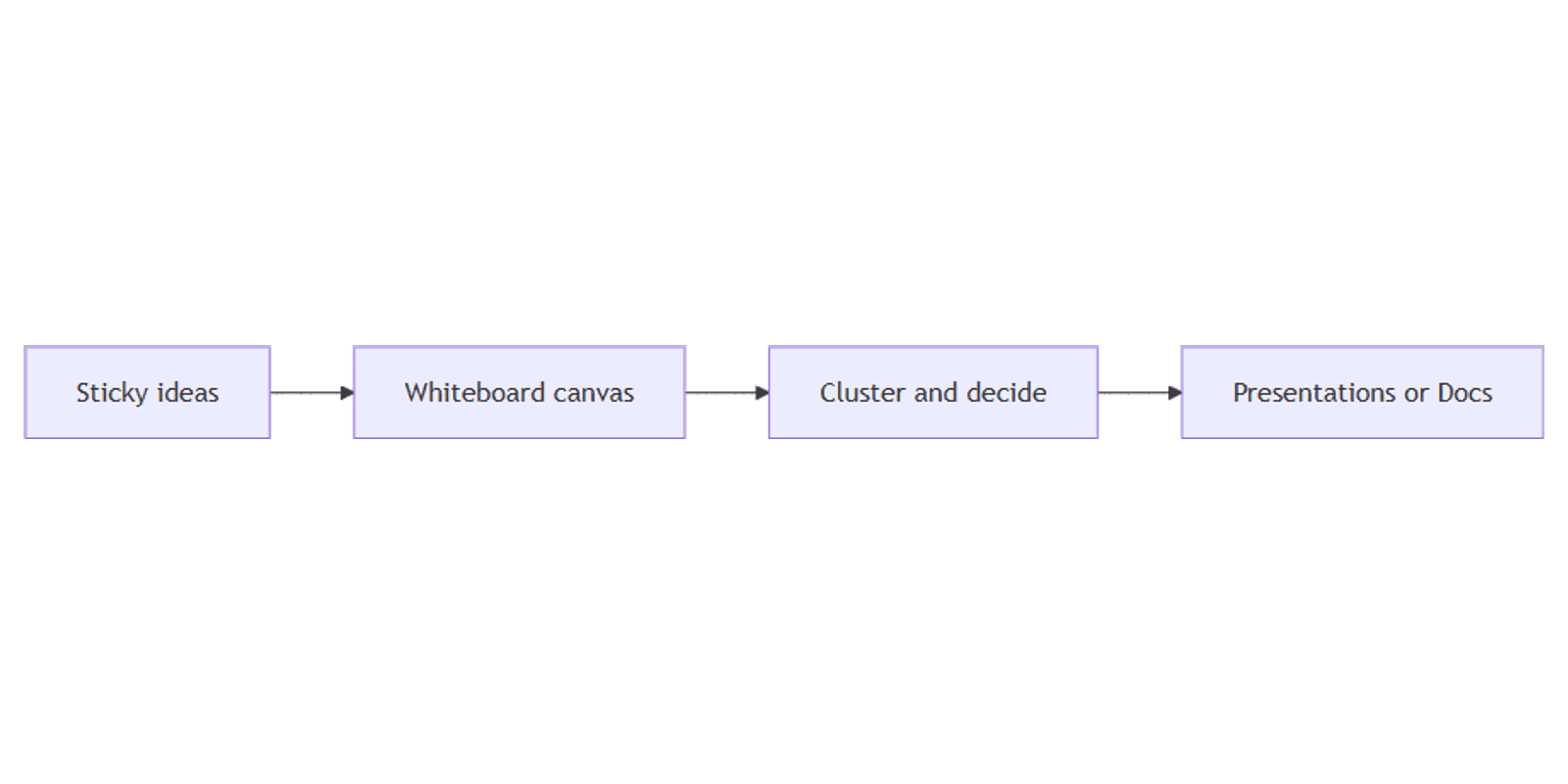
- Whiteboard the ideas (sticky notes + clusters).
- Vote or star winners on the board.
- Write the brief in Docs or polish copy with Magic Write.
- Build the client-facing story in presentations.
- Keep Brand Kit consistent from board → deck → final creatives.
Track follow-ups in a content planner when brainstorm outputs feed a publish calendar.
Tips
- One question per board section - avoid a single undifferentiated sticky cloud.
- Timebox with Canva’s timer when facilitating retros.
- Lock the board to Can view after decisions so the archive does not drift.
- Export PDF for stakeholders who will not open Canva.
- Do not present a mile-wide board - extract slides instead.
FAQ
When should I use a whiteboard instead of a presentation?
Use a whiteboard for open-ended brainstorming and maps. Use a presentation when the story must be linear.
Can I turn slides into a whiteboard?
Often yes for presentations - use expand-to-whiteboard. Some design types are not supported (Canva Help).
Can I use Brand Kit on whiteboards?
Yes on eligible team accounts - apply brand colors and fonts like any other design (Brand Kit).
How do I export a whiteboard?
Download as PDF (Print), PNG, or JPG, then optionally rewrite the narrative in Docs or presentations.
Conclusion
Canva Whiteboards are for infinite-canvas brainstorming - sticky notes, shapes, and workshops beyond slide borders. Pan/zoom the board, keep visuals on-brand with Brand Kit, share for live collab, then export or move winners into presentations, Docs, and Magic Write drafts.
Canva Templates
Start Selling Canva Templates - Start Now!