How to Use Canva Docs: Write and Design Long-Form Content
Canva Docs is Canva’s visual-first document editor - headings, body copy, tables, banners, and embedded design blocks in one scrolling (or paged) doc. Use it for proposals, briefs, SOPs, and long-form writing that still needs brand color and layout polish.
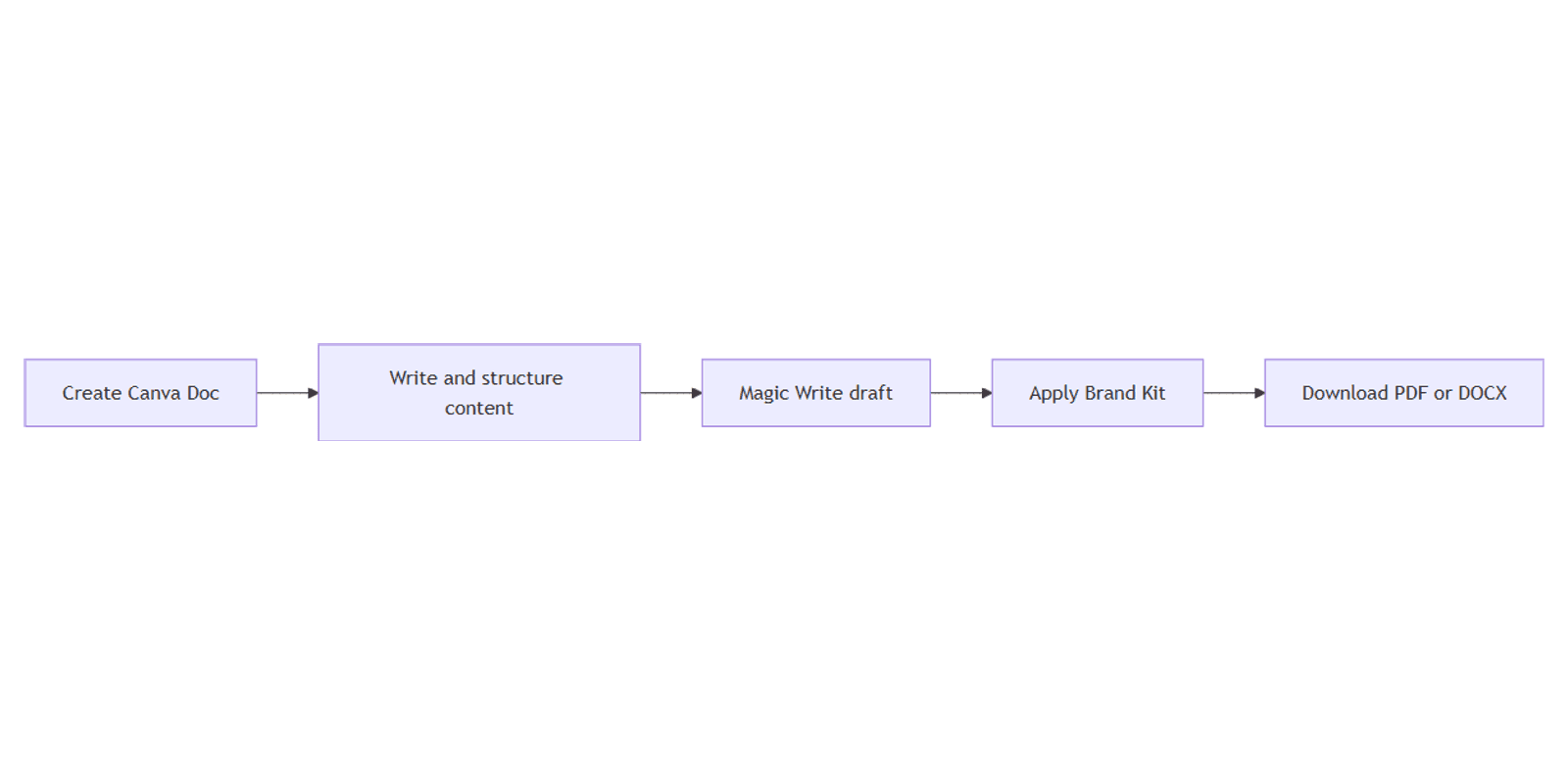
This guide covers Docs vs the design canvas, drafting with Magic Write, applying Brand Kit, and exporting PDF or DOCX when available. Official help: Canva Docs overview, Create Canva Docs, and Share and publish Docs.
Docs vs the design canvas
| Canva Docs | Design canvas (e.g. flyer, social, slides) | |
|---|---|---|
| Best for | Long-form writing + light design | Fixed-size graphics and print/screen assets |
| Flow | Continuous doc / page breaks | Artboard sized to a format |
| Resize workflows | Export / convert when needed | Magic Resize across design sizes |
| Typical export | PDF Standard, DOCX | PNG, JPG, PDF Print, video, etc. |
Docs are for documents. Social posts, presentations, and blog banners stay on the design canvas. Magic Resize is built for designs you need in multiple dimensions - do not expect the same resize workflow inside a Doc the way you use it on Instagram or presentation canvases.
How to create a Canva Doc
- Open Canva.
- From the homepage, click Create.
- Choose Docs (or Doc).
- Pick a template, or start blank with a size such as Digital, Pageless, A4, or Letter (Canva Help).
- Add headings, body text, tables, columns, banners, and images via + / Quick actions or by typing
/. - Use the Outline to jump through long sections.
Structure tips: one idea per section, clear H1/H2 hierarchy, and design blocks only where they aid scanning - not decoration for its own sake.
Draft faster with Magic Write
Magic Write works inside Docs to draft or rewrite copy from a prompt.
- Place the cursor (or select text) in the Doc.
- Open Quick actions /
/and choose Magic Write (or use Magic Write on selected text). - Describe the section you need, or pick Shorten / Continue / Change voice style actions when editing existing text.
- Insert or copy the result, then proofread for facts and brand voice.
You can also start from the homepage with Canva AI → Draft a doc when you want a Doc draft before opening a blank page (Magic Write help).
Keep Docs on brand with Brand Kit
Apply Brand Kit colors, fonts, and logos so proposals match your social and slide work.
- Open Brand / Brand Kit in the editor.
- Apply approved fonts and colors to headings and body.
- Place the correct logo variant in headers or banners.
- Reuse the same kit on presentations and blog banners for consistency.
Some Brand Kit color-theme shortcuts that apply across entire designs may behave differently (or be unavailable) in Docs - apply colors and fonts deliberately (Brand Kit colors).
Download PDF or DOCX
When you need a file outside Canva:
- Click Share → Download.
- Choose PDF Standard or DOCX (availability depends on current Canva Docs download options).
- Pick document size if prompted.
- Click Download (Share and publish Docs).
Canva notes that Docs download options focus on PDF and DOCX; more formats may be limited. To get a slide deck file, convert or rebuild as a presentation rather than expecting PPTX from the Doc itself.
Preview client-facing layouts with Canva frame mockups when the Doc feeds a pitch pack.
Docs workflow tips
- Write the outline first, then add banners and embeds.
- Use suggestion / comment features when collaborating (see Canva’s share help).
- Keep campaign copy calendars in the Social Media Multi-Platform Content Planner and paste final sections into Docs for stakeholder review.
- For visual blog headers that sit above long posts, design blog banners on the canvas, then embed or link from the Doc.
FAQ
What is Canva Docs for?
Long-form, collaborative documents with text plus visual blocks - proposals, briefs, and guides - not fixed-size social or print canvases (Canva Docs overview).
Can I use Magic Write in Docs?
Yes. Use Quick actions / / or Magic Write on selected text. See Magic Write and Canva’s Magic Write help.
Can I export a Doc as PDF or Word?
Yes when the Download menu offers PDF and DOCX - use Share → Download (Canva Help).
Does Magic Resize work like it does on designs?
Treat Magic Resize as a design-canvas tool for format hopping. Docs use page setup and PDF/DOCX download instead of the same multi-size resize flow.
How do I keep a Doc on brand?
Apply Brand Kit fonts, colors, and logos the same way you would on presentations.
Conclusion
To use Canva Docs, create a Doc, structure it with headings and layout blocks, draft with Magic Write, apply Brand Kit, and download PDF or DOCX when you need an external file. Keep fixed-size graphics on the design canvas - presentations, blog banners, and Magic Resize for multi-format designs.
Canva Templates
Start Selling Canva Templates - Start Now!