How to Translate Designs in Canva: Multi-Language Graphics
Canva Translate turns the text in a design into another language - social posts, slides, flyers, and more - without rebuilding the layout from scratch. Ideal when one campaign needs Spanish, French, German, or other locales from the same visual.
This guide covers Translate via Magic Switch or the Apps panel, plan expectations, review habits, and pairing with Brand Kit. Official details: Translate your Canva designs. Plan and trial limits can change - confirm in Canva Help and your account billing.
What Translate does
Translate rewrites on-canvas text into a target language (Canva documents 100+ languages in help). You can translate whole pages or selected text, optionally set a tone of voice where supported, and adjust settings so longer translations still fit (Canva Help).
| Option | Role |
|---|---|
| Translate to | Target language |
| Tone of voice | Optional (select languages) - Original, Conversational, Professional, etc. |
| Translate pages | Pick which pages to convert |
| Select text | Translate only chosen text on the current pages |
| Settings | Reduce font size to fit, duplicate page before translating, mirror RTL layouts |
Always review machine translation for brand names, legal claims, and idioms before you publish.
Who can use Translate? (hedge plan)
Canva’s product pages commonly describe Translate as try once free, then ongoing use on Pro, Teams, Education, or Nonprofit (and related eligible plans). Exact entitlement can vary by region and account type.
Hedge: treat “Pro+ typically” as the practical expectation for unlimited / ongoing Translate, and verify against current Translate help and your plan page before promising unlimited use to a client.
How to translate a design
Via Magic Switch (desktop)
- Open a finished design in Canva.
- Open Magic Switch (or Resize / Magic Switch entry in the top toolbar - label can vary).
- Choose Translate.
- Pick Translate to language; optional tone of voice.
- Choose pages (or selected text) and check Settings (duplicate page, reduce font size, RTL mirror).
- Click Translate, then Open the result when ready.
Via Apps
- Open the design.
- Go to Apps → search Translate (or More from Canva → Translate).
- Set language, pages, and Settings.
- Run Translate, then edit any awkward lines manually.
Mobile (quick path)
- Open a design (Docs may differ - check current mobile limits).
- Tap + → Apps → Translate.
- Set language and pages, then translate and review.
Review checklist before you publish
| Check | Why |
|---|---|
| Brand names / product names | Often should stay in the original language |
| Character length | Translations run long - fix overflow after auto font-size |
| CTA meaning | “Shop now” equivalents must match market tone |
| RTL languages | Enable mirror layout when translating to right-to-left scripts |
| Legal / medical claims | Human review required |
Lock colors and fonts in Brand Kit before you multiply languages so every locale stays on-brand. Draft source copy with Magic Write if you need a first English (or primary-language) pass - then Translate, then human-edit.
Multi-language campaign workflow
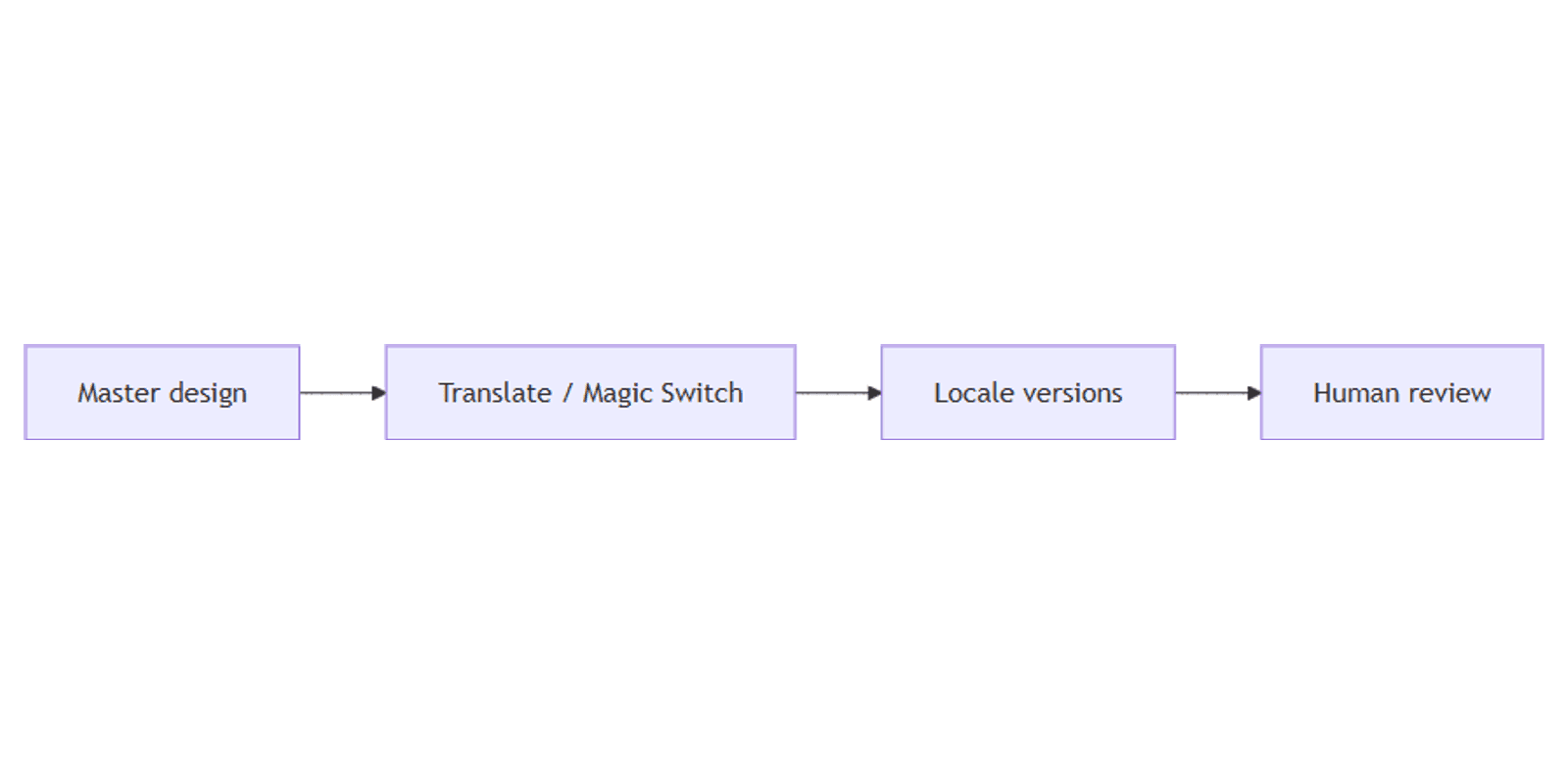
- Finalize the master design and Brand Kit styles.
- Duplicate or enable duplicate page before translating so the original stays intact.
- Translate into each target language.
- Human review each locale.
- For many variants from a spreadsheet (names, SKUs, cities - not full prose translation), consider Bulk Create instead of Translate.
- Build slide decks and leave-behinds with presentations after copy is approved.
Track publish dates per locale in a content planner.
Tips
- Translate after layout is locked - fewer reflows when text length changes.
- Keep one master file - branch locales from duplicates, not from each other.
- Turn off auto font shrink only when you will manually reflow.
- Do not rely on Translate for legal contracts - use professional localization.
- Brand Kit first - off-brand colors in five languages is still off-brand.
FAQ
Where is Translate in Canva?
From Magic Switch (Translate) or Apps → Translate. See Translate your Canva designs.
Is Translate free?
Canva often allows a limited free trial of Translate; ongoing use is typically tied to Pro / Teams / Education / Nonprofit. Confirm on your account and current help - limits change.
Does Translate replace a human editor?
No. Always review for accuracy, brand voice, and cultural fit.
Should I use Bulk Create instead?
Use Translate for language conversion of the same message. Use Bulk Create when you need many designs with different data fields in the same language.
Conclusion
Canva Translate (via Magic Switch or Apps) produces multi-language graphics fast - pick a language, protect the original with duplicate-page settings, then proofread. Pair with Brand Kit, draft helpers in Magic Write, data variants via Bulk Create, and finished decks in presentations.
For client-ready comps of localized creatives, see Canva frame mockups.
Canva Templates
Start Selling Canva Templates - Start Now!