Notion Sidebar: Organize Private, Shared, and Teamspace Pages
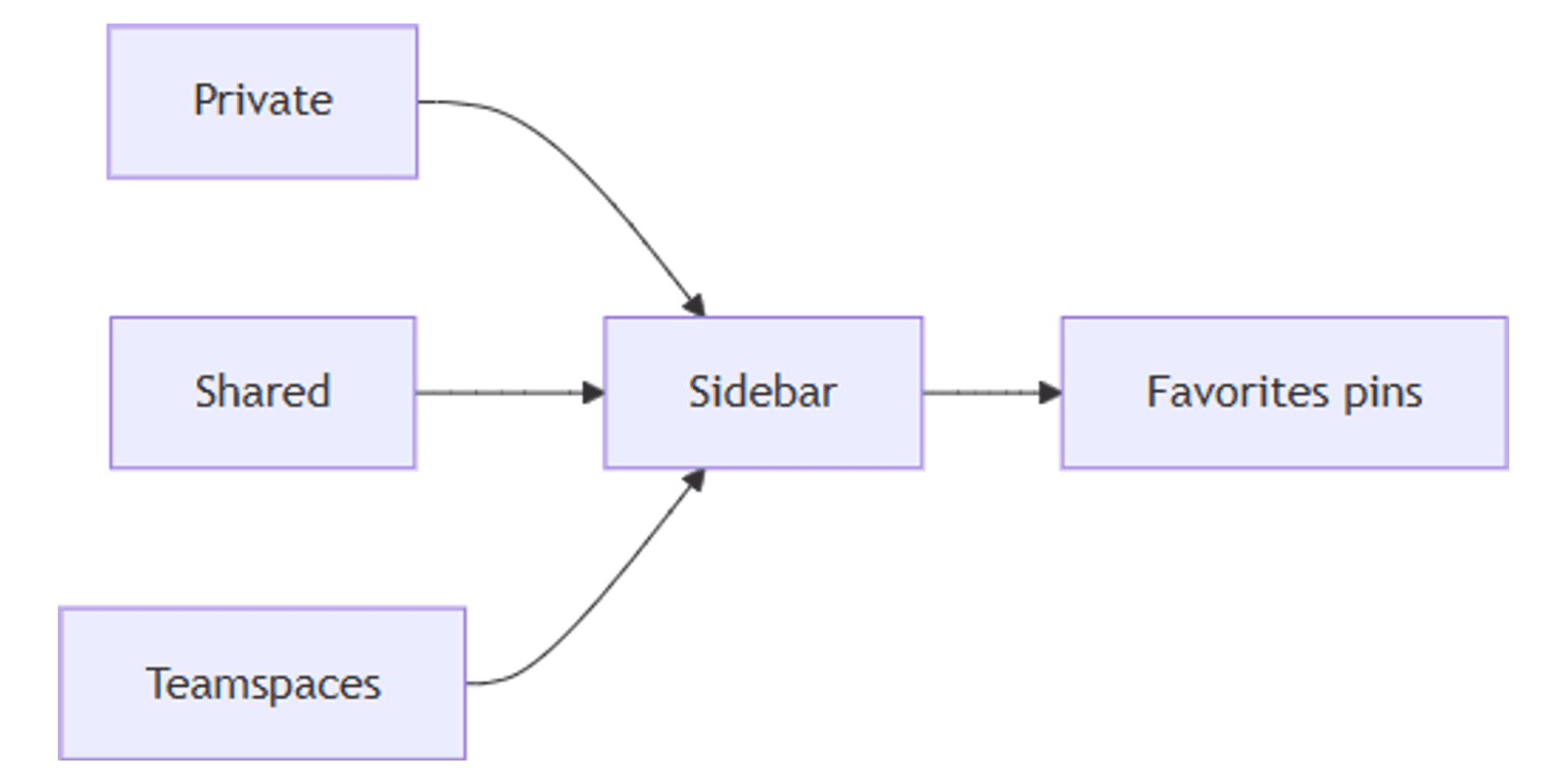
Notion’s sidebar is how you navigate Private pages, Shared pages, and Teamspaces. A clean sidebar means less hunting and clearer defaults for where new work should live.
This guide covers the main sidebar sections, dragging pages between them, starring Favorites, and teamspace defaults. It is about where pages sit in navigation - not the full permission matrix (Can edit / Can comment / Can view). For access levels, see share permissions. Official details: Navigate with the sidebar and Intro to workspaces.
Sidebar sections at a glance
| Section | What lives there |
|---|---|
| Private | Pages only you can see - drafts, personal notes, work-in-progress |
| Shared | Pages shared with specific people (appears once you share or are invited) |
| Teamspaces | Collaborative areas for teams (typically Plus / Business / Enterprise) |
| Favorites | Personal pins - shortcuts, not a new location |
| Home / Inbox / Search | Jump points for tasks, notifications, and find |
Click a section name (Teamspaces, Shared, Private) to collapse it and keep the sidebar short (Notion Help).
Private vs Shared vs Teamspaces
Private
Use Private for pages that should stay yours until you are ready to share. Anything you add here is only visible to you in that workspace (Notion Help).
Caution: dragging a page into Private can remove everyone else’s access. Confirm before you move shared work into Private (Notion Help).
Shared
Shared holds pages you share with selected people - for example 1:1 notes - without putting them in a full teamspace. The section appears when sharing starts (Notion Help).
Sharing still uses the Share menu and permission levels documented in share permissions. The sidebar Shared label only tells you the page is selectively shared - not which role each person has.
Teamspaces
On paid plans with teamspaces, the Teamspaces section lists spaces you belong to. Open a teamspace name to expand or collapse its nested pages. Browse All teamspaces to join or find more spaces (Notion Help).
Teamspace page order for top-level structure is shared for members; individuals can still expand or collapse nests without changing everyone’s layout (Notion Help).
How to drag and reorganize pages
- Hover a page in the sidebar until the drag handle appears.
- Drag it under another page (nest), or to another section (Private, Shared, a teamspace).
- Drop when the highlight shows the intended parent or section.
- Nested sub-pages move with a top-level page when you relocate it.
Moving changes location and often who can see the page. Re-check Share after big moves. For who can edit vs view, use share permissions - do not assume a sidebar section equals a permission level.
Favorites (starred pages)
Pin daily pages without moving them:
- Open the page.
- Click the ⭐ at the top.
- Find it under Favorites in the sidebar.
- Drag within Favorites to reorder your personal list.
Favorites are personal shortcuts. Full starring workflow: Starred Favorites.
Teamspace defaults and a cleaner sidebar
| Habit | Why it helps |
|---|---|
| Default new team docs into the right teamspace | Stops Private from becoming a dumping ground |
| Keep 1:1s in Shared | Easy to find without cluttering a teamspace |
| Star only daily pages | Too many Favorites recreate the clutter problem |
| Collapse quiet teamspaces | Sidebar stays scannable |
| Use Library | Customize which sections show; recover sections you hid |
Library lets you remove or restore sidebar sections and manage Favorites in bulk when the list grows (Manage your Library).
Daily navigation stack
- Check Home / My tasks for assigned work.
- Open Favorites for pinned hubs.
- Work inside the correct Teamspace or Shared page.
- Publish outward only when needed via Notion Sites - Sites are for web publishing, not sidebar organization.
- Adjust access with share permissions when membership changes.
Works with the Notion Templates Bundle when you drop starter pages into the right Private / Shared / Teamspace home.
Tips
- Draft in Private, share deliberately - then drag to Shared or a teamspace.
- Do not use Private as “archive” for team docs - teammates will lose access.
- Name top-level pages clearly - sidebar labels are your IA.
- Favorites ≠ ownership - starring does not change Share or Sites.
- Collapse sections you rarely open - reduce visual noise.
FAQ
What is the difference between Shared and Teamspaces?
Shared is for pages shared with specific people. Teamspaces are dedicated collaborative areas for teams on eligible plans (Notion Help).
Does starring a page move it?
No. Favorites are shortcuts. See Starred Favorites.
Is sidebar location the same as permission level?
No. Sidebar sections describe where / with whom a page lives at a high level. Exact roles (edit, comment, view, etc.) are set in Share - see share permissions.
Can I hide sidebar sections?
Yes - Library supports removing sections from the sidebar and adding them back later (Notion Help).
Conclusion
Keep Private for solo drafts, Shared for selective collaboration, and Teamspaces for team hubs. Drag carefully (Private removes others’ access), star daily pages into Favorites, and use Home / My tasks for assigned work. Publish with Sites when you need the web; set roles with share permissions.
For starter structure, see the Notion Templates Bundle.
Notion Templates
Start Selling Notion Templates - Start Now!