Notion Page History: View and Restore Earlier Versions
Notion page history (version history) lets you preview how a page looked earlier and restore a past snapshot after mistakes, overwrites, or confusing collaborative edits.
This guide covers how to open history from ••• or the updates / clock UI, restore full versions vs copy blocks, plan limits, and how history pairs with comments and permissions. Official help: Delete & restore content (Version history section).
What version history records
Notion records versions as you edit - typically a new snapshot about every 10 minutes while you are active, plus another shortly after you stop editing (Notion Help).
When you open history you can:
- Browse past versions by time
- Preview what the page looked like
- See highlights of what changed (text edits, some block adds/deletes, and limited other changes - not every tiny tweak)
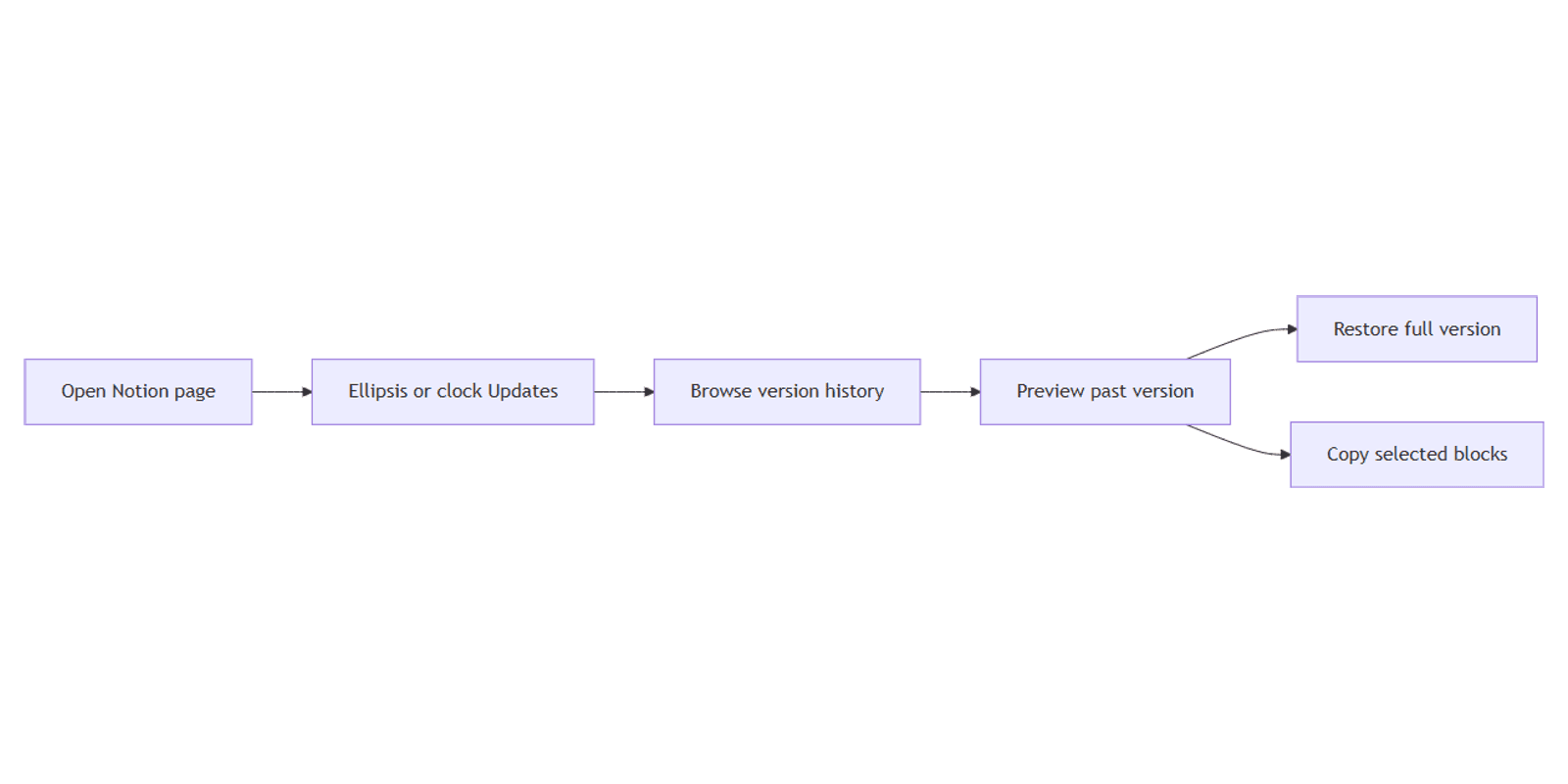
- Restore a whole version, or copy selected blocks into the current page
You need at least Can edit access to open version history.
How to open page version history
Desktop / web
- Open the page.
- Click ••• at the top of the page.
- Choose Version history.
- Select a past version to preview it.
- Click Restore to make that version current - or copy only the blocks you need and paste into the live page.
You can also use the clock / updates control near the top of the page (often shown as a clock icon). Open the revisions / updates list, then jump into a version from there (Notion Help). Exact labels can vary slightly by client; look for Version history or the clock next to updates and comments.
Mobile
- Open the page.
- Tap •••.
- Tap Version history.
- Tap a version to view it, then Restore - or copy / paste specific content back.
Detailed side-by-side comparison highlights are more limited on mobile than on desktop.
Restore carefully
| Action | Effect |
|---|---|
| Restore | Replaces the current page with that past snapshot |
| Copy blocks from a version | Keeps the current page; pastes only what you choose |
Restoring does not lock you out of other snapshots within your available history window - you can open history again and restore a different version if needed.
Databases: Restoring a database restores its pages and properties, but body content inside each database page may not come back with the database restore - you may need to restore individual page histories for page bodies. Restoring can also affect how views appear for teammates (Notion Help).
Plan limits for how far back you can go
How many days of history you can view and restore depends on your Notion plan. Per Notion Help:
| Plan | Version history window |
|---|---|
| Free | 7 days |
| Plus | 30 days |
| Business | 90 days |
| Enterprise | Any number of days (full history) |
Enterprise can also show richer change detail (who / when). Confirm in your workspace if plan names or windows have changed since publish.
History vs trash vs permissions
| Need | Tool |
|---|---|
| Undo edits on a live page | Version history (this guide) |
| Recover a deleted page | Trash in the sidebar |
| Control who can restore | Share permissions - editors can open history |
| See who discussed a change | Comments and updates |
| Audit create / edit timestamps | Created / last edited properties |
Version history is not a substitute for periodic database export backups when you need offline copies.
Works with the CRM Dashboard when shared deal pages need a quick restore after an accidental overwrite.
FAQ
Where is Version history in Notion?
Open the page → ••• → Version history. You can also reach versions from the clock / updates UI at the top of the page (Notion Help).
Can I restore only part of a page?
Yes. Open an older version, copy the blocks you need, and paste them into the current page instead of restoring the entire snapshot.
Do I need Can edit?
Yes. Notion requires at least Can edit to access version history. Guests or viewers without edit access will not open it - see share permissions.
How far back can I go?
Per Notion Help: Free 7 days, Plus 30 days, Business 90 days, Enterprise unlimited history (Delete & restore content). Confirm in your account if windows change.
Does restoring a database restore text inside every row?
Database restore brings back pages and properties; content inside each database page may still need per-page restores. Check Notion Help for the current database restore behavior.
Conclusion
To use Notion page history, open ••• → Version history (or the clock / updates entry), preview a snapshot, then Restore or copy blocks. Confirm your plan’s history window, keep editors aligned via share permissions, and use comments plus created / last edited for context around who changed what.
For offline backups of databases, pair history with Markdown & CSV export. For template-based workspaces, see the Notion Templates Bundle.
Notion Templates
Start Selling Notion Templates - Start Now!