Notion Duplicate and Move Databases: Migrate Without Breaking Views
Duplicating and moving Notion databases lets you migrate templates, reorganize teamspaces, and copy a working schema without rebuilding properties from scratch. Done carelessly, you can break linked database views, flatten sub-items, or strand people who only had access through the old parent page.
This guide covers Duplicate vs Move to, what happens to linked views, sub-item caveats when moving, and how share permissions follow (or stop following) the page. Official context: Sharing and permissions and Sub-items and dependencies.
Duplicate vs Move to
| Action | What you get | Best for |
|---|---|---|
| Duplicate | A new copy of the page/database (rows and views on that copy) | Templates, sandbox experiments, backups before a risky change |
| Move to | The same page/database under a new parent | Reorganizing sidebars, teamspaces, or project hubs |
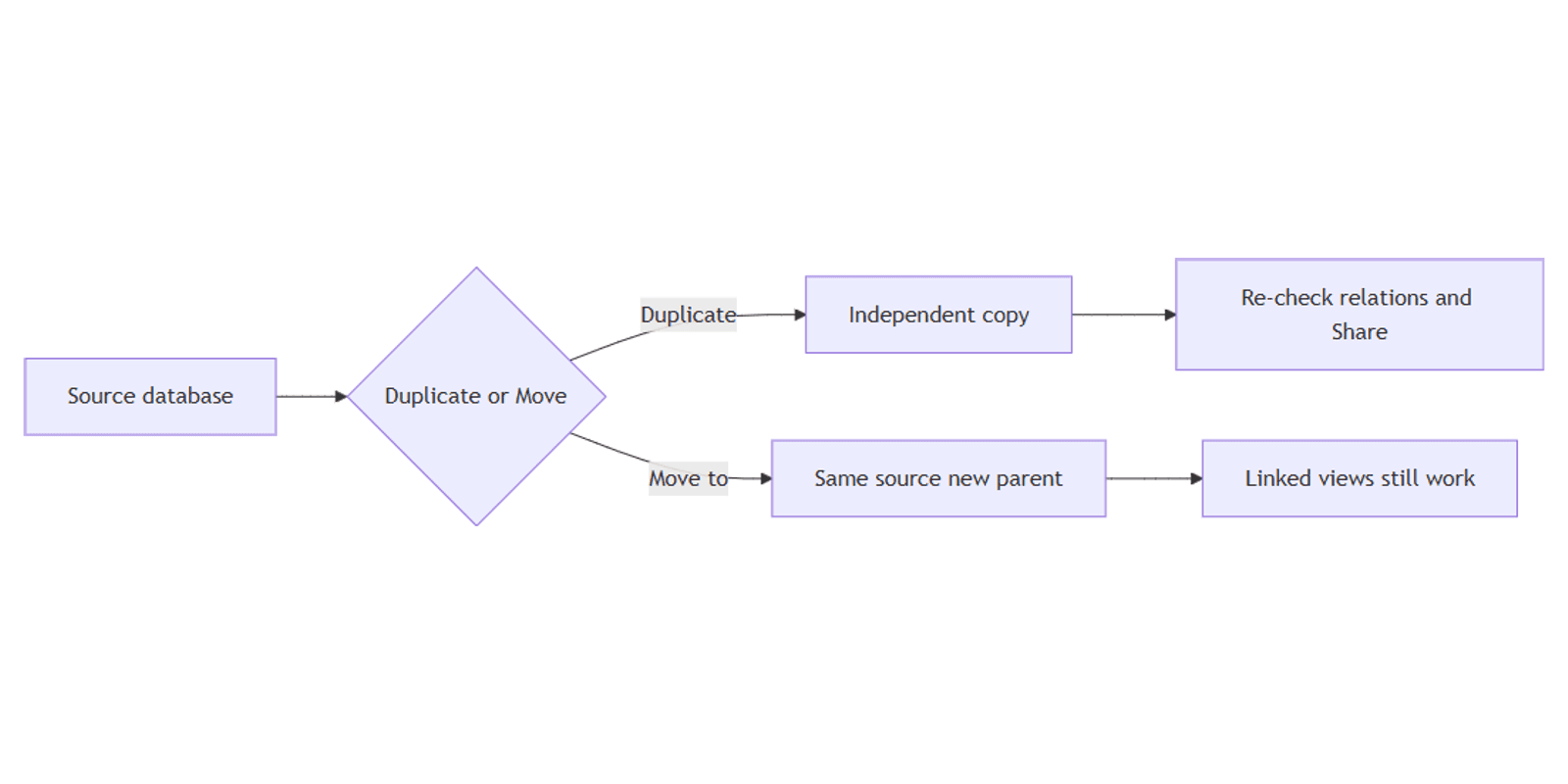
Duplicate creates independent data. Edits on the copy do not update the original. Move to relocates the original - linked views that pointed at it still point at the same source, but inherited permissions may change with the new parent.
How to duplicate a page or database
Full-page database
- Open the parent page that contains the database (not only the full-page database itself if Duplicate is missing from the expected menu).
- Hover the database block → click the ⋮⋮ handle (or open ••• on the page).
- Choose Duplicate.
- Rename the copy so teams do not mix source and clone.
You can also duplicate from the sidebar: right-click the page → Duplicate.
What the duplicate includes
| Included | Watch out |
|---|---|
| Properties, rows, and views on that database | Relations may still point at the original related databases |
| Local filters, sorts, and table view layouts | Formulas and rollups that assume old relation targets |
| Nested subpages under the duplicated page | People still need share permissions on the new copy |
Duplicating a linked view does not create a new source database - it creates another view of the same source. To clone data, duplicate the source database page, not a linked instance. See linked databases.
How to Move to another location
- Open the page or database you want to relocate.
- Click ••• (or right-click in the sidebar).
- Choose Move to.
- Pick the destination page, private section, or teamspace location.
- Confirm, then check the breadcrumb and sidebar path.
Move to Private can remove other people’s access on that parent page - subpage overrides may still linger. Re-check Share after every move (Notion Help).
Linked views: what breaks and what does not
| Situation | Result |
|---|---|
| Move the source database | Linked views keep working - they still reference the same source |
| Duplicate the source | Linked views still show the original; the copy is a separate database |
| Duplicate a linked block | Another linked view of the same source - not a data clone |
| Move a page that only hosts linked views | Views move with the page; data stays in the source |
After a move, open each dashboard that embeds the database and confirm filters still match the intended table (or board/calendar) slice. Rebuild a linked view with /linked if a block was orphaned during a messy cut-paste.
Sub-items when moving
When you move a parent row that has sub-items (Notion Help):
- Notion turns sub-items on in the target database if they are not already enabled.
- If you cannot enable sub-items on the target (permissions), moved sub-items become parent items (hierarchy flattens).
- Sub-items you cannot edit are not moved with the parent.
- Duplicating a parent duplicates the parent and its sub-items as new pages.
Plan target access before bulk-moving nested tasks - especially across teamspaces with stricter roles.
Permissions after duplicate and move
| Change | Permission effect |
|---|---|
| Duplicate | Copy starts with access based on where it was created / who owns it - invite people again |
| Move to a shared parent | Often inherits the new parent’s access |
| Move to Private | Can strip others from the parent page |
| Row-level rules | Person / Created by rules still apply across views, including linked ones |
Always open Share on the destination and verify Full access / Can edit / Can edit content for owners and contributors. Details: share permissions.
Works with the Social Media Multi-Platform Content Planner when you duplicate a content calendar into a client workspace, then reconnect relations to that client’s databases.
Migration checklist
- Decide: copy (Duplicate) or relocate (Move to).
- If copying, duplicate the source database - not a linked view.
- Re-check relations and rollups on the copy.
- Move nested tasks only after confirming sub-item rights on the target.
- Re-verify Share and any page-level access rules.
- Spot-check every linked database dashboard.
FAQ
Does Duplicate create a second set of rows?
Yes. You get an independent database (or page tree). Linked views of the original keep pointing at the original.
Will Move to break my linked dashboards?
Usually no - linked views follow the source, not the sidebar location. Still confirm filters and permissions after the move.
Why did my sub-tasks become top-level rows?
The target database likely did not allow enabling sub-items with your permission level, so Notion flattened them (Notion Help).
Can I duplicate from a linked view?
You only duplicate another linked view of the same source. Open the source database page to clone the data.
Conclusion
To migrate Notion databases without breaking views, use Duplicate when you need a true copy, and Move to when you only need a new home for the same source. Prefer duplicating the source over a linked database block, re-check relations and table views, watch sub-items when crossing databases, and confirm share permissions on the destination.
For a broader template set after you settle structure, see the Notion Templates Bundle.
Notion Templates
Start Selling Notion Templates - Start Now!