Notion Conditional Color: Highlight Database Rows by Rules
Notion conditional color paints database pages (or table cells) when a property matches a rule
- overdue tasks in red, high priority in orange, Done in green. It is view-level visual priority without rebuilding your Status options.
This guide covers how to add conditional color, which views and properties support it, table row vs property coloring, and practical task workflows. See Notion's conditional color docs inside the database properties help article.
What is conditional color?
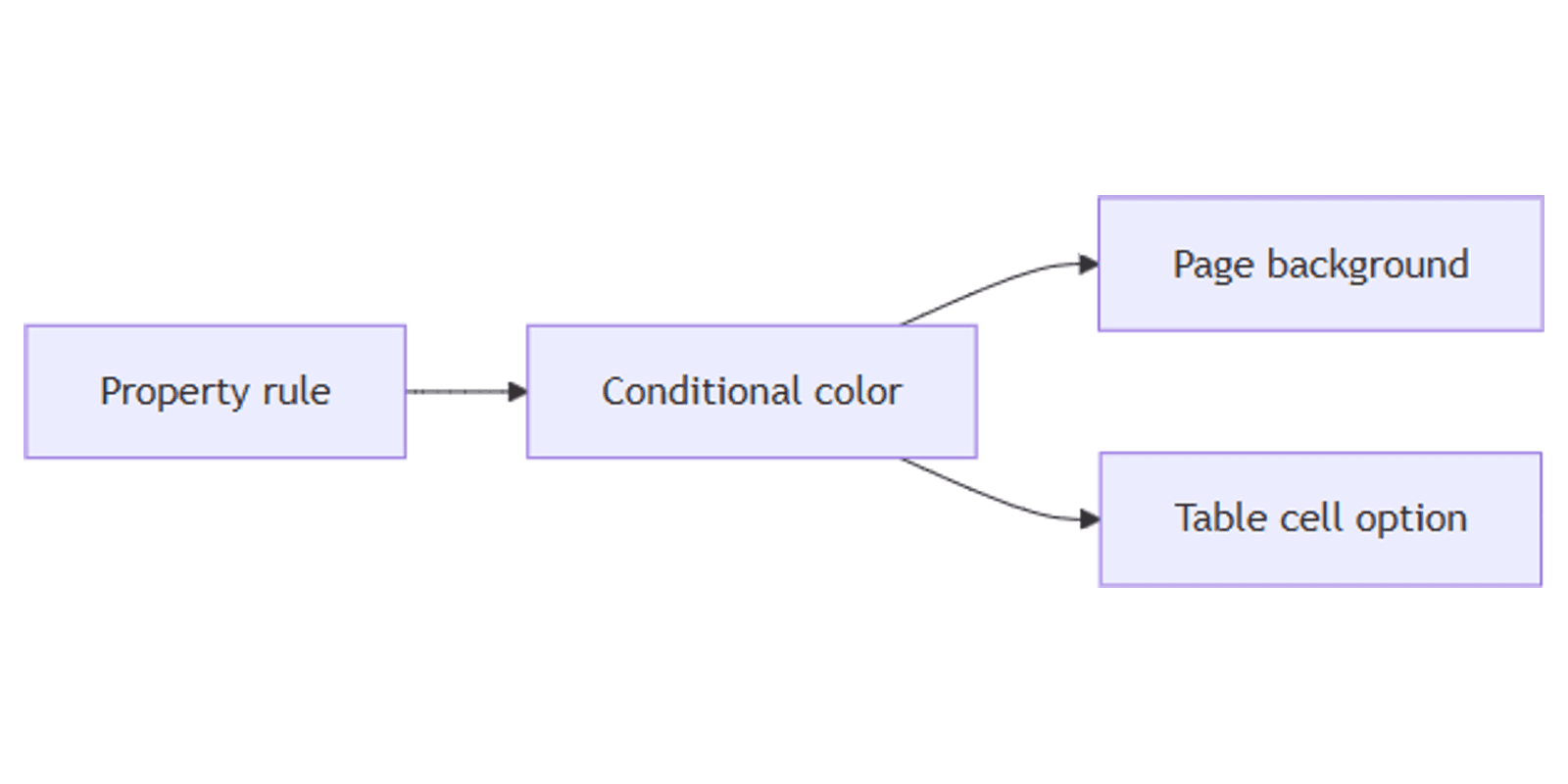
Conditional color assigns a page background (or, in Table, a property cell) based on rules you define per view. Example: Due date is before today → red background.
| Conditional color | Property tag colors | Formula style | |
|---|---|---|---|
| Scope | Whole page / row (or one table column) | Select / Status chips | Formula text output |
| Setup | View settings rules | Edit each option | Formula style() |
| Best for | Overdue, priority heat | Category labels | Dynamic text styling |
Use conditional color when the row should stand out. Use Select/Status colors for the chip itself. Use formula style() when only computed text needs color.
Supported views and properties
Per Notion Help:
Views: Table, Calendar, Timeline, List, Board, Feed.
Not listed for conditional color: Form and Chart (and other layouts not in that list).
Properties you can color by: Select, Multi-select, Status, Title, Text, Number, Date, Person, Checkbox, Formulas, Relations, Rollups.
Permissions: you need Can edit content, Can edit, or Full access to change rules. View-only members can see colors but not edit them.
Settings are per view. Duplicating a view copies its color rules; other views stay unchanged.
How to add conditional color
- Open a supported database view.
- Click the slider (View settings) at the top.
- Select Conditional color.
- Click New color setting.
- Choose the property to evaluate.
- Set the rule (e.g. Status is Blocked, Date is before Today).
- Pick a Page background color.
- Optionally Add another rule.
When you color by Select, Multi-select, or Status, Notion often defaults page colors to match existing option colors (e.g. P0 red) - you can override anytime.
Table: entire row vs one property
In Table only:
- Open the menu next to Apply to.
- Choose the entire row or just the property your rule uses.
On Board, List, Calendar, Timeline, and Feed, color applies to the page / card background, not individual property chips on the card.
Delete a rule
View settings → Conditional color → trash icon next to the rule.
Practical rule examples
Overdue tasks
- Property: Due (Date).
- Rule: Due is before Today (and optionally Status is not Done as a second rule set).
- Color: red page background.
- Use on List or Board for daily standups.
Priority heat map
- Property: Priority (Select) with P0 / P1 / P2.
- Color by Priority - keep P0 red, P1 orange, P2 yellow.
- Filter Status is not Done so completed work stays calm.
Status board clarity
- Color by Status.
- In Progress → blue; Blocked → red; Done → green.
- Works on Board cards and Timeline bars' pages.
Owner spotlight
- Color by Assignee (People) contains Me → light blue.
- Save as My work view so your rows pop during planning.
Number thresholds
- Score or NPS (Number).
- Rules: greater than 8 → green; less than 5 → red.
- Useful on CRM or feedback tables.
Works with the CRM Dashboard template.
Tips for readable color systems
- Put critical rules first if multiple rules could match - keep the system obvious.
- Limit the palette - three to five colors retain meaning.
- Reserve red for problems - overdue or blocked, not every category.
- Duplicate views when teams need different legends (Ops vs Leadership).
- Do not replace Status - color highlights; Status still drives filters and automations (automations).
Conditional color vs formula colors
| Need | Use |
|---|---|
| Highlight whole row/card by Status or Due | Conditional color |
| Color text inside a Formula property | Formula style() |
| Color Select chips only | Edit option colors on the property |
You can use both: conditional color for the row, formula style for a computed badge column.
Permissions and troubleshooting
Who can edit: Can edit content / Can edit / Full access.
Common issues:
- Option missing - you are on Form/Chart or another unsupported layout; switch to Table, Board, List, etc.
- Colors not editing - check your access level.
- Wrong view colored - rules do not sync across views unless you duplicate the view.
- Want one cell only - use Table → Apply to → the property (not the whole page).
FAQ
Which Notion views support conditional color?
Table, Calendar, Timeline, List, Board, and Feed (Notion Help).
Can I color only one property in Notion?
Yes, in Table view via Apply to → the property. Other layouts color the page/card background.
Can formulas drive conditional color?
Yes. Formulas are listed among supported properties in Notion's conditional color documentation.
Conclusion
Conditional color makes priority visible at a glance - open View settings, add rules by Status, Date, or Number, and keep legends simple. Pair with List for queues, Board for pipelines, and filtering so colored noise stays out of Done views.
For Select chip colors and categories, see Notion Select. For formula text styling, see formula color.
Notion Templates
Start Selling Notion Templates - Start Now!