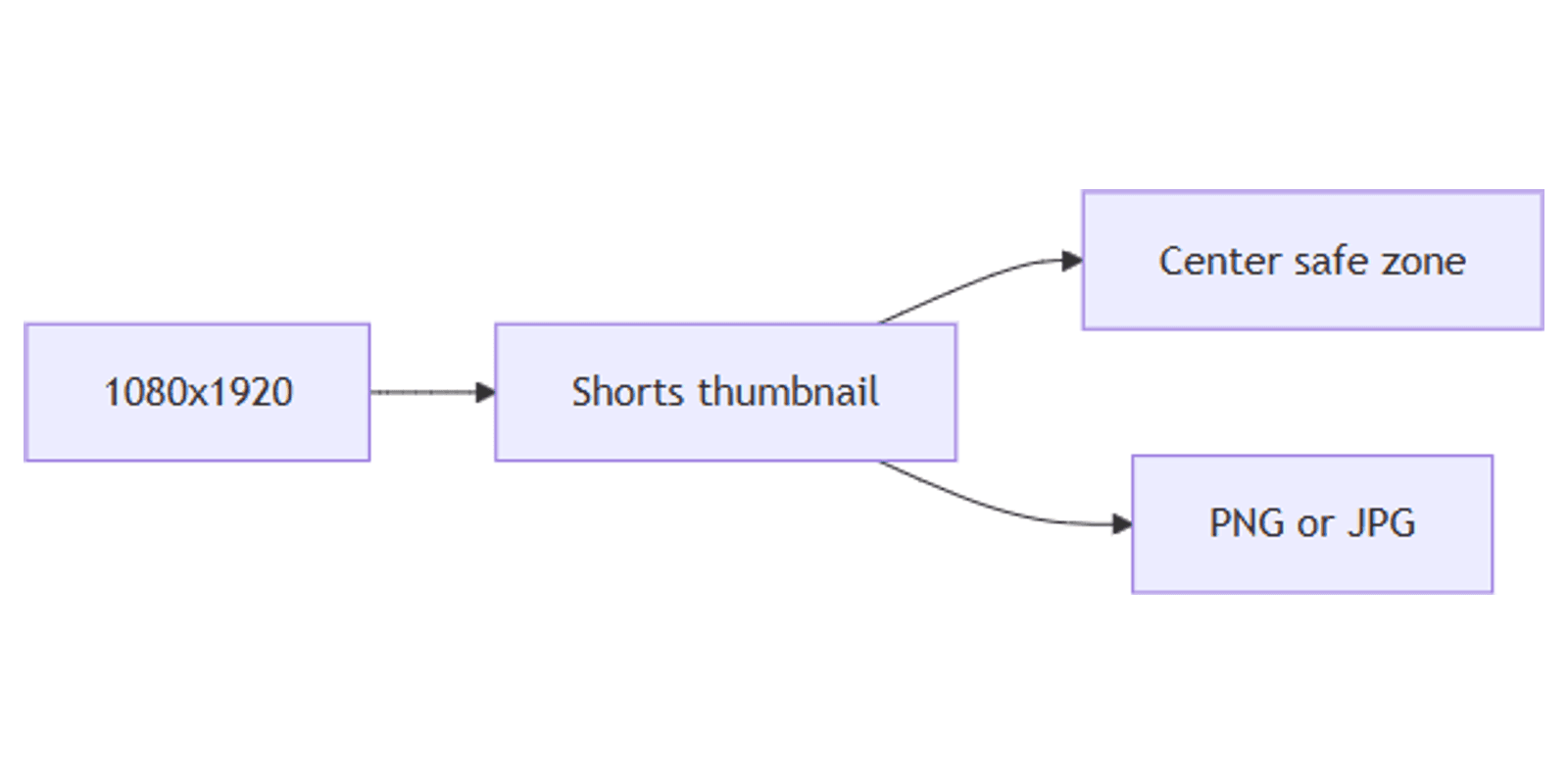
How to Create YouTube Shorts Thumbnails in Canva: 1080×1920
A custom YouTube Shorts thumbnail is what viewers see in shelves, search, and related rails. Canva makes it easy to design 1080×1920 (9:16) Shorts thumbnails with bold hooks, readable type, and files under YouTube’s size limits - different from classic 1280×720 long-form thumbs.
This guide covers canvas setup, safe zones (center crop), layout, Brand Kit, export, and upload via YouTube Studio. Same vertical canvas family as TikTok and Reels covers.
YouTube Shorts thumbnail size in Canva
| Spec | Value |
|---|---|
| Canvas | 1080 × 1920 px |
| Aspect ratio | 9:16 |
| Formats | JPG or PNG |
| Practical file size | Under about 2 MB (stay smaller for reliable uploads) |
Long-form vs Shorts:
| Use | Size | Guide |
|---|---|---|
| Shorts custom thumbnail | 1080 × 1920 | This post |
| Standard YouTube thumbnail | 1280 × 720 | YouTube thumbnails |
| TikTok / Reels cover | 1080 × 1920 | TikTok and Reels covers |
Do not upload a 16:9 long-form thumb as a Shorts custom thumbnail - it will letterbox or crop awkwardly in vertical shelves.
To create the canvas:
- Open Canva.
- Click Create a design → search YouTube Shorts, TikTok Video, or Instagram Story.
- Or Custom size → 1080 × 1920 px.
Safe zones (design for the center)
Shorts UIs and search previews often emphasize the center of the frame. Some placements crop toward a ~1:1 center square - similar to profile-grid crops on Reels/TikTok.
Practical rules on a 1080×1920 canvas:
| Zone | Guidance |
|---|---|
| Center band | Put face, product, and main hook here |
| Top / bottom thirds | Secondary graphics only - easy to crop away |
| Edges | Keep ~40–50 px margin; avoid edge-only text |
Design for both:
- Place the hero subject in the middle square (~1080 × 1080 center).
- Keep the main hook inside that same center band when possible.
- Use top/bottom for atmosphere, not critical words.
Preview on a phone mockup with Sparxno Canva frame mockups.
Step-by-step: build a Shorts thumbnail
1. Background
- Solid or gradient from Brand Kit
- Frame grab from the Short with a dark overlay for text
- Product or creator cutout via Background Remover
2. Focal subject
- Center the face or product vertically
- High contrast against the background
- Avoid the far edges where UI and crops hit hardest
3. Hook text
- Text → Add a heading.
- Use 3 to 6 words that tease the payoff.
- Bold, high-contrast fonts (e.g. Montserrat, League Spartan, Bebas Neue).
- Size large enough to read at ~25–33% zoom.
Typography tips:
- One message only - Shorts thumbs compete at phone size.
- Outline or shadow on photo backgrounds.
- Limit to one font family, two weights.
4. Optional badge
- Episode or part number inside the safe center
- Small brand mark - not competing with the hook
5. Align and check crops
- Mentally crop a center square - does the thumb still make sense?
- Zoom to 25% - if the hook fails, enlarge type or shorten copy.
- Keep critical content away from extreme top and bottom.
Shorts vs long-form thumbnails
| Shorts | Long-form | |
|---|---|---|
| Size | 1080 × 1920 | 1280 × 720 |
| Orientation | Vertical | Landscape |
| Safe focus | Center / ~1:1 middle | Avoid bottom-right duration badge |
| Typical use | Shorts shelf, vertical search | Home / suggested rails |
Reuse Brand Kit colors across both - not the same canvas. Start from Shorts art, then Magic Resize only if you also need a 16:9 variant for the long-form upload (and recheck layout).
Export settings
- Share → Download.
- PNG for text-heavy designs; JPG for photo-heavy stills.
- Keep the file under ~2 MB before upload.
- If over limit, export JPG, flatten effects, or simplify gradients.
Checklist:
- Canvas is 1080 × 1920 (9:16)
- Hook readable at small size
- Hero + text inside center safe band
- Brand Kit applied
- File under ~2 MB (JPG/PNG)
Upload via YouTube Studio
- Open YouTube Studio.
- Select the Short (or upload it first).
- Open details / thumbnail controls for that Short.
- Upload your custom 1080×1920 image (JPG or PNG).
- Publish or save - confirm the thumb looks correct on mobile.
Custom thumbnails may require channel eligibility (verification / guidelines). If the upload is rejected, check format, dimensions, and file size, then retry with a smaller JPG.
Practical workflows
Series covers
- Master template with Brand Kit + fixed logo slot.
- Duplicate pages; swap hook + still per episode.
- Batch download All pages.
From Reels/TikTok cover
- Start from a TikTok / Reels cover at 1080×1920.
- Swap platform-specific badges; keep the center crop safe.
- Export under 2 MB for Studio.
From long-form thumb
- Do not stretch 1280×720 into 9:16 blindly.
- Rebuild on 1080×1920 or Magic Resize carefully, then re-center the hook.
- See YouTube thumbnails for the landscape version.
Track publish dates in a content planner.
FAQ
What size are YouTube Shorts thumbnails in Canva?
1080 × 1920 pixels (9:16). Use Custom size or a vertical template such as YouTube Shorts / TikTok / Story.
How is a Shorts thumb different from a normal YouTube thumbnail?
Shorts use vertical 1080×1920. Long-form uses 1280×720 landscape - see YouTube thumbnails.
Where should I put text on a Shorts thumbnail?
Keep the hook and subject in the center - search and shelves often crop toward a middle square.
What file size should I use?
Aim for JPG or PNG under ~2 MB for reliable custom thumbnail uploads in YouTube Studio.
Conclusion
Canva YouTube Shorts thumbnails ship at 1080 × 1920 - design for the center safe zone, export under ~2 MB, and upload in YouTube Studio. Reuse Brand Kit and Background Remover for consistent series art.
For vertical social covers, see TikTok and Reels covers. For landscape video thumbs, see YouTube thumbnails.
Canva Templates
Start Selling Canva Templates - Start Now!