How to Create Brochures in Canva: Multi-Page Print Layouts
Canva brochures are multi-page print pieces: panels or booklet pages, consistent branding, and a PDF Print file with bleed for the shop. Unlike a single flyer or poster, a brochure walks the reader through several sections in order.
This guide covers brochure templates, multi-page flow, bleed and PDF Print, and when to choose a brochure over a flyer or poster. Official help: Margins, bleed, and crop marks, Download file types, and Canva Print.
Brochure templates in Canva
- Open Canva.
- Click Create a design and search Brochure.
- Choose a template that matches fold type or page count (bi-fold, tri-fold, multi-page booklet).
- Or set Custom size to the flat sheet your printer expects before folding.
- Replace headlines, body copy, images, and contact details on every page.
Confirm flat size, fold marks, and finished trim with your printer before you design. Template names are a starting point - panel order must match how the sheet folds.
Multi-page structure
Treat each page (or panel) as one job:
| Spread / panel | Content focus |
|---|---|
| Cover | Offer or brand hook |
| Inside | Features, proof, process |
| Back | Contact, map, QR, legal |
- Add pages in Canva for each panel or booklet page.
- Keep margins consistent across pages.
- Repeat logo and accent color so the set feels one piece.
- Number pages only if the printer or booklet format needs it.
For screen storytelling rather than foldable print, use presentations instead of forcing slides into a brochure PDF.
Show print bleed and safe margins
Bleed still applies on brochures:
- Turn on Show print bleed.
- Extend backgrounds past the trim on every page.
- Keep text, logos, and QR codes inside the safe margin - and away from fold lines.
- Leave a quiet gutter near folds so type does not disappear into the crease.
Many Canva trim products use about 0.125 in / 3.175 mm bleed. Follow on-canvas guides and Canva bleed help.
| Zone | Put here | Avoid here |
|---|---|---|
| Bleed | Edge backgrounds | Body text |
| Fold area | Quiet space | Tiny type |
| Safe margin | Headlines, contact, QR | Elements that must not be cropped |
Apply Brand Kit
Use Brand Kit across all pages:
- Open Brand or Brand Kit.
- Apply colors, fonts, and the correct logo variant.
- Check contrast on paper - light gray on white often fails in print.
- Keep photo treatments consistent from cover to back.
Preview mockups with Canva frame mockups when you present a folded proof to a client.
Download PDF Print
- Click Share → Download.
- Choose PDF Print (aimed at 300 dpi print quality).
- Tick Crop marks and bleed when required.
- Export all pages in order so the shop receives one production file.
- Open the PDF and flip through every page before you send it.
| Format | Best for |
|---|---|
| PDF Print | Print shops, Canva Print, professional color |
| PDF Standard | Screen proofs only |
Do not send PDF Standard when you need bleed and print resolution.
Brochure vs flyer vs poster vs presentation
| Design | Best for |
|---|---|
| Brochure | Multi-section print story, folds or booklet pages |
| Flyer | Single-sheet handout, one primary offer |
| Poster | Large-format glanceable display |
| Presentation | Screen slides, Present mode |
Reuse Brand Kit across all four, but pick the format that matches distance and page count - a wall poster is not a folded leave-behind, and a flyer rarely needs six panels of copy.
Campaign drop dates fit well in the Social Media Multi-Platform Content Planner.
FAQ
How many pages should a Canva brochure have?
Match the fold or booklet your printer stocks - often 2, 4, or more pages/panels. Design the full flat or page set, not just the cover.
Do brochures need bleed like flyers?
Yes. Show print bleed, extend backgrounds, and keep critical content inside the safe margin on every page. See margins and bleed.
Can I order brochures from Canva?
When Canva Print offers the product in your region, yes. Otherwise download PDF Print with crop marks and bleed for a local shop (Canva Print help).
Brochure or presentation for a sales meeting?
Print leave-behind → brochure. Live screen walkthrough → presentations. Many teams keep both from the same Brand Kit.
Conclusion
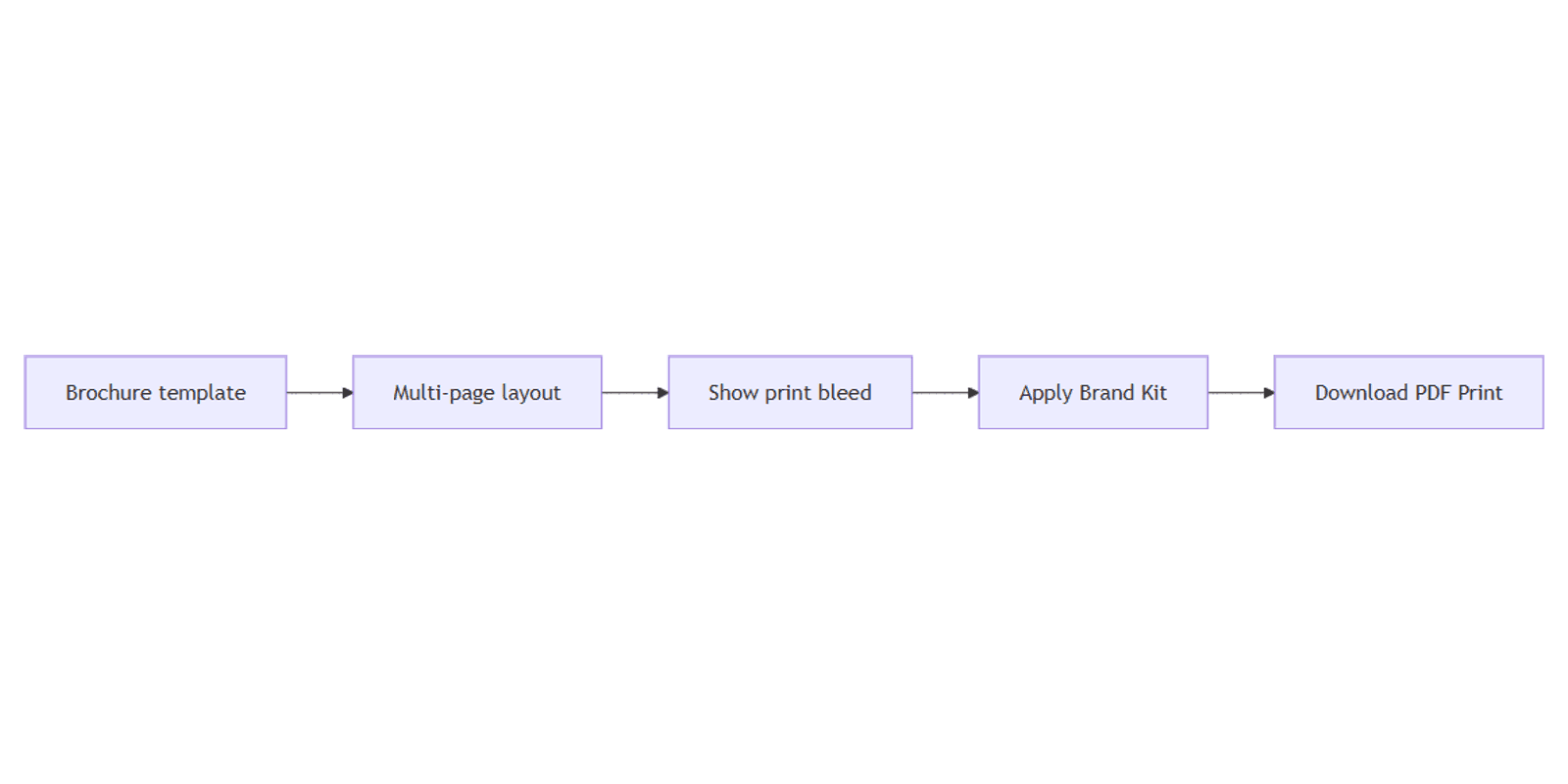
To create a brochure in Canva, start from a brochure template, plan multi-page (or multi-panel) flow, show bleed, apply Brand Kit, and download PDF Print with crop marks when needed. Choose a brochure when the story needs several sections; use a flyer or poster for single-surface impact, and presentations for on-screen delivery.
Canva Templates
Start Selling Canva Templates - Start Now!