How to Create Event Invitations in Canva: Print and Digital
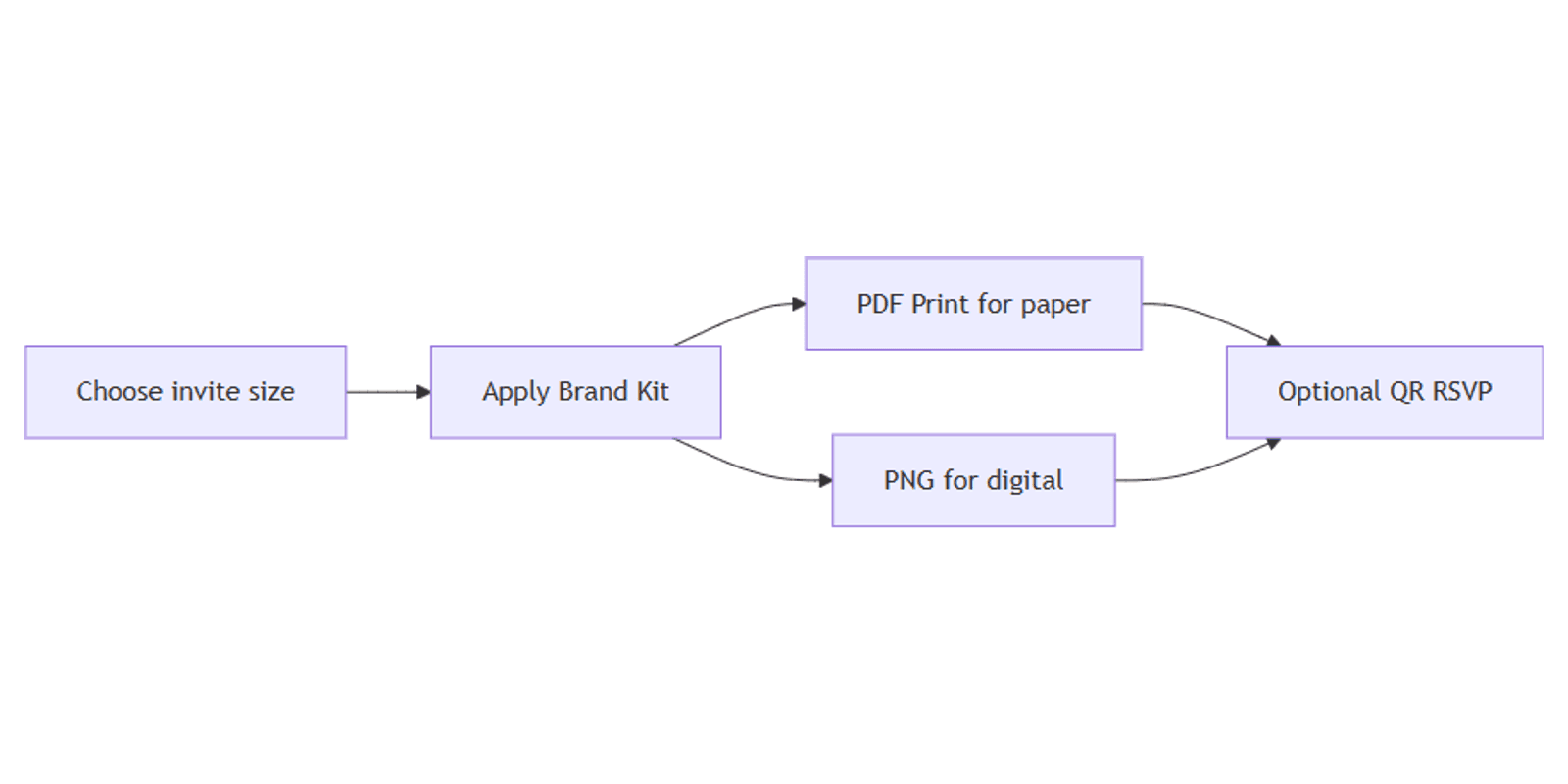
Canva event invitations cover both paper cards and phone-ready graphics: pick the right size, apply brand colors, then export PDF Print for the shop or PNG for DMs and stories. A clear date, venue, and RSVP path matter more than decoration.
This guide covers common invitation sizes, Brand Kit setup, print vs digital export, and QR codes for RSVP links. For single-sheet handouts see flyers; for Status-style shares see WhatsApp Status. Official help: Download file types and Margins, bleed, and crop marks.
Common invitation sizes in Canva
Create from an Invitation template or Custom size.
| Size | Dimensions | Typical use |
|---|---|---|
| 5 × 7 in | Common US invitation | Print shops, card stock |
| A6 | 105 × 148 mm | Compact international cards |
| Digital story | 1080 × 1920 px | Instagram / WhatsApp / phone invites |
Confirm envelope and printer stock before you lock a print size. Digital invites can reuse the same copy on a 9:16 canvas - same family as WhatsApp Status.
How to create an invitation in Canva
- Open Canva.
- Click Create a design.
- Search Invitation, or set Custom size (inches for print, px for digital).
- Pick a template or start blank.
- Replace event name, date, time, venue, dress code, and RSVP details.
- Rename the design for print or social handoff.
Keep hierarchy tight: event name → when → where → how to RSVP. Avoid packing the card like a flyer with multiple offers.
Apply Brand Kit
Use Brand Kit so invitations match your other event assets.
- Open Brand or Brand Kit in the editor.
- Apply brand colors and fonts.
- Place the approved logo with clearance from edges (and from the trim on print cards).
- Check contrast - light text on soft pastels often fails on paper and phone screens.
Print invitations: bleed and PDF Print
For paper invites:
- Turn on Show print bleed.
- Extend backgrounds into the bleed; keep text and QR codes inside the safe margin.
- Click Share → Download → PDF Print.
- Enable Crop marks and bleed when the printer needs them.
| Format | Best for |
|---|---|
| PDF Print | Card stock, local printers, Canva Print |
| PDF Standard | Lightweight digital proofs only |
Print workflow mirrors flyers - fixed trim, bleed, and safe margins - but invitation copy stays shorter and more formal.
Digital invitations: PNG and stories
For email, WhatsApp, or Instagram:
- Design at 1080 × 1920 for full-screen phone invites, or keep a print layout and export a clean flat image if recipients will zoom on a card-shaped graphic.
- Download PNG (or JPG) for crisp sharing.
- Keep key text out of top/bottom UI chrome when posting as a story or WhatsApp Status.
| Channel | Export |
|---|---|
| Print shop | PDF Print + bleed |
| Chat / email attachment | PNG |
| Story / Status | PNG at 1080 × 1920 |
Add a QR code for RSVP
A QR code can open an RSVP form, map, or ticket page.
- Insert a QR code that points to your RSVP URL.
- Keep it large, high contrast, and inside the safe margin on print.
- Test scan on a phone before you order a print run.
Preview mockups with Canva frame mockups when you present options to a client.
Invitation vs flyer
| Design | Job |
|---|---|
| Invitation | One event, RSVP, guest-facing formality |
| Flyer | Promotion, offers, broader audience handouts |
Reuse Brand Kit across both; do not paste flyer-length copy onto a 5 × 7 card.
FAQ
What size should I use for print invitations?
5 × 7 in is a common US choice; A6 suits many international printers. Confirm with your shop and envelope before designing.
PDF Print or PNG?
PDF Print for paper. PNG for digital shares and stories. See Canva download types.
Can I use the same design for print and Instagram?
Start from one layout, then create a 1080 × 1920 version for stories - or carefully adapt with resize and a safe-zone check. Brand colors stay consistent via Brand Kit.
Should every invite include a QR code?
Only when guests need a fast link to RSVP or maps. Follow QR code sizing and contrast tips.
Conclusion
To create event invitations in Canva, choose 5 × 7, A6, or 1080 × 1920, apply Brand Kit, and export PDF Print for paper or PNG for digital. Add a scannable QR code for RSVP when it helps.
For promotional handouts see flyers; for phone-first shares see WhatsApp Status.
Canva Templates
Start Selling Canva Templates - Start Now!