Notion Simple Tables vs Databases: When to Use Each
Notion simple tables are lightweight row-and-column grids for static display - metrics in a meeting note, a small comparison, or a quick matrix. They are not the same as a Table view database. When you need filters, sorts, properties, and multiple views, convert or start with a database instead.
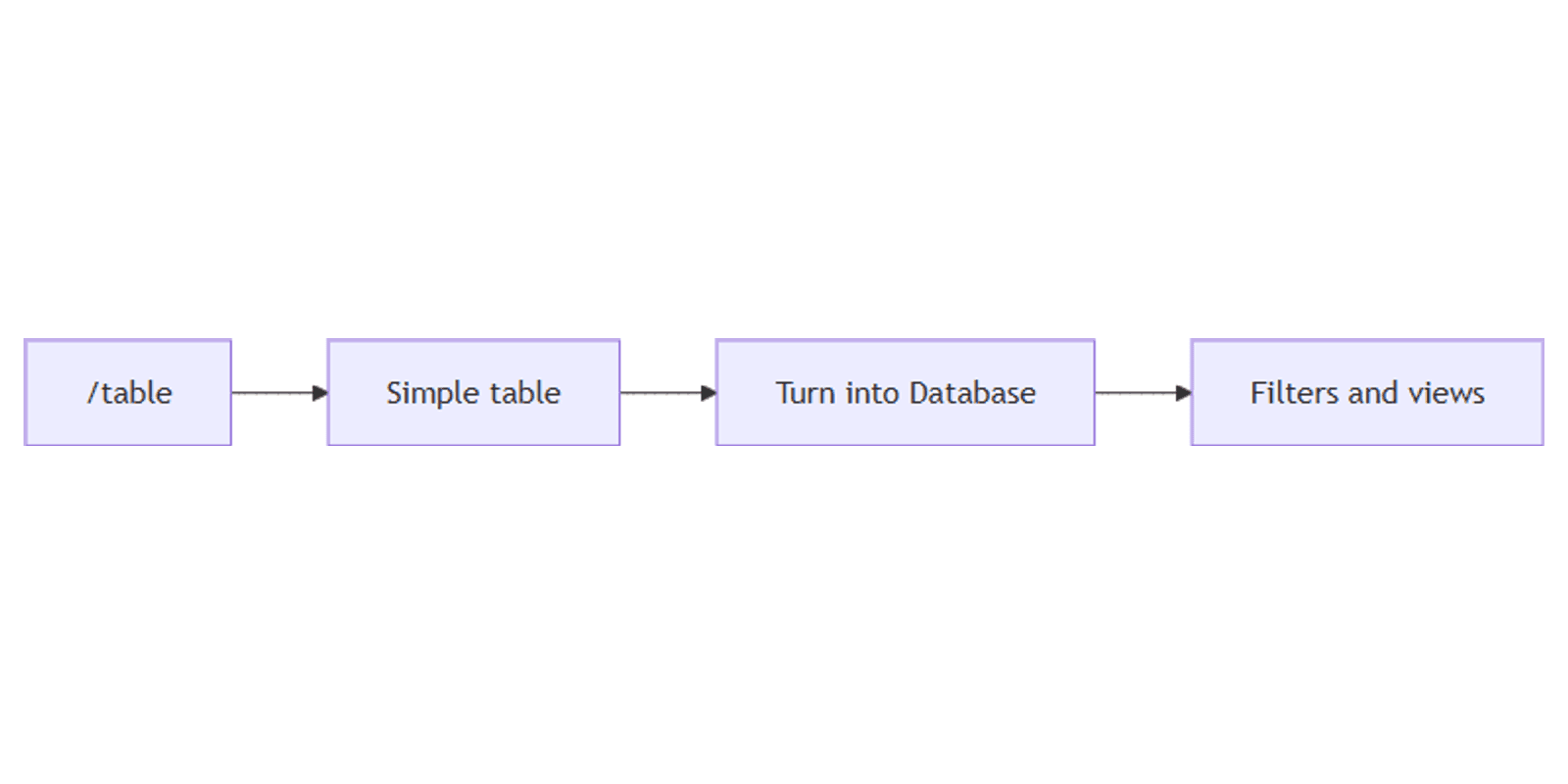
This guide covers how to insert a simple table with /table, when to stay simple vs go database, and how to Turn into Database. Based on Notion’s guide Simple tables vs databases.
Simple table vs database (Table view)
| Simple table | Database (Table view) | |
|---|---|---|
| Insert | /table | /database or Table under Get started |
| Nature | Static grid of cells | Each row is a full page + properties |
| Filter / sort / views | No | Yes - database views |
| Best for | Meeting metrics, small grids | CRM, tasks, large collections |
A simple table is visual documentation. A database is a living system you can slice with Board, List, Calendar, and more.
How to add a simple table
- Open a Notion page.
- Type
/tableand choose the simple table block (not a full database / Table view). - Click + at the bottom or side to add rows and columns.
- Drag the corner to resize the grid; drag column edges to change width.
- Optional: mark a header row or header column via the six-dot handle on the first cell.
You can also use the + in the left margin and pick table from the block menu.
Fit and formatting
- Hover the table → ⋮⋮ → Fit to page width when you want it to span the page or column.
- Color individual cells from the cell’s ••• menu.
- Paste multi-cell content carefully - simple tables stay plain display grids.
When to use a simple table
Notion’s guide recommends simple tables when you want to distill information in an easy-to-read format and a database would feel like overkill (guide):
- Meeting metrics - one snapshot table of KPIs for the agenda page
- Small comparison grids - feature A vs B, pricing tiers in a one-pager
- Static reference - keyboard shortcuts, glossary, seating chart
- Docs and notes - anything that should read like a table in a document, not a tracker
Think of simple tables like post-it notes: great for small, eye-catching bits of info that do not need to scale.
When to use a database instead
Skip the simple table (or convert early) when you need to organize and categorize items over time (guide):
- CRM / sales pipeline - contacts, stages, owners
- Tasks and projects - status, assignees, due dates
- Large note repositories - tags, filters, linked views
- Multiple layouts of the same data - Table + Board + Calendar
Start with a database whenever extra views would help. For kanban workflows, plan on Board view from day one.
Works with the CRM Dashboard template when you need a ready-made sales database.
Turn a simple table into a database
Convert whenever you start wanting to filter or sort the information (guide):
- Hover the simple table.
- Open the ••• menu at the top of the table.
- Select Turn into Database.
After conversion, rows become pages, columns become properties, and you can add filters, sorts, and new views (Table view, Board, List, and more).
Tip: you cannot casually “downgrade” a rich database back into a simple table while keeping properties and views - choose simple only when you are sure the grid stays static.
Practical examples
Meeting scorecard (simple table)
- Agenda page →
/table. - Columns: Metric, Target, Actual, Notes.
- Fill once for the meeting; leave it static in the doc.
Content checklist that outgrew the grid
- Started as a simple table of post ideas.
- Needed “mine only” and status filters → Turn into Database.
- Add Status + Owner; create a Board for workflow.
Sales tracker (database from the start)
- Do not start with
/table. - Create a database with Company, Stage, Owner, Next step.
- Use Table + Board views (database views).
Tips
/table≠ Table view - one is a block; the other is a database layout.- Convert early - Turn into Database before you have dozens of rows to retype.
- Simple for readers, databases for operators - docs vs systems.
- One job per table - do not stuff a CRM into a meeting note grid.
- Header row - shade the first row so scanners know the column meaning.
FAQ
How do I create a simple table in Notion?
Type /table and pick the simple table block - not a full database (Notion guide).
Can I filter a simple table?
No. For filters and sorts, Turn into Database or start with a database.
When should I start with a database?
Whenever you need categories, ownership, multiple views, or a growing collection (CRM, tasks, content calendars).
Conclusion
Simple tables keep small, static grids readable inside a page; databases power filterable, multi-view systems. Insert with /table, convert via Turn into Database when you need filter/sort/views, and start in a database for CRM and tasks.
For Table layout details, see Table view. For switching layouts, see Database views and Board view.
Notion Templates
Start Selling Notion Templates - Start Now!