How to Create Podcast Covers in Canva: Square Show Art
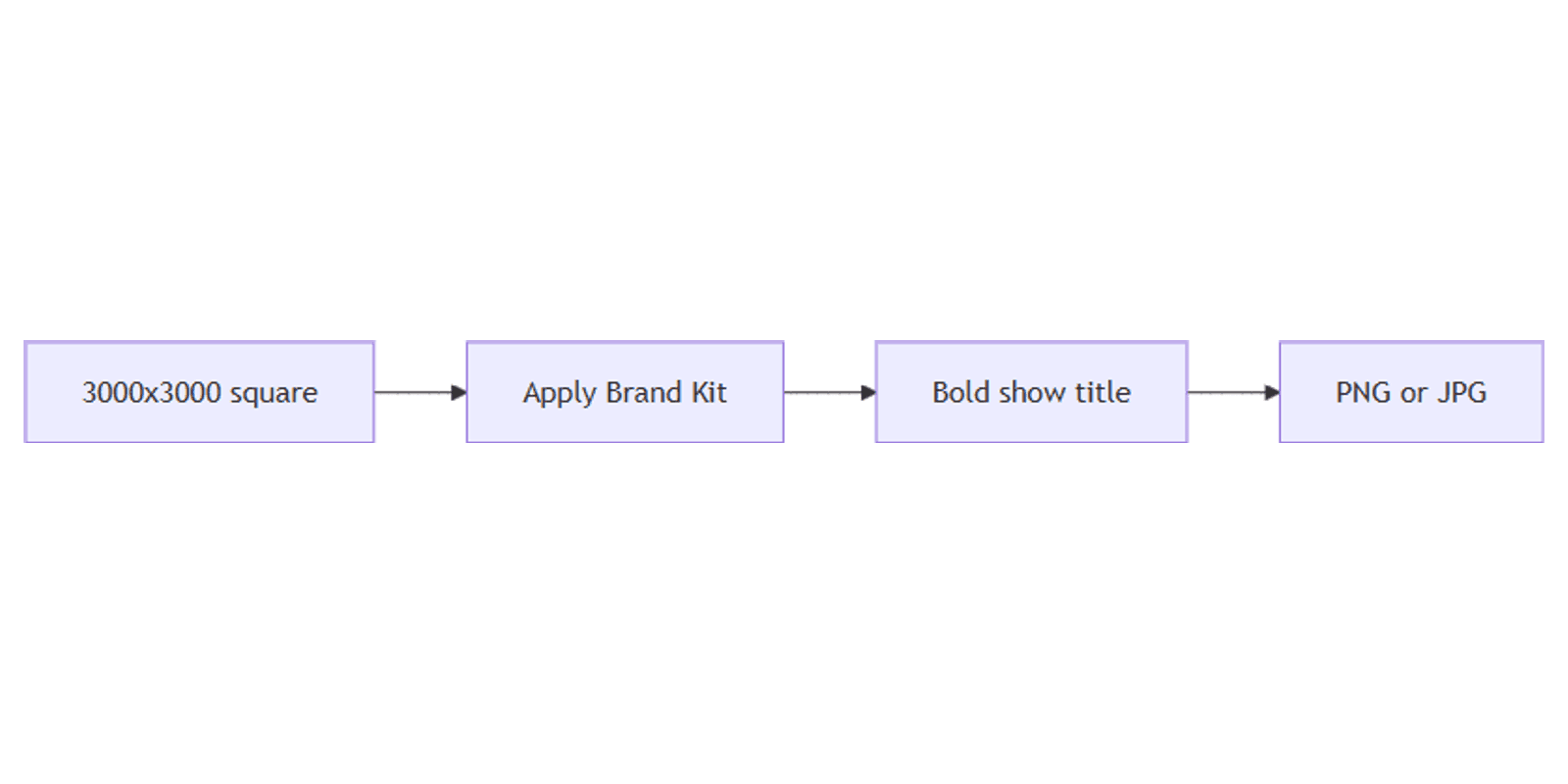
Podcast cover art is the square image listeners see in Apple Podcasts, Spotify, YouTube Music, and every other directory. In Canva, design a 1:1 master, apply Brand Kit, and export PNG or JPG ready to upload.
This guide covers recommended sizes, layout for small feed thumbnails, Brand Kit, and export. Canva also offers ready-made podcast cover templates.
Podcast cover size in Canva
Most podcast hosts and directories expect a square image. Use a high-resolution master so art stays sharp when platforms downscale it.
| Spec | Recommendation |
|---|---|
| Master size | 3000 × 3000 px (preferred) |
| Minimum common | 1400 × 1400 px |
| Aspect | 1:1 square |
| Export | PNG or JPG |
Why 3000 × 3000? Apple Podcasts and many hosts accept large squares; starting big gives you room to crop or resize later without blur. If a host only asks for 1400 × 1400, that size still works - just keep type bold enough to read at thumbnail size.
Confirm your host’s current limits (file size, format, max dimensions) before uploading. Official Canva size help: Custom size, Download file types.
To create the canvas:
- Open Canva.
- Click Create a design → Custom size.
- Enter 3000 × 3000 pixels (or 1400 × 1400 for a minimum square).
- Or search Podcast Cover and verify the artboard is still 1:1.
Step-by-step: build podcast show art
1. Set the background
Pick one approach:
- Solid or gradient - brand colors that contrast with the show title.
- Photo - Elements → Photos → fill the square; add a dark overlay for text.
- Pattern or texture - subtle enough that the title still pops at 50×50 px in a phone feed.
2. Add show identity
- Show title (and optional subtitle) in a bold, short line.
- Host name or network mark in a smaller weight.
- Episode art variants can swap a number or guest name - keep the logo and palette fixed.
Apply Brand Kit (Canva Pro) for approved colors, fonts, and logos so every season looks consistent.
3. Design for tiny thumbnails
Podcast covers shrink hard in apps. Zoom Canva to 10–15% and check:
| Check | Goal |
|---|---|
| Title | Readable as a few bold words, not a full sentence |
| Logo | Recognizable silhouette, not fine linework |
| Contrast | Light type on dark blocks (or the reverse) |
| Margins | ~5–8% padding from edges - apps may round corners |
Avoid thin fonts, busy photo backgrounds behind type, and critical detail in the extreme corners.
4. Optional cutouts and overlays
- Use Background Remover (Pro) for a host or product cutout.
- Export separate logo layers later as transparent PNGs for websites and merch.
- Keep the cover itself a full opaque square - directories do not need transparency on show art.
5. Align and polish
- Select elements → Position → Tidy up.
- Center the primary title block; leave breathing room around the logo.
- Save the design as a Brand Template so future seasons reuse the same frame.
Export settings
- Click Share → Download.
- Choose:
- PNG - crisp type and flat graphics.
- JPG (85–90% quality) - smaller files for photo-heavy covers.
- Upload to your podcast host / CMS, then push to directories.
| Format | Best for |
|---|---|
| PNG | Text-heavy, logo-forward covers |
| JPG | Photo backgrounds when hosts cap file size |
This asset is show art, not a YouTube thumbnail (16:9 episode clickbait). Keep a separate 1280×720 workflow for YouTube videos that promote the podcast.
Size reference: podcast vs related Canva assets
| Use | Size |
|---|---|
| Podcast cover (master) | 3000 × 3000 px |
| Podcast cover (minimum common) | 1400 × 1400 px |
| YouTube thumbnail | 1280 × 720 px |
| Instagram feed square | 1080 × 1080 px |
| Transparent logo export | Any + PNG transparency |
Design checklist
Before you publish, confirm:
- Canvas is 1:1 - ideally 3000 × 3000, at least 1400 × 1400
- Title reads clearly when zoomed to ~10–15%
- Brand colors and logo match Brand Kit
- Exported as PNG or JPG
- Host/directory file-size and format rules are met
Common mistakes to avoid
- Designing only at 1080×1080 - fine for social shares; prefer a larger master for directories.
- Paragraphs of text - covers are icons, not posters.
- Low contrast - pastel-on-pastel disappears in dark-mode podcast apps.
- Confusing cover with video thumbnails - square show art ≠ YouTube 16:9.
FAQ
What size should a podcast cover be in Canva?
Use 3000 × 3000 px as a master, or at least 1400 × 1400 px. Always keep a square (1:1) aspect ratio.
PNG or JPG for podcast covers?
Both are widely accepted. Prefer PNG for sharp logos and type; use JPG if your host enforces a smaller file size.
Do I need a transparent background?
No for directory show art - upload an opaque square. Use transparent PNG exports for logos you place on websites or other designs.
How do I keep seasons on-brand?
Lock colors, fonts, and logos in Brand Kit, then duplicate the master cover and change only the season or guest details.
Conclusion
To create podcast covers in Canva, set a square canvas at 3000 × 3000 (or 1400 × 1400 minimum), keep the title bold enough for tiny feeds, apply Brand Kit, and export PNG or JPG. For logo cutouts, see transparent PNG. For episode video click images (not show art), see YouTube thumbnails.
Canva Templates
Start Selling Canva Templates - Start Now!