How to Create Business Cards in Canva: Size, Bleed, and PDF Print
Canva business cards are small print pieces: fixed card sizes, trim edges, bleed, and a high-quality PDF for the printer. Unlike flyers (larger paper) or Instagram Stories (screen pixels), a card must survive cutting, ink, and pocket wear.
This guide covers common card sizes, showing print bleed, keeping text inside the safe margin, and downloading PDF Print with crop marks. Official help: Margins, bleed, and crop marks, Download file types, and Canva Print.
Common business card sizes in Canva
Create a card from a Business Card template or Custom size in inches or millimeters.
| Size | Dimensions | Typical use |
|---|---|---|
| US standard | About 3.5 × 2 in | US print shops and most North American stock |
| EU / ISO-style | About 85 × 55 mm | Many European printers and card stock |
Confirm the finished size with your printer before you design. Template names in Canva are a starting point only - match the exact trim your shop uses.
How to create a business card in Canva
- Open Canva.
- Click Create a design.
- Search Business Card, or pick Custom size and enter inches or mm.
- Select a template that matches your card size, or start blank.
- Replace name, title, contact lines, colors, and logos.
- Add a second page for the back if you need a double-sided card.
- Rename the design so it is easy to find for print handoff.
Keep one clear hierarchy: name first, role second, contact last. Avoid packing the card like a mini flyer.
Show print bleed and safe margins
Bleed is the extra area beyond the trim line. After cutting, full-bleed backgrounds look flush to the edge instead of showing a white sliver.
- Open File or your view settings in the editor.
- Turn on Show print bleed.
- Extend background colors and images into the bleed area.
- Keep critical text, logos, and QR codes inside the safe margin (inside the trim), not in the bleed.
For many Canva trim products, bleed is about 0.125 in / 3.175 mm on the sides. Exact product rules can vary - follow the on-canvas guides and Canva's bleed help.
| Zone | Put here | Avoid here |
|---|---|---|
| Bleed | Backgrounds, edge-to-edge color | Body text, fine logos, QR codes |
| Trim | Where the sheet is cut | Assuming cut is perfect every time |
| Safe margin | Name, phone, email, logo | Elements that must not be cropped |
Design checklist for print
Apply Brand Kit
Use Brand Kit for approved colors, fonts, and logos so print matches digital assets.
- Open Brand or Brand Kit in the editor.
- Apply brand colors and fonts.
- Place a transparent PNG logo with clearance from the trim.
- Check contrast on paper - light gray on white often fails in print.
Add a QR code when useful
A QR code can link to a portfolio, booking page, or LinkedIn. Keep it large enough to scan, high contrast, and inside the safe margin - not in the bleed.
Double-sided cards
- Design the front on page 1 (name and primary identity).
- Add page 2 for the back (services, map QR, or brand mark).
- Keep front and back alignment consistent so backs do not feel flipped or off-center.
- Export PDF Print with both pages when the printer needs a single file.
Preview mockups with Canva frame mockups when you need a client-facing presentation of the printed piece.
Download PDF Print for print shops
- Click Share → Download.
- Choose PDF Print (aimed at 300 dpi print quality).
- Tick Crop marks and bleed when your printer needs them.
- Download and open the PDF to confirm bleed, crop marks, and that text sits inside the safe area.
| Format | Best for |
|---|---|
| PDF Print | Print shops, local printers, professional color |
| PDF Standard | Screen sharing, lightweight digital proofs |
Do not send PDF Standard to a print shop when you need bleed and print resolution. Use PDF Print with crop marks and bleed for production files. See Canva download types.
Canva Print vs local printer
You can order through Canva Print when the product is available in your region, or download PDF Print and take the file to a local print shop. Canva Print handles product selection and fulfillment; a local shop may ask for crop marks, bleed, paper stock, and finish (matte or gloss) you confirm yourself.
Business cards vs flyers
| Design | Primary use | Typical size mindset |
|---|---|---|
| Business card | Handouts, networking, wallets | About 3.5 × 2 in or 85 × 55 mm + bleed |
| Flyer | Events, promotions, racks | Letter, A4, A5 + bleed |
Reuse brand elements across formats, but do not shrink a flyer export into a card. Rebuild at card size, then re-check bleed and safe margins.
FAQ
What size should my Canva business card be?
Use about 3.5 × 2 in for standard US cards, or about 85 × 55 mm for many EU printers. Confirm the finished size with your printer, then match a Business Card template or custom size in Canva.
How much bleed does Canva use?
Canva's print bleed on many trim products is about 0.125 in (3.175 mm) on the sides. Turn on Show print bleed, extend backgrounds past the trim, and keep important content inside the safe margin. Confirm with margins and bleed help.
What is the difference between PDF Print and PDF Standard?
PDF Print is for printers - higher quality (around 300 dpi) and options like crop marks and bleed. PDF Standard is lighter and better for screen viewing or digital sharing, not for professional trim work.
Can I order business cards from Canva?
Yes, when Canva Print offers the product in your account and region. Otherwise download PDF Print with crop marks and bleed for a local printer. See getting started with Canva Print.
Conclusion
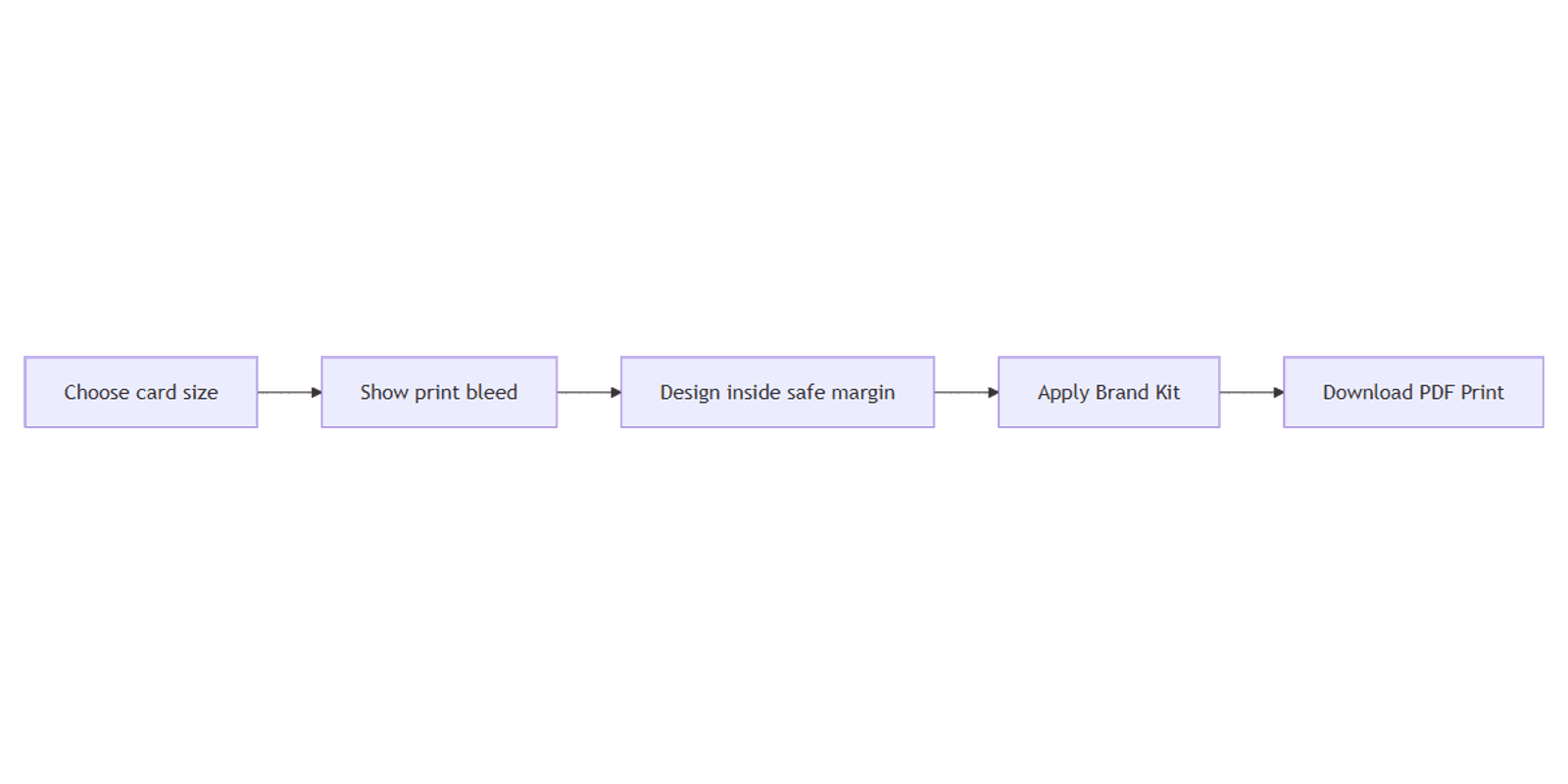
To create a business card in Canva, pick the correct card size, show print bleed, keep critical text inside the safe margin, apply Brand Kit, and download PDF Print with crop marks and bleed.
Next, add scannable QR codes, place clean transparent PNG logos, and use flyers when you need a larger print piece instead of a pocket card.
Canva Templates
Start Selling Canva Templates - Start Now!